Capture and edit tasks
In brief: with tasks you capture open points or memos directly on site — without having to create a record. Tasks appear as cards, can be created in batch, copied, structured with sub-tasks, searched and filtered, sent by email, and moved into a record at any time.
Prerequisites: Smart and Expert users can create and edit tasks. Viewers and Teamworkers (free licences) only see and comment on their own tasks and cannot create new ones; Teamworkers can also change the status of their own tasks and add photos, sketches and attachments.
Create a task
You create tasks in the tasks menu — via New task or the large plus symbol at the bottom right. On mobile devices you also reach tasks via the navigation bar at the bottom.
You can also create tasks by voice: choose “Voice task (AI)”, speak for example what, where, by whom and by when, and check the suggested draft before you create the task. How this works in detail is described in Create a task or record entry by voice (AI).
Describe each task with a short text and, if needed, a long text. You can format the long text freely — with headings, highlights or lists. Store as many details as possible such as responsible company, trade, location or date: the more you capture, the more precisely you can filter later.
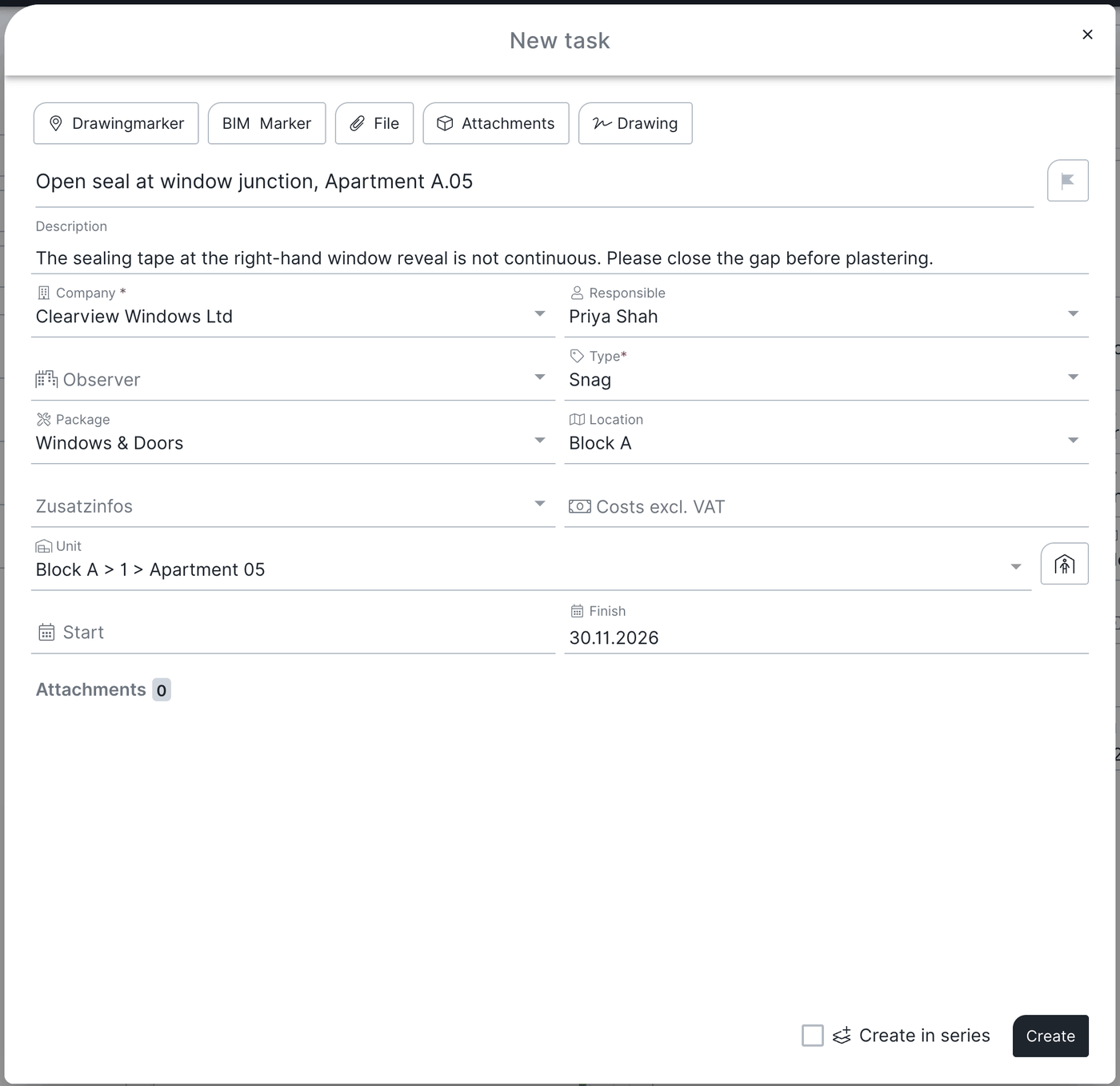
You can additionally extend a task with:
- Drawing markers — anchor the task at a place on the PDF drawing, see Locate a task and create drawing markers (drawing-based working).
- Files and photos from the device.
- Files from drawings & documents.
- Sketches (sketch function).
- Photos directly from the camera.
- Audio recordings.
- BIM markers (with an active BIM model).
The detail fields such as watcher, responsible person and trade behave exactly as in record entries. A detailed description of all fields is in Create, copy and move record entries. The unit field is also available; if a unit is assigned, the person in the building symbol opens the linked owners/tenants (name, phone, email).
Capture several tasks in a row (batch mode)
Tick series when creating a task. Fields already filled in such as company, trade or responsible person are carried over automatically for the next task — so you capture similar tasks quickly one after another.
How batch mode works in detail is described in the “batch mode” section of Create, copy and move record entries.
Tip: when recording defects for a specific trade, store trade “electrician” and type “defect” for example and tick “series” — then every new task on site is prefilled.
Search and filter tasks
You search and filter tasks directly in the task list:
- Full-text search: at the top in the search bar — the search runs as a live search even on partial terms.
- Filters: on a PC in the column left of the list, on a smartphone via the funnel symbol. You filter by company, trade, responsible person, status, date, priority, type, level/unit and further fields.
For cross-project and cross-record evaluations, groupings and PDF reports use the central Search & filters.
Create sub-tasks
You can add sub-tasks to every task — partial tasks of a larger task. If several companies work on one main task, you store several responsible people via sub-tasks. Click the plus symbol next to sub-tasks on the respective task.
View and sorting
- Set the card view: in the settings you define which information appears on the cards. Short text, company and status always remain visible, even if you deselect everything else.
- Sort: via sort you switch whether tasks appear ascending or descending by task number — newly created tasks then land at the top or bottom.
- Collapse/expand sub-tasks: collapsed, you see sub-tasks only in the detail view of the respective task; expanded, they are shown with connecting lines.
Working with tasks
Copy a task
Select one or more tasks via the checkbox, click Copy and choose the target project. That lets you copy several tasks at once if needed.
Change the task number
The task number serves as a reference and determines the sorting. Via the three-dot menu → change task number you adjust the number and thereby the position of a task.
Assign a task to a record
You can move tasks into a record: select the task(s) via the checkbox, choose assign record and determine the target record. After moving, a note with to the record appears at the bottom. Moved tasks are then no longer shown in the task list.
Create a task from a record entry
The other way round, a record entry becomes a single task. If you move a record entry into the tasks, it is no longer shown in the record.
Show tasks in the construction schedule
Tasks can additionally be shown as work items in the construction schedule (the schedule is only available with an Expert licence) — the procedure is identical to record entries. The tasks are “mirrored”: they do not disappear from the task list but appear additionally in the construction schedule.
“New” marker
Every newly created task gets a “new” marker for 24 hours, visible to the whole project team.
Send tasks by email
You can send tasks as plain email text. Attached image files are sent along automatically; drawings or PDF attachments are not sent — use a record for that.
How to send tasks:
- Select the task(s) via the checkbox and click Send at the top right.
- Choose the distribution list from the contact list and click Next, see Create and manage contacts.
- In the preview add text and optionally your signature, then send.
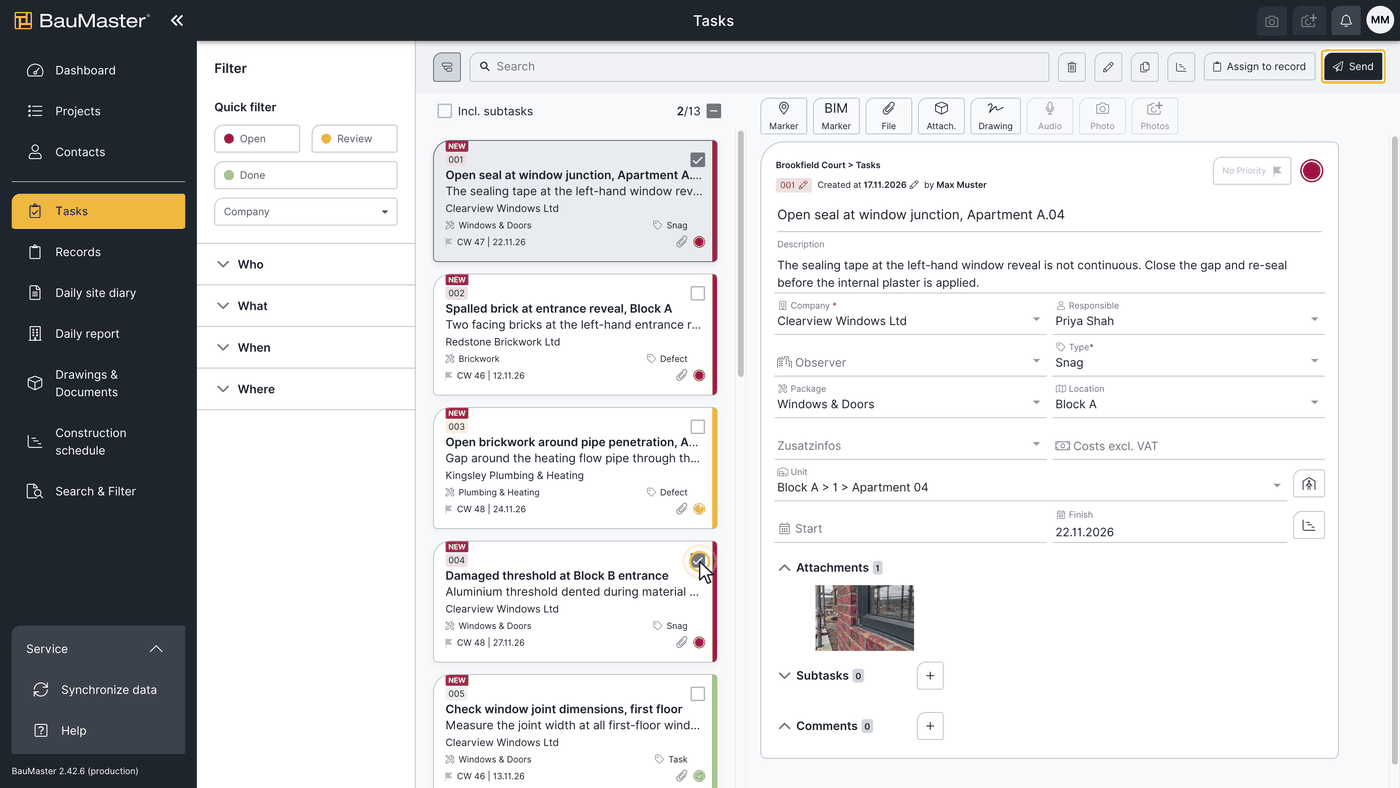
View sent tasks: all tasks sent by email are listed with their recipient list in the overview of sent emails (menu “drawings & documents”).
Per email you send a maximum of 20 tasks with at most 100 photos in total. Since many email servers limit receipt to 5 MB, these limits secure the best possible delivery. An email text does not replace a verifiable PDF — for reliable documentation move the tasks into a record and send it as a PDF record.
FAQ
Can Teamworkers create their own tasks?
No. Teamworkers can view their own tasks and add status, comments, photos and attachments to them — only Smart and Expert users create new tasks.
Can I recall a sent task?
No. Tasks that have been sent cannot be recalled — that option exists only in records.
Can I export tasks as Excel?
No. An Excel export of tasks is not possible.
Am I notified when tasks are due?
No. There is no notification when a task is due. You can, however, filter the dashboard for open or overdue tasks.
Can a task be assigned to several responsible people?
No. Create sub-tasks instead and store the respective responsible people there.
Where do I see which tasks were given to a specific person?
Via the filter in the tasks by responsible person — or across projects via search & filters.
Are comments sent with a task?
No. Comments on tasks are not sent by email.
Keywords: create tasks