Create, edit and delete record styles (project settings)
In brief: Record styles are settings for one purpose — a site walk, a defect record, a site meeting — so that individual records can be created faster. They are available in your projects. You set them up once in the project settings, across projects, choose a layout per style (continuous, short or standard), and can rename or delete them later.
Record styles in the project settings
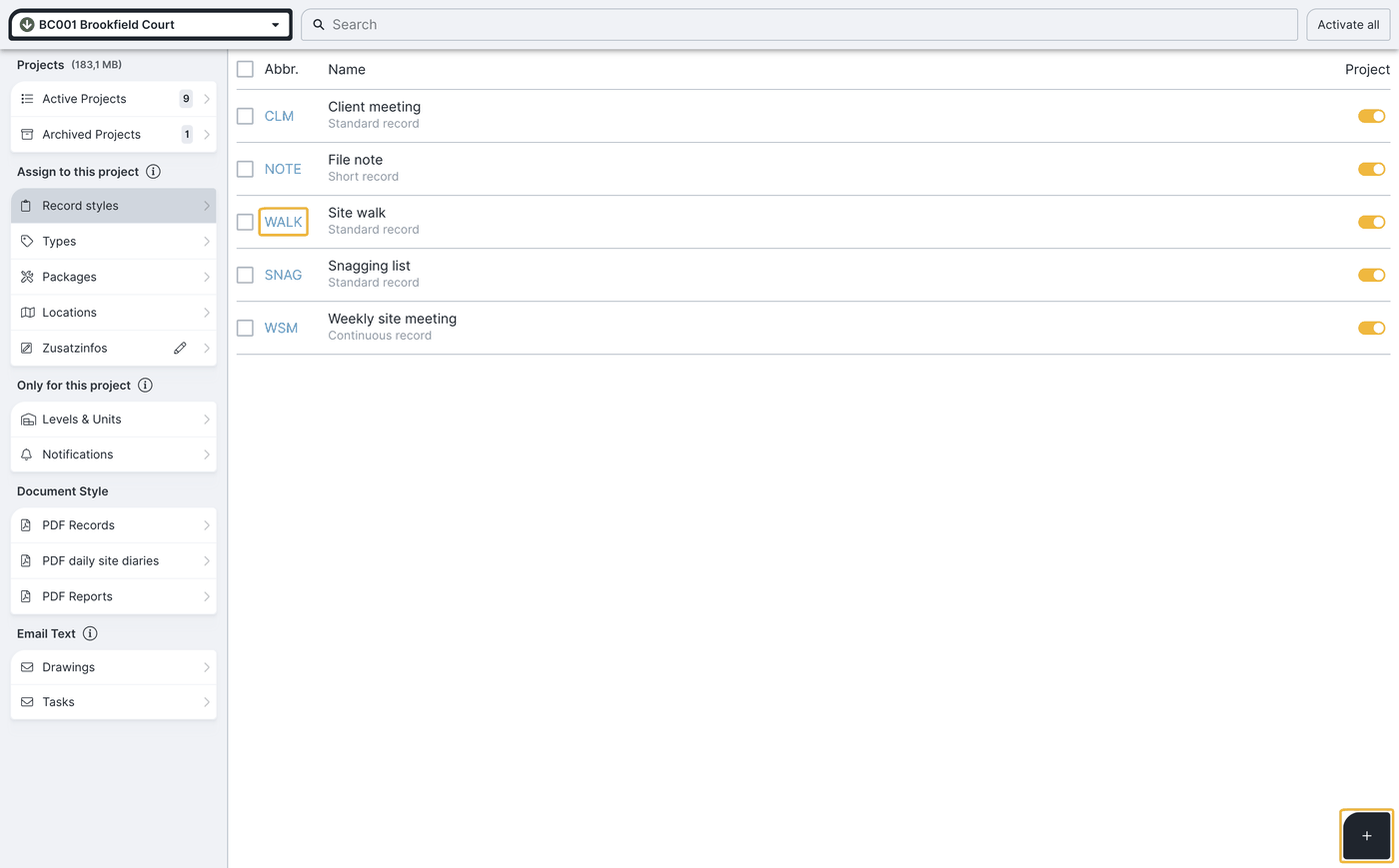
In the project settings you find all styles that should be available in your project under record styles. Record styles are created across projects — they are then optionally available in all projects. A record style can also be understood as a “record template” (synonym): the settings and values defined there, along with structure and layout, apply to all records of that style, so a handover record always looks the same. Real templates do not currently exist.
Create a new record style
Click the plus at the bottom right. In the dialog you define abbreviation, name and layout. Abbreviation and name appear on the generated PDF record, for example “Special requests site xy | NR SW1”. A newly created record style is added to the current project automatically.
Practical example: you mainly run defect walks and client meetings about special requests. If no suitable style exists, simply create your own style “special request record”.
Choose the record layout
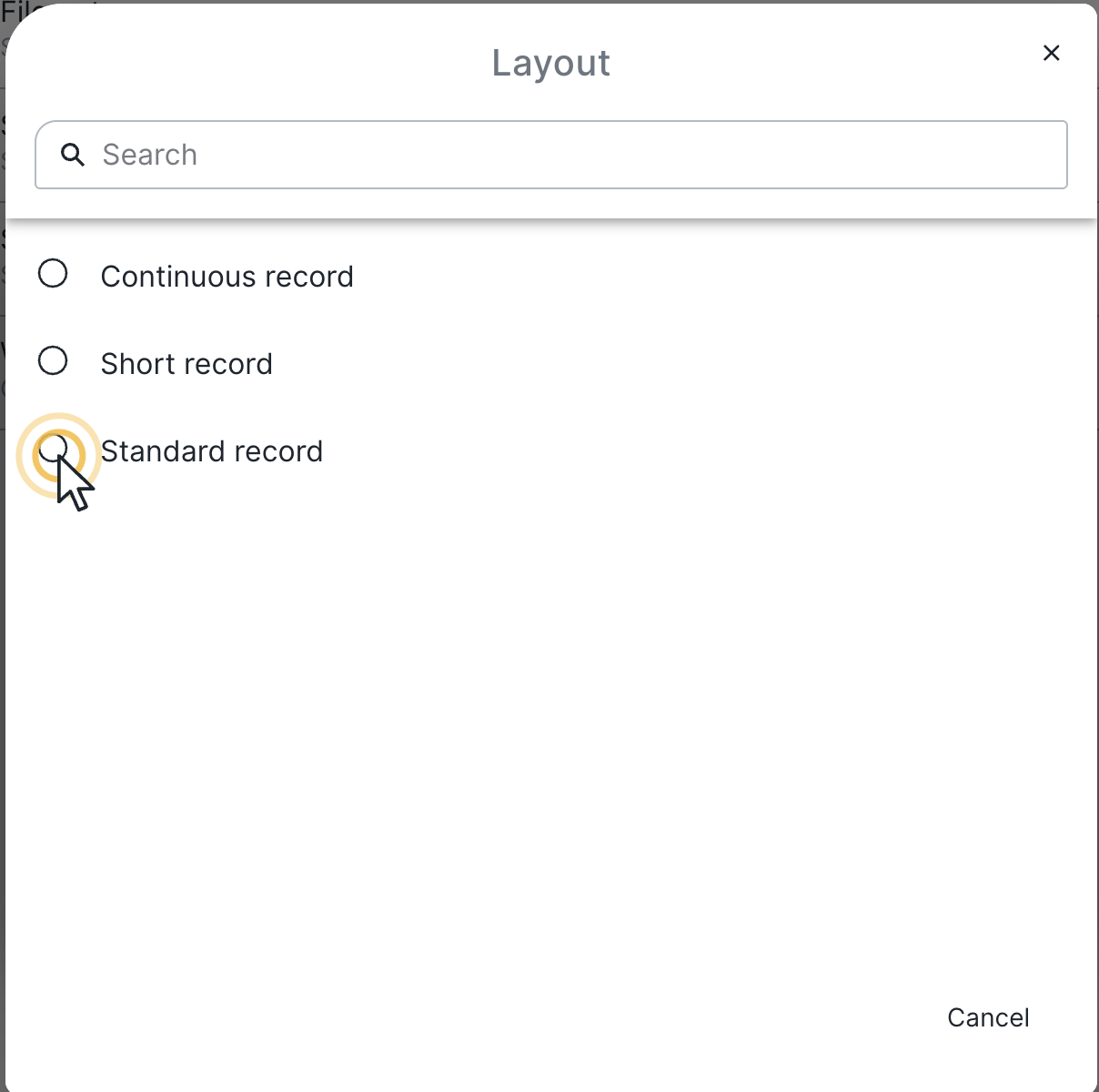
When creating a style you choose one of three layouts:
- Continuous record: unfinished entries (traffic light) and continuous info entries carry over into the next record automatically so you can keep working with them. For each record style with this layout there is always only one open record in the project. More under Working with continuous records and Record types in continuous records.
- Standard record: entries stay in their own record. A record style with this layout can have any number of open records.
- Short record: a company-internal to-do list with only short text, responsible person (own company), “to be done from/to”, reminder, priority and a status with two values: open and done.
Short record specifics: you can only define your own employees as responsible, and the record cannot be closed. Tasks cannot be moved into short records, and short records do not appear as a target record.
Edit and delete record styles
A click on the abbreviation (for example PS-ÜB) opens an existing style for editing. You can change abbreviation and name, but not the layout. Use the trash can to delete a record style.
You can also delete a record style that has already been used. Deleting works like archiving: existing records of that style remain visible under Records, but new records of that style can no longer be created.
Did you know? In BauMaster you can create any number of your own record styles — popular ones are checklists (short), tender lists (short) or evidence preservation before construction starts (standard).
FAQ
What is the short record for?
The short record is a slim, company-internal to-do list with only a few fields (short text, responsible person from your own company, “to be done from/to”, reminder, priority and the status open/done). It suits internal tasks and checklists and cannot be closed.
How do I create a checklist?
Create a record style with the short record layout — it works like a checklist or to-do list. Checklists and tender lists as short records are popular examples.
Can I change the layout of an existing record style?
No. Abbreviation and name can be changed at any time, but the layout (continuous, standard, short) cannot. For a different layout, create a new record style.
What happens to records when I delete a record style?
They remain and stay visible under Records. Deleting works like archiving: you can no longer create new records of that style.
Do record styles only apply to one project?
No. Record styles are created across projects and are optionally available in all projects.
Keywords: record style