Photo documentation: capture and manage photos
In brief: in BauMaster you capture photos in four ways — via the photo button at the top right (also in batch mode), directly in an entry, task or report, as a comment, or on the PDF drawing. Every photo can be extended with the sketch function and lands automatically in “drawings & documents” under “photos & attachments”.
The four routes of photo documentation
BauMaster offers four ways to capture photos. They differ in what the photo is assigned to:
- Via the photo button at the top right — quick single or batch capture; the photo lands directly in drawings & documents, without assignment to an entry
- In the entry, task or report — the photo serves as additional information and is assigned to the entry, task or report
- As a comment — photo with explanatory text in the comment of an entry or task; likewise assigned to the entry or task
- On the PDF drawing — the photo is located at a place on the PDF drawing and assigned to the drawing (photo marker)
Photos via the photo button
With the photo button at the top right you take photos at any time, which are stored automatically under drawings & documents → photos & attachments. For several captures in a row choose the batch photo symbol next to the camera symbol.
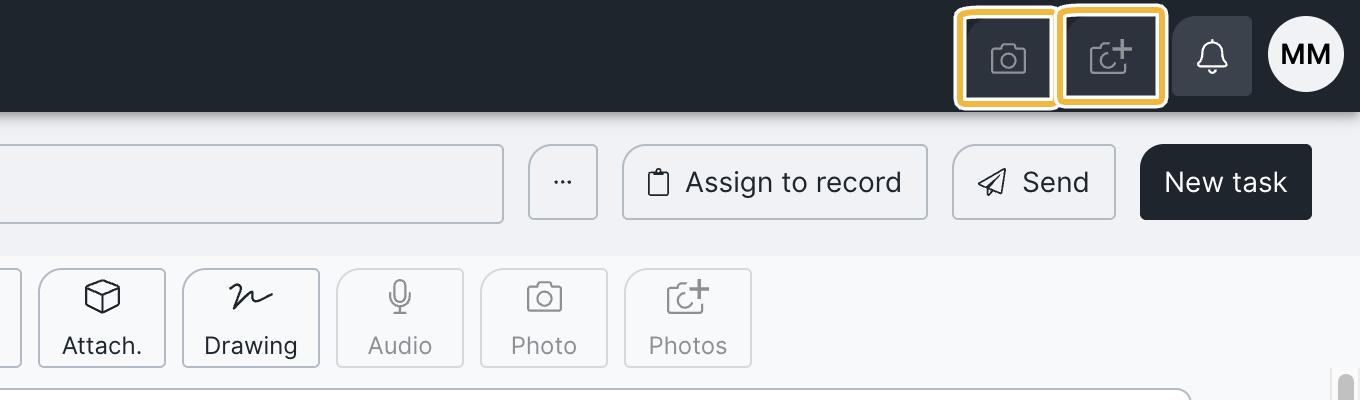
End batch mode: on Android devices end batch capture via the system back button, on Apple devices via “cancel” in the camera app.
Photos in entries, tasks and reports
You can add photos to every entry, task and report. The photo then serves as additional information and is assigned to the entry, task or report.
Tip — a separate record style for photo documentation: if you want to document a site purely photographically, use the record style photo documentation. If it is not visible, create it yourself in the project settings or rename an existing record style.
How to document with it:
- Create simple, keyword-style entries in the record.
- Attach photos directly to the respective entry via the camera symbol.
- Extend the photos with the sketch function if needed.
You can add up to 30 photos per entry. All photos land automatically in drawings & documents.
Photo documentation via comments
If you want to capture photos with explanatory text without writing the text into the image, use the comment function:
- Click the plus next to the comments.
- Write the text as a comment.
- Attach a photo from drawings & documents or take a new one.
Comments can be edited or deleted afterwards. These photos also appear as an attachment on the entry and in drawings & documents.
Display in the PDF: several photos on one entry are output side by side; photos from comments appear next to the respective text.
Edit photos directly (sketch)
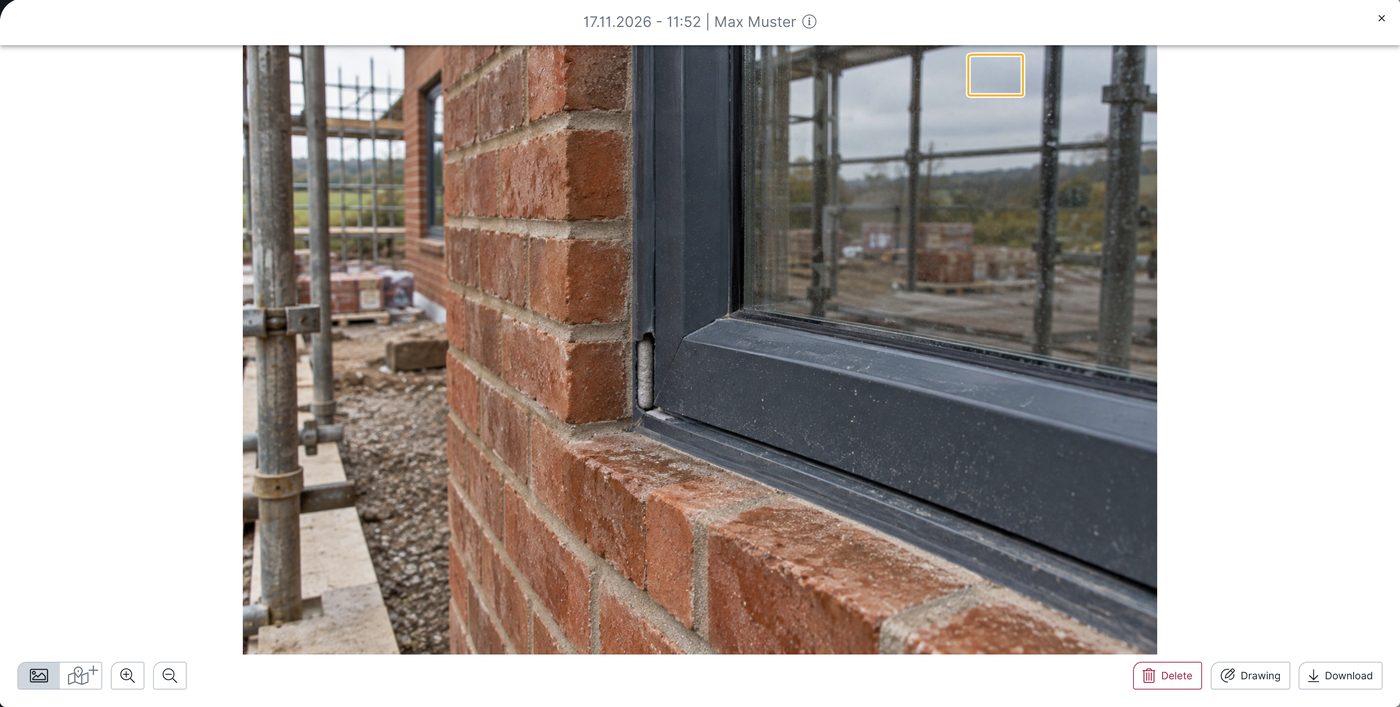
After every capture BauMaster asks whether you want to edit the photo immediately. With the sketch function you add freehand sketches, text, arrows and markings — ideal for highlighting defects or details directly in the image.
You can also edit a photo later: click the photo to open the detail view and start the sketch function there.
Where the photos are stored
Every photo taken in BauMaster is stored automatically under drawings & documents → photos & attachments and is compressed server-side in the process (to 2000 px, JPEG 70 %). How to find and manage photos there and set the storage quality is described in Photo storage in documents & drawings.
FAQ
How many photos can I add to an entry?
Up to 30 photos per entry.
Do photos from comments also land in drawings & documents?
Yes. All photos taken or attached in BauMaster are stored automatically under “drawings & documents” in the “photos & attachments” area.
How do I end batch mode?
On Android via the system back button, on Apple via “cancel” in the camera app.
Can I label a photo directly?
Yes. Directly after capture or later in the photo’s detail view you extend it with text, arrows and freehand sketches via the sketch function.
Can I import 360° photos or panoramas?
No, 360° photos cannot currently be added.
Can I also record videos of a site walk?
No, videos cannot currently be added.
Keywords: photo documentation