Create a task or record entry by voice (AI)
In brief: With Voice task/entry (AI) you speak a new task or record entry. BauMaster turns your recording into text and suggests values for the fields. You check and complete the result before you create it.
The AI fills the draft. Only your confirmation creates the task or the record entry.
Voice task/entry (AI) at a glance
With Voice task/entry (AI) you create new tasks or record entries by voice in the mobile app or the web app (PWA). A recording lasts up to three minutes. The AI uses the values of the active project and pre-fills matching fields. You can correct these manually or with another recording.
The feature is a free beta feature. Changes, deviations and later costs are reserved.
You can create entries in every record and every record type by voice.
Requirements and roles
For Voice task/entry (AI) you need:
- A Smart or Expert licence. Viewers and Teamworkers cannot use the feature.
- AI enabled in the company account, and the current project must not be excluded.
- An internet connection and microphone access for BauMaster.
Details on activation and the further options are in AI settings.
How do I create a task or an entry by voice?
You start the voice input, speak your details and check the filled draft. Only then do you create the task or the entry.
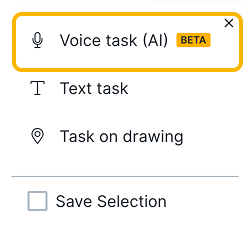
- When creating a task, choose “Voice task (AI)”, or “Voice entry (AI)” for a record entry. When you create tasks or entries manually, you can also choose “Fill in using voice (AI)” in the form.
- On first use, allow microphone access when your device asks for it.
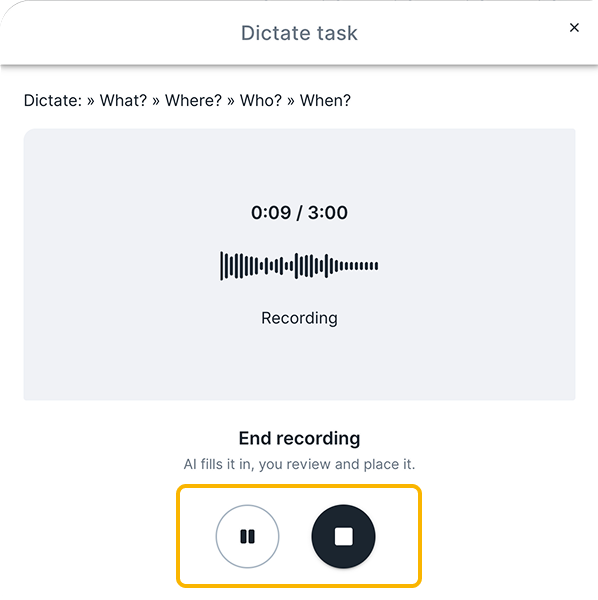
- Speak your details, for example: what has to be done, where, by whom and by when? End the recording with the round button with the square symbol. The transcription starts automatically. The recording stops automatically after three minutes at the latest. With the X at the top right you cancel the process.
- Wait until the recording has been processed; this can take a few seconds. At this point the task or the entry has not been created yet.
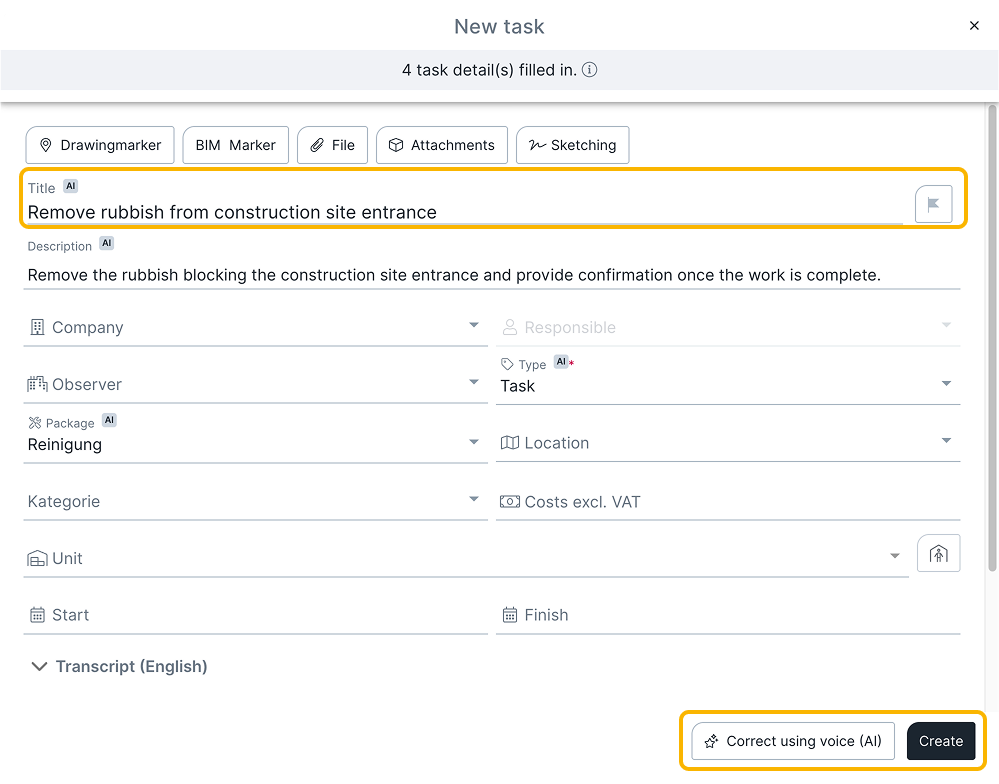
- Check all suggested details. Complete or correct the fields manually if needed. To revise the suggested information, choose “Correct using voice (AI)”.
- Check the result again and choose “Create”.
A voice correction takes the current state of the form into account. Check the fields you changed manually before: the AI can change them.
Fields and assignment
The AI tries to fill your details into the draft. Depending on what you say, these are, among others, title, description, type, trade, location, company, responsible person, custom field, costs, dates and priority. Which fields are available also depends on the task or the entry.
For values such as trade or location, BauMaster uses the values of the active project. If the AI does not recognise a matching project value, the field stays empty without a hint. Missing project values are not created automatically. Observer and unit are not filled by the AI in the current scope of functions.
Check the assignment, particularly with similar names or project values. How the transfer of names affects the assignment is described in AI settings.
Data processing
BauMaster sends your recording to Microsoft Azure Speech to convert it into text. The transcript is sent back to the BauMaster server and, together with selected values of the active project, transmitted to the language model provided via Microsoft Azure. The AI evaluates the details and sends them back to BauMaster, where they are shown in the draft. Microsoft Azure Speech and the language model are hosted in the EU.
| Data | Use |
|---|---|
| Voice recording | Sent for transcription. BauMaster stores the original recording and deletes it 30 days after upload. This also applies to correction recordings. |
| Transcript | Sent to the language model for interpretation. Microsoft Azure Speech Studio stores neither the audio recording nor the transcript. BauMaster keeps the transcript; automatic deletion is currently not provided for. |
| Project values | Values of the active project are transmitted, including type, trade, location, custom field and companies from the project team. Values of other projects are not passed on as project metadata. |
| First and last names from project contacts | Only transmitted as project metadata if an admin allows this in the AI settings. |
| Current draft | Taken into account during a voice correction. |
BauMaster stores the AI requests and the result including the transcript for evaluations; automatic deletion is currently not provided for these transcripts. The data is not used for model training. Information on data processing is in the BauMaster Terms of Use and in the Privacy Policy.
You cannot choose the language model yourself.
Language of the recording and the draft
Speak in the language set as the app interface language. The recording is transcribed in this language. The pre-filled draft is written in the project language. If the app language and the project language differ, the content is translated automatically.
Example: if the app language is French and the project language is German, you speak French. The draft is created in German.
Troubleshooting
First check the internet connection, microphone access and the AI settings of your company account.
| Situation | What you can do |
|---|---|
| No internet | Establish an internet connection. Without a connection, later processing in a queue is not provided for. |
| No microphone access | Allow microphone access for BauMaster in the settings of your device. |
| AI not enabled | Contact an admin. An admin can enable AI in the account. |
| Project excluded | An admin can check whether the project should be removed from the exclusion list. |
| The AI does not find a value or assigns it incorrectly | Check and complete the draft manually. If needed, the project value must be created first. |
More on device permissions: App permissions on your device.
Limits of the feature
- There is no batch mode and no processing of several recordings at the same time.
- The feature is not available within photo documentation or reports and does not evaluate photos.
- Existing tasks or entries are not edited with AI afterwards.
- BauMaster does not show how confident the AI is when assigning a field. Check all details for this reason.
FAQ
Which licence do I need for Voice task/entry (AI)?
A Smart or Expert licence. Viewers and Teamworkers cannot use the feature.
How long may a recording be?
Three minutes at most. The recording stops automatically after three minutes at the latest. With the X at the top right you cancel the process before that.
Is the task or the entry created immediately?
No. BauMaster creates a draft. The task or the entry is only created with “Create”.
In which language do I speak?
In the set app interface language. The draft is written in the project language. If the two languages differ, BauMaster translates the content automatically.
Are my recordings stored?
BauMaster stores the original recording and deletes it 30 days after upload. The transcript remains stored for evaluations; automatic deletion is currently not provided for. The data is not used for model training.
Why do company or responsible person stay empty in the draft?
Usually because the transfer of contact data is disabled in the AI settings, or because the contact is not in the project team of the active project. Complete the value in the draft manually.
Can I revise an existing task with AI afterwards?
No. Voice task/entry (AI) only takes effect when creating a new task or a new entry.
Keywords: create task by voice