PDF layout settings and PDF presets
In brief: The PDF layout settings define what your PDF records look like: which texts and detail information appear, whether the layout is long and open or compact and framed, how contacts, photos and attachments are shown, and whether a postal address or the weather is printed. The settings apply either to the current send only, or you save them as a preset per record style.
Where to find the PDF settings
You reach the layout and text settings in two places:
- When sending a record, in the Layout step, see Send a PDF record — applies to the current send.
- In the project settings under PDF record layout — as a preset per record style or for all record styles in the project.
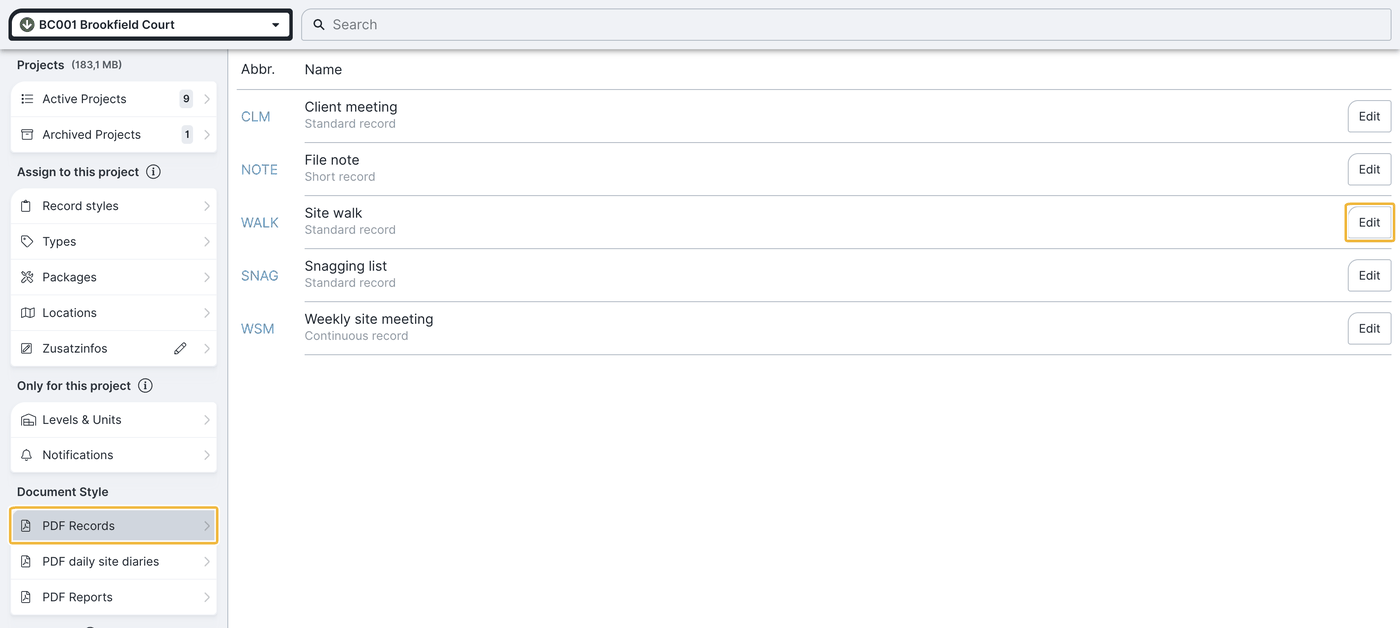
Once saved as a preset, the layout is applied automatically to every new record of that style — you then only look after your running entries.
Texts in the PDF record
You decide which standard texts appear on the PDF:
- Opening text: appears after the distribution list.
- Closing text: appears after all record entries.
- Additional text: appears in the header of the PDF record next to the project description.
You set these texts per record style or for all record styles; when sending they can be adjusted individually. Ready-made, reusable text blocks are set up under Text templates for PDF records.
Layout and appearance
General
- Include your own account or company details: shows your company details at the start of the record. Not needed if the address is already in the header banner.
- Print the record number on the record.
- Print the project number on the record.
- Include a postal recipient: inserts a postal recipient address into the letterhead.
- Show weather: inserts a weather field into the letterhead.
- Print header and footer banner on every page.
The weather field only appears if you previously ticked Enable weather in the record options (three-dot menu next to the record → Edit details).
Design
Two base designs are available:
- Long, open layout
- Compact, framed layout
Contacts
- Add attending next to recipients: show or hide the column with attending people.
- Show companies & contacts on one line: displays contacts to save space.
- Add all contacts of the project: lists every contact assigned to the project.
- Show owner/tenant on entries: prints a list of all units assigned to the record entries, including their tenants.
Entry layout
- Attachments & images as download link: drawings, photos and files become downloadable for recipients. The links only become active with the PDF sent by email.
- Entry status as checkbox: show the status either as a traffic light or as a checkbox.
- Photo size: none (no images are shown), small, medium or large.
- Insert comments and insert comment images.
- Insert drawing markers and insert BIM markers.
- Show header line: shows a small header area for each entry.
- Show header line in grey: fills this header line grey instead of white.
- Accent colour: sets the colour of the headings in the record.
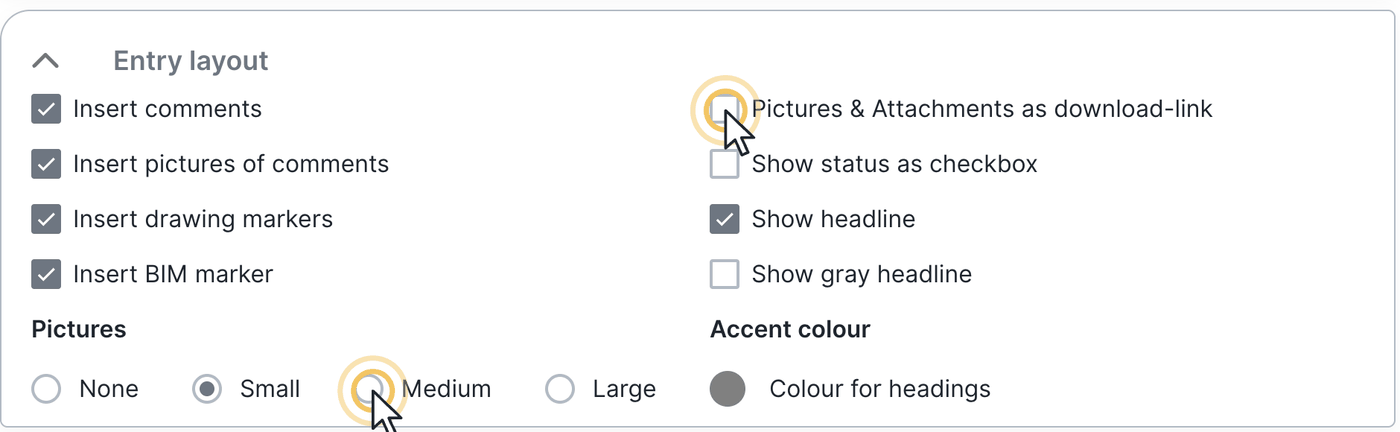
Tip for compact PDFs: choose photo size small and attachments & images as download link — the record stays slim, but every recipient still gets the photos in original size.
Entry arrangement
- Start entries on page 2
- Do not split an entry across pages
- New page per entry
Entry details
You choose per field which detail information appears on the PDF. The more information, the more space each entry takes — show only what is necessary for a compact PDF.
Watcher checkbox
If a company should also see an entry in its individual record that it was not assigned to, it must be stored as a watcher on that entry.
- Checkbox enabled: the watcher sees the relevant entries in their individual PDF record; when sorted by company they also appear under the watcher’s company.
- Checkbox not enabled: the watcher sees no watcher entries in their individual record.
Important: the watcher function only affects the individual PDF record. It does not mean the watcher can see or edit these entries in BauMaster.
Email texts
You adjust the email text for PDF sending in two places: in the project settings (for all styles or per record style), or individually in the PDF presets.
How to create a compact PDF record
For a particularly slim PDF, combine these settings:
- Design: choose “compact, framed layout”.
- Contacts: clear “add all contacts of the project” and enable “show companies & contacts on one line”.
- Entry layout: hide photos or show them small; enable “attachments & images as download link”.
- Entry arrangement: disable options such as “start entries on page 2”.
- Entry details: clear every detail that is not strictly necessary.
- Save: via “save layout as template” when sending, or in the project settings.
“Save layout as template” overwrites the settings of this record style in the project settings. “Apply to all records” overwrites the settings of all record styles across the whole project.
Show a postal address
Some PDF records — defect notifications, for example — you also send by post or registered mail. If you enable include a postal recipient in the Layout step when sending, an address is inserted into the letterhead. You either enter the address manually or take the contact address stored on the company.
Keep your company contacts including address clean and complete — then the manual entry is no longer needed.
You save the finished PDF from the preview, or download it in the Drawings & documents menu under “PDF records”.
FAQ
Where do I define what my PDF record looks like?
When sending, in the Layout step, or permanently in the project settings under PDF record layout.
How do I get the most compact PDF?
Compact framed design, one-line contact list, photos small or as download link, and fewer entry details.
Why does a watcher not see their entries in the PDF?
Because the watcher checkbox was not enabled when sending. Only then do watcher entries appear in the individual record.
How do I print a postal address on the record?
Enable “include a postal recipient” in the Layout step and enter the address, or take it from the contact details.
Can I put my own text templates into the PDF?
Yes, with an Expert licence via the text templates, see Text templates for PDF records.
Can I create my own headings in the PDF record?
No. Custom headings cannot be created in the PDF record.
Can I add a table of contents to the record?
No. A table of contents is not possible in the PDF record.
Keywords: PDF layout