Search & filters
In brief: with search & filters you search and filter tasks and record entries — in the current project or across several projects. That finds specific entries in seconds — even years later —, evaluates costs as an Excel file and sends the found entries as a PDF by email (without costs). You open the detailed search via the burger menu.
Prerequisites: search & filters is available from the Smart licence (Smart and Expert). The cost view is reserved for the Expert licence.
What you can search for
When you open the detailed search the current project is preselected. You add further projects manually or remove them again; the number of hits is shown each time (for example “113 hits”). Tasks and record entries including their detail information are searched; the found entries also include their comments, photos and attachments. You cannot currently search directly for photos or attachments; reports and site diaries are not searched.
Only projects whose project data (without files) is downloaded to your device can be searched. If you select a further project it may therefore take a moment until it is downloaded in the background. Without an internet connection you only search projects that are already downloaded.
Text search
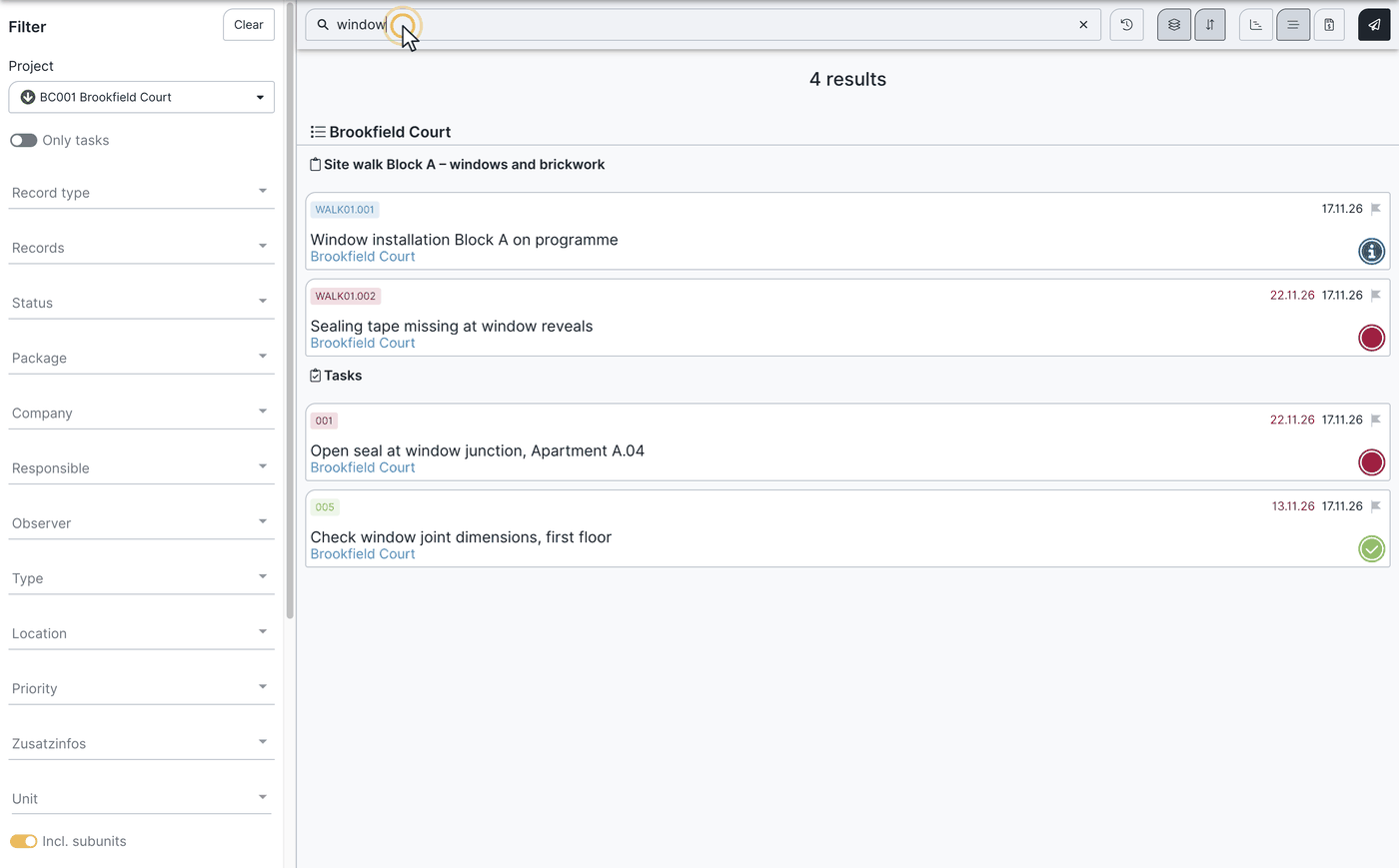
The text search is a live search: matching results appear already for partial terms or a few letters. Simply enter the term you want in the search field.
Filtering
You narrow the results via the filters — on a PC via the left filter column, on a smartphone via the funnel symbol. You filter by project, company, trade, location, unit, type, status and priority, for example.
If you enable sub-units in the “unit” filter, all subordinate entries are shown too. Example: filter “1st floor” → entries of the apartments on the first floor also appear.
Indirectly by owner/tenant: because owners/tenants hang on a unit, the “unit” filter indirectly narrows the hits to their owners/tenants as well. From a found entry or task you then open the linked owners/tenants directly.
Group results
Results can be summarised by: record, levels & units, company, trade, type, location, status, priority and category/other.
Views
Three views are available on tablet and PC, only the list view on a smartphone.
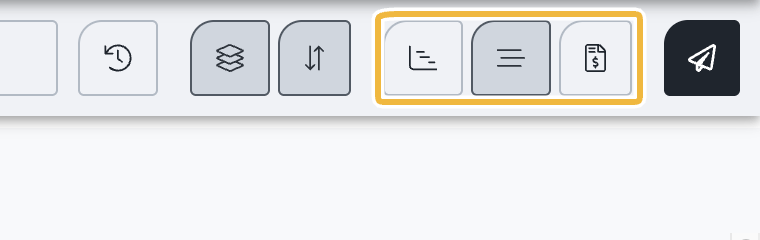
- List view: shows all entries matching the filters. Results are structured by project and within the project summarised by the chosen grouping. Only from the list view can you send the result as a PDF.
- Gantt view (timeline): shows the search results on a timeline. Only tasks and entries with “to be done from” and “to be done by” (start and end date) are shown. You can export this view as a PDF. It is a view only, not a separate construction schedule.
- Cost view: lists the costs of the tasks and entries from the search results — with subtotals per company. Net values are always shown; at the bottom the VAT rate stored on the project is added (gross, as on a normal invoice). Via the blue-shaded entry number you jump directly to the entry. You can download the cost list here as an Excel file — that is the only way to export costs; costs cannot be output as PDF, see Project costs.
Send the result as a PDF
Sending as PDF only works from the list view (paper plane symbol, tooltip “send PDF”).
- Choose recipients: activate the contacts who should receive the email in the distribution list column.
- Set the layout: give the report a name and choose which information and template texts should be included. Costs are not included in the PDF — use the Excel export of the cost view for that.
- Choose the record scope: you have three options — complete record, individual record only or complete + individual record. With the individual record each selected contact from the distribution list (step 1) receives a slimmed-down PDF containing only the tasks and entries assigned to their company and the project team.
- Subject and text: enter subject and email text and send the PDF.
You then find the sent document under drawings & documents (PDF search area) and in the outbox. The recipient list is stored there too — so you see who received which information when and whether the file was opened.
The layout settings correspond to those of the PDF records; as there, you can create a preview beforehand.
Practical example: cost overview and urgency for construction defects
This gives you a quick cost overview of all defects and lets you send the defects as an urgency. You export the costs as an Excel file — they are not included in the PDF:
- Set your filters in the cost view — by trade, company or person, for example. You get the matching cost overview, for example of all construction defects of a project.
- Download the cost overview as an Excel file.
- For the urgency switch to the list view and click the paper plane symbol. Entries without stored costs are shown here too.
- Give the report a name, for example “urgency construction defects project XY”.
- Enter subject and email text and click send.
Practical example: warranty after years
For a completed project you search for the documented execution in a warranty case. First filter by project and then search the text field for a term (“socket”, for example). You open the matching entry and see the execution at the time including the remedy — and contact the responsible company.
Practical example: defects per company
Group the filter result by company to create a defect PDF structured by company. The generated PDF is stored under drawings & documents as usual and appears in the outbox.
FAQ
Can I search across several projects at the same time?
Yes. The current project is preselected when opening; you add further projects manually. Only downloaded projects can be searched — without an internet connection therefore only projects already on your device.
Why do I only see the list view on a smartphone?
The Gantt and cost views are only available on tablet and PC. On a smartphone there is only the list.
Can I output costs as PDF?
No. Costs cannot be output as PDF. You export the cost list as an Excel file in the cost view.
Can I send each recipient only the entries of their company?
Yes. When sending choose “individual record only” or “complete + individual record”. Then each selected contact receives a PDF with the tasks and entries assigned to their company and the project team.
Where do I find a sent search PDF again?
Under “drawings & documents” (PDF search area) and in the outbox — there you also see the recipient list and whether the file was opened.
Which licence do I need for the cost evaluation?
The cost view is reserved for the Expert licence.
Can I filter by owner/tenant?
Not directly — but via the “unit” filter. You then open the assigned owners/tenants from the found entry or task.
Are photos and attachments taken into account?
Not directly: you cannot currently search specifically for photos or attachments. The found tasks and entries do include their photos and attachments.
Can I search reports and site diaries too?
No. The detailed search only searches tasks and record entries.
Keywords: search and filter