Photo storage in documents & drawings
In brief: all photos taken or attached in BauMaster collect automatically under drawings & documents → photos & attachments. There an icon tells you whether a photo comes from a record or report, you jump straight to the entry, sketch in the photo, download photos or delete them.
Where your photos end up
Every photo taken in BauMaster or attached to an entry lands automatically under drawings & documents in the photos & attachments area. That keeps all images of a project in one central place.
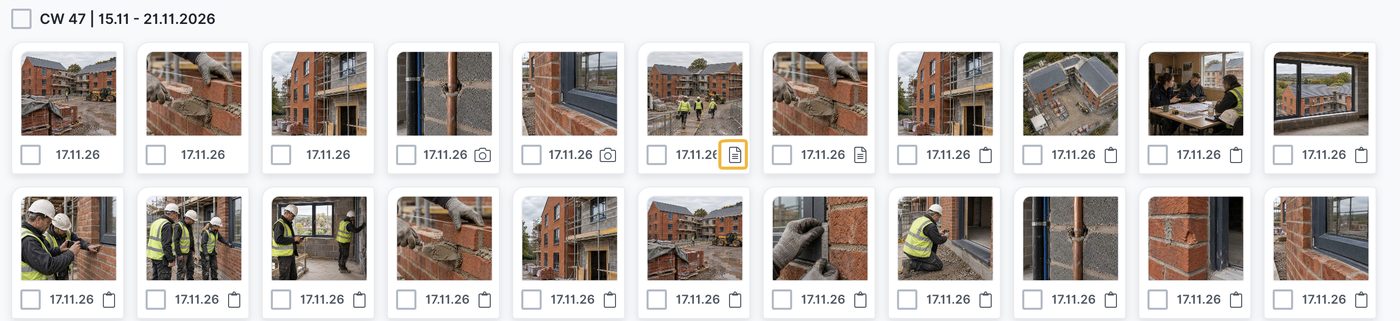
The icon tells you whether the photo is used in a record, report, task or as a photo marker. A photo without an icon is not linked anywhere. Clicking the photo offers three actions:
- Go to entry — opens the related record or report entry, or the related task (for entry and drawing markers); photo markers initially sit only on the drawing but can be converted into a task or a record entry
- Download — saves the image to your device
- Sketch — marks and labels areas directly in the photo
Delete photos
- Select the photo you want.
- Delete it either directly in the overview or in the related entry.
Storage location on the mobile device
When a photo is taken with the photo function in BauMaster, two files are created:
- an image file in the device storage (gallery/photos, for example) in the quality set
- an image file in BauMaster, which is imported and compressed automatically
Photo quality and compression
Server photo (always compressed)
The server photo stored in BauMaster is always compressed to save space on device and server. A resolution of 2000 pixels is sufficient in most cases:
- 4032 × 3024 px (landscape) → 2000 × 1500 px
- 3024 × 4032 px (portrait) → 1500 × 2000 px
- 4032 × 4032 px (square) → 2000 × 2000 px
- Stored at JPEG compression level 70 % (0 % = lowest, 100 % = highest quality). This quality is fixed and cannot be changed.
Backup copy on the device (selectable)
In addition, a backup file is saved on your device after every capture. In the camera settings (visible on mobile devices only) you choose its quality:
- Standard — faster working, less storage needed
- High — higher image quality
FAQ
Where do I find all photos of a project?
Under “drawings & documents” in the “photos & attachments” area — all photos are collected there automatically.
How do I recognise where a photo comes from?
The photo’s icon shows whether it was used in a record, report or task. One click takes you to the entry or task.
Why are my photos compressed?
The server photo is reduced to 2000 px (JPEG 70 %) to save space on device and server.
Can I influence the image quality?
You set the quality of the backup copy on the device in the camera settings to “standard” or “high”. The compressed server photo is unaffected.
Can I download a single photo directly?
Yes. Click the photo and choose “download”; via “go to entry” you open the related entry.
Can I prevent photos also being saved in the device gallery?
No. Every capture with the photo function in BauMaster also saves a photo in your device’s gallery.
Keywords: photo storage