Drawing-based working: capture tasks via the drawing
In brief: in drawing-based working you place a drawing marker first and capture the task or record entry afterwards. That locates tasks precisely on the drawing — ideal for capturing several points one after another directly on the drawing (place the next marker between tasks).
Good to know: you can start the drawing-based flow either from the task or the record, or directly from the PDF drawing — at the end the marker and the entry are created together. For drawing markers the drawing must exist as a PDF drawing.
Create a drawing-based task
- Start capturing: on the new task button tap the arrow and choose drawing-based. It works the same way for record entries.
- Select the drawing: choose the drawing on which the marker should be placed.
- Place the marker and save: BauMaster opens the PDF drawing directly under drawings & documents; creating a task or record entry is already preselected. Place the drawing marker where you want, optionally with a sketch, and save.
- Enter the data: capture the task details. With the apply details checkbox, company, type, unit, location and “to be done by” are carried over into the next marker.
- Place the next marker: before every further task always place the next marker first and then capture the next point. There is no batch mode: the marker must always be placed between creating tasks.
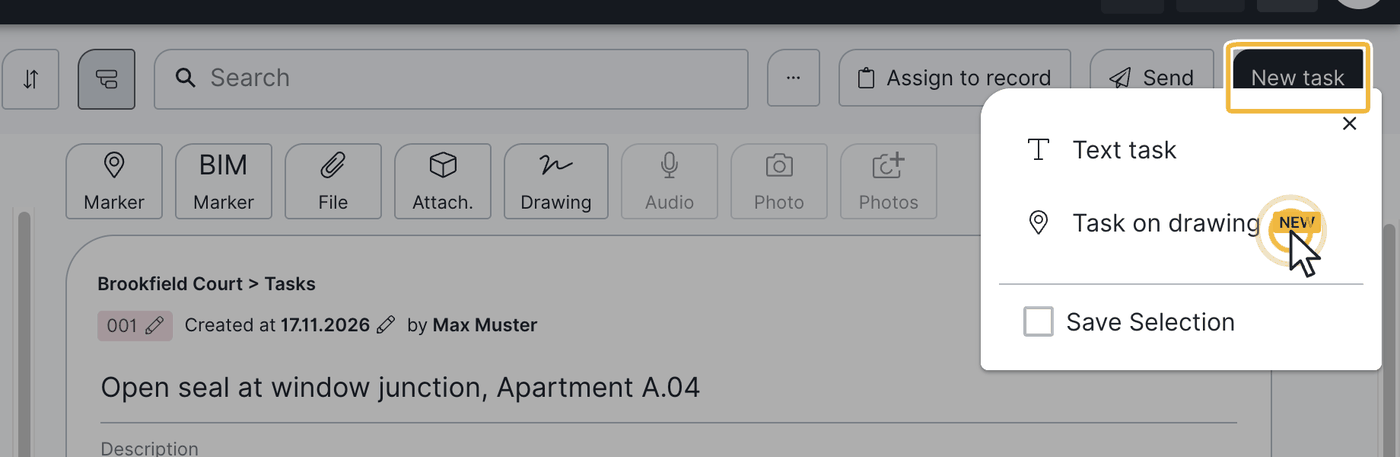
Use apply details when you record several tasks with the same company, location or deadline one after another on the drawing — that saves repetition.
Start directly on the drawing: task, photo marker or drawing comment
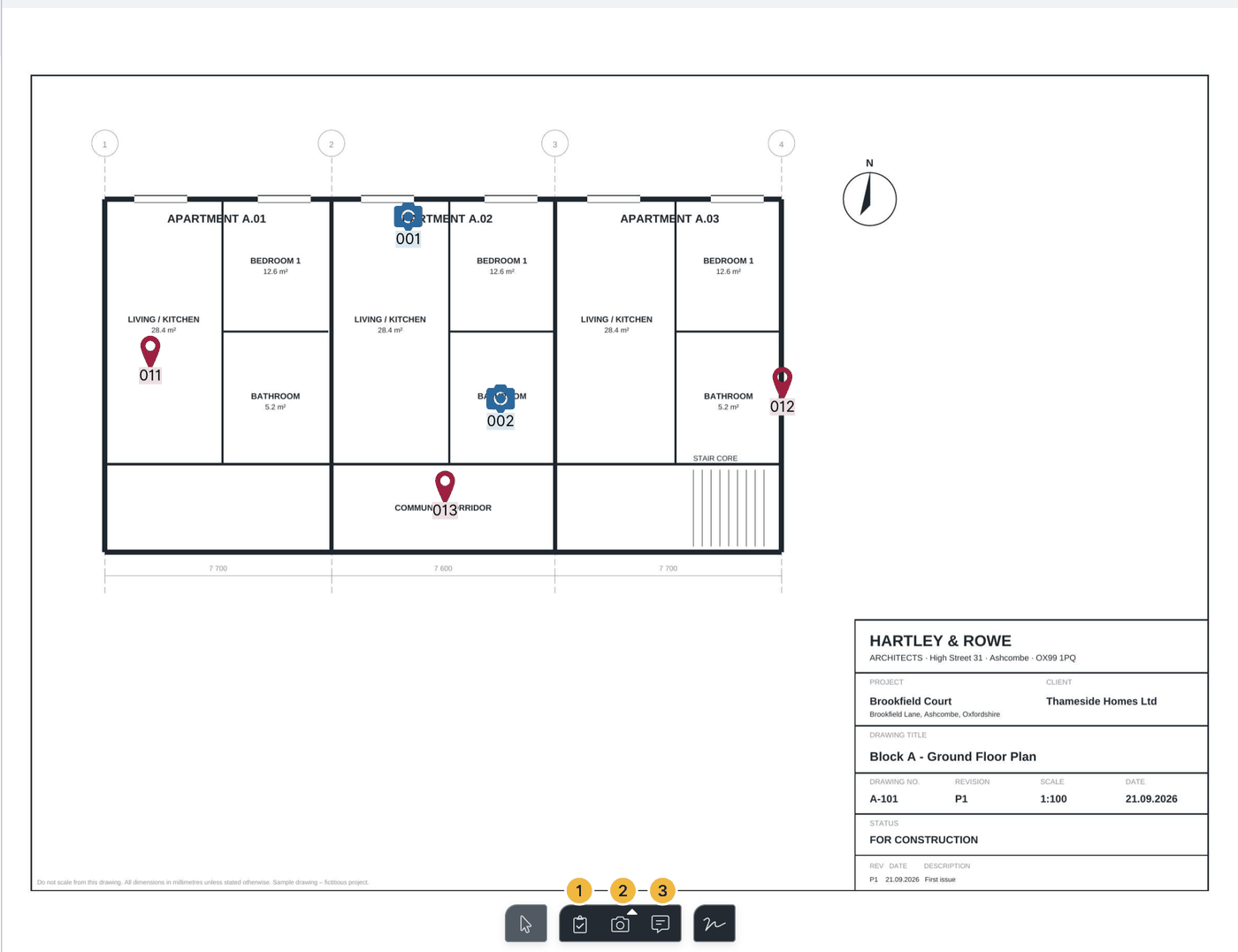
Open the drawing under drawings & documents and choose the function you want at the bottom in the toolbar:
- Create task or record entry: place the marker where you want and then capture the details — as described above from step 3.
- Create photo marker: locate a photo directly at the right place on the drawing.
- Drawing comment: place a note independent of entries at a place on the drawing, see Manage drawings and drawing versions.
FAQ
What is the difference between drawing-based and normal capture?
Drawing-based, you first place the marker on the drawing and then capture the task. With normal capture you create the task first and add the marker optionally later.
Which file format does the drawing need?
A PDF drawing, so that a drawing marker can be placed.
Which functions can I start directly on the drawing?
Open the drawing and choose at the bottom in the toolbar: create task or record entry, create photo marker, or place a drawing comment.
Can I carry details over for several markers?
Yes. With “apply details” company, type, unit, location and deadline are carried over into the next marker.
Can I work through defects directly on the drawing during a site walk?
Yes, the approach above is very well suited to working through defects on the drawing during a site walk.
Keywords: drawing-based working