Locate a photo and create photo markers (drawing-based working)
In brief: a photo marker locates a photo as a drawing photo directly at the right place on the PDF drawing — with no task or record entry at all. If needed you convert the photo marker into a task or a record entry later. That makes it visible at a glance where on site which photo was taken.
Prerequisites: users with a Smart or Expert licence can place photo markers. The PDF drawing must be in drawings & documents — locating is not possible on PDF drawings in the upload folder.
Photo marker or GPS/geotagging? A photo marker locates a photo manually at a place on the PDF drawing (drawing-based working). GPS / geotagging instead stores the device’s automatic location data and shows photos in a map view — see Photos with GPS coordinates (geotagging).
Goal
You want to place a photo exactly on the PDF drawing without creating a task or record entry first — to record a condition at a specific place, for example. That is exactly what the photo marker does. General information on drawing-based working is in Drawing-based working: capture tasks via the drawing.
Locate a photo on the PDF drawing
- Open the PDF drawing you want in drawings & documents.
- Choose Locate drawing photo.
- Choose the source of the photo:
- Camera — take a new photo (mobile devices with a camera only)
- Paperclip — a photo from the device’s file system
- Cuboid — an existing photo from drawings & documents
- Place the photo marker where you want it on the PDF drawing.
- Confirm the position — alternatively move or delete the photo marker.
- Enter the details.
- You can add up to 30 photos to a photo marker; each photo can be given an image caption.
- If the last photo of a photo marker is deleted, the photo marker is deleted too.
- Photos cannot be located on PDF drawings in the upload folder.
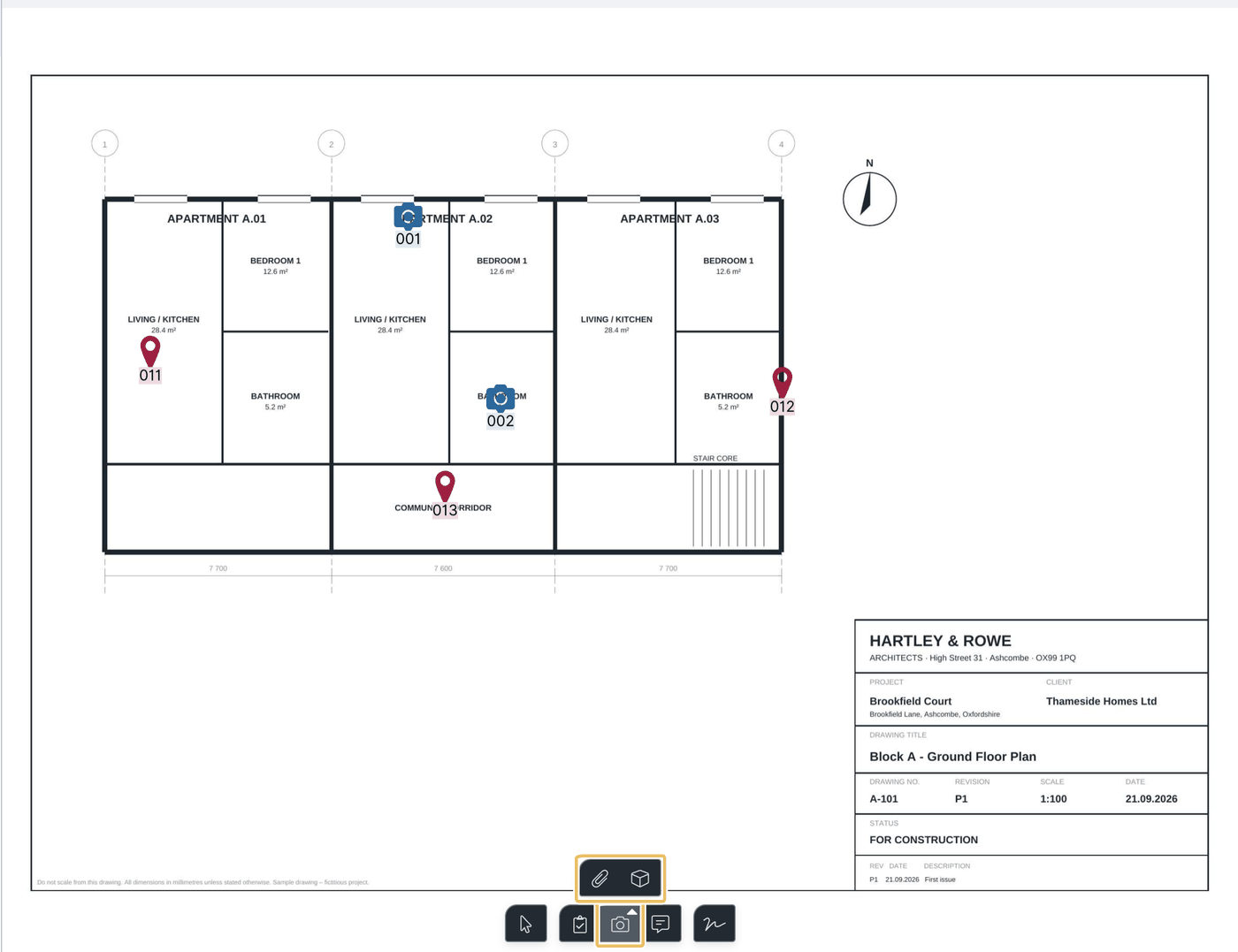
Photo marker details
You can assign to each photo marker:
- a company
- a trade
- a location
- a unit
Convert a photo marker into a task or record entry
A photo marker can be turned into a task or a record entry at any time:
- Select the photo marker on the PDF drawing or in the list (show photo marker details).
- Choose Convert into task/entry.
- Choose the target — task or record entry.
Users with a Smart or Expert licence can convert into both — task and record entry. Viewers and Teamworkers cannot convert.
Find photo markers again
- Open the PDF drawing.
- Use search or open the filters to jump to the photo marker you want.
FAQ
Can I locate a photo on the PDF drawing without creating a task or entry?
Yes. That is exactly what the photo marker is for — you can optionally convert it into a task or record entry later.
How many photos fit on one photo marker?
Up to 30 photos, each with an optional image caption.
Why can't I locate a photo on this PDF drawing?
Locating is not possible on PDF drawings in the upload folder. Move the PDF drawing to “drawings & documents”.
What happens if I delete all photos of a photo marker?
The photo marker is removed along with the last deleted photo.
Can Viewers or Teamworkers convert photo markers?
No. Converting into a task or record entry is reserved for users with a Smart or Expert licence.
Keywords: photo marker