Create, copy and send the daily report
In brief: the daily report is the daily documentation of the regular work of your own employees, which is signed off: you document the activities performed, the personnel including hours, material, machines and special incidents. It is typically filled in by the foreman, completed with automatic weather data, signed digitally and sent as a PDF.
Which report is the right one?
- Daily report — documentation of the regular work of your own company/employees on site (hours, material, machines), which is signed off; usually by the foreman.
- Daywork sheet — documentation of additional work or other material that the client must accept (with client and “ordered by”).
- Site diary — documentation for architects and clients of the whole construction progress (companies present, activities, person-hours); mandatory in Germany, “Baubuch” in Austria; usually kept by the architect or project management.
Prerequisites: daily reports are included from the Smart licence and are also available to Expert users. Alternatively there is the reports add-on (daily report, daywork sheet and site diary) in combination with a Viewer licence (not for Teamworkers) — ideal for foremen who only capture reports. The add-on requires at least one Smart or Expert licence in the account and is booked by new customers in the app, by existing customers by email.
You find the daily report in the burger menu under daily report.
Switch between daily report and daywork sheet
Daily reports and daywork sheets sit under the same burger menu item. In the dropdown at the top click daily report and select daywork sheet to switch.
Create or copy a daily report
With the plus symbol at the bottom right you create a new daily report or copy an existing one.
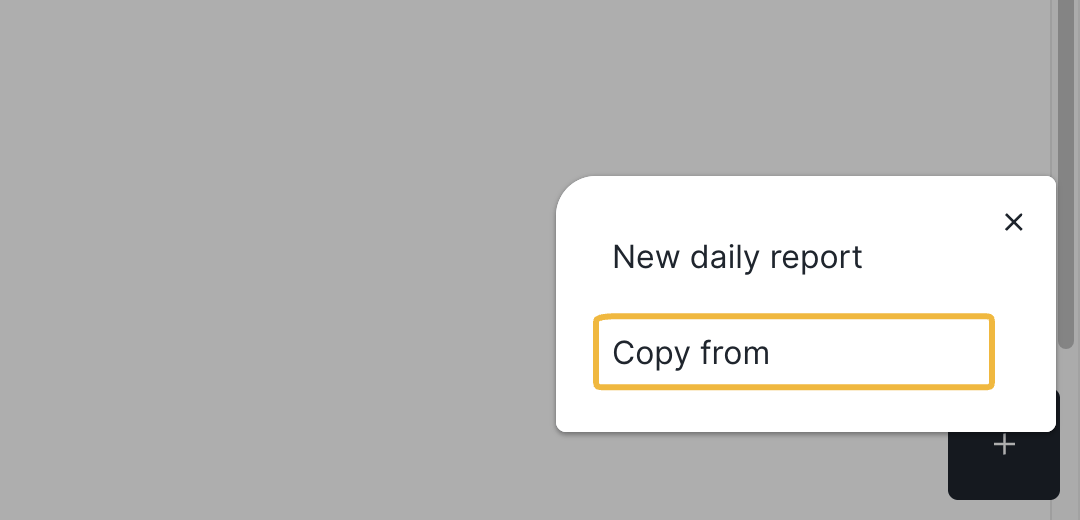
Note: as soon as you create a daily report it is assigned automatically to the respective calendar week.
Capture general information
In the header of the daily report you record:
- construction phase
- date
- editor
- weather
- working hours
- bad weather block
Load weather data automatically
Clicking load weather data determines the weather automatically from the date and project address of the current project. If the date is in the past, historical weather data is used; if you change the date afterwards, the values are deleted automatically. Without a project address or with an incomplete one, no weather can be loaded.
Document details
In all detail areas you can attach files, choose attachments from drawings & documents or take photos directly. For several similar entries use batch mode (checkbox at the bottom left).
Note: attachments are limited to a maximum of 10 files per entry (per activity or material, for example).
Personnel
In the daily report you do not capture individual people but the total of people per employment group. The employment group corresponds to the professional qualification, for example skilled worker, apprentice or labourer. Choose the employment group and record number and hours. The number is multiplied automatically by the hours and shown as total hours. For several entries use batch mode. You add or change employment groups in the report settings.
Capture personnel and hours per employment group: BauMaster offers no dedicated time-tracking app, but per daily report you record the hours worked per employment group (number × hours is multiplied automatically). That documents per day and per project how many people per employment group were on site and for how long — a traceable record towards clients.
Activities
Capture a free text, the location and the hours required.
Other / special incidents
Free text without a length limit; images can also be added to every note.
Material / delivery notes
Record free text, supplier, quantity, unit and optionally a delivery number. You choose the supplier from your contact list — the company must be assigned to the project. Tip: photograph delivery notes directly in case the paper slip gets lost.
Machines / equipment
Capture a description, the number of devices and the duration of use.
Send and sign the daily report
Click the paper plane at the top left to sign and send the report:
- Distribution list: choose recipients.
- Additional functions: enable the “sign report” checkbox if needed. Decide which attachments from which sections are carried into the PDF. Alternatively provide attachments & images as download link — recipients then download the original files themselves. With the “preview” button you see the report before sending. If “sign report” is set, the button is called “preview/next”, because you must always see the PDF to sign it; after signing in the preview click “next”.
- Send email: a subject is not required; without your own text a standard text is used. You store a template text for the emails in the project settings under “appearance of documents”. Optionally tick “close report” (next to the send button) — the report then becomes unchangeable. Then click send.
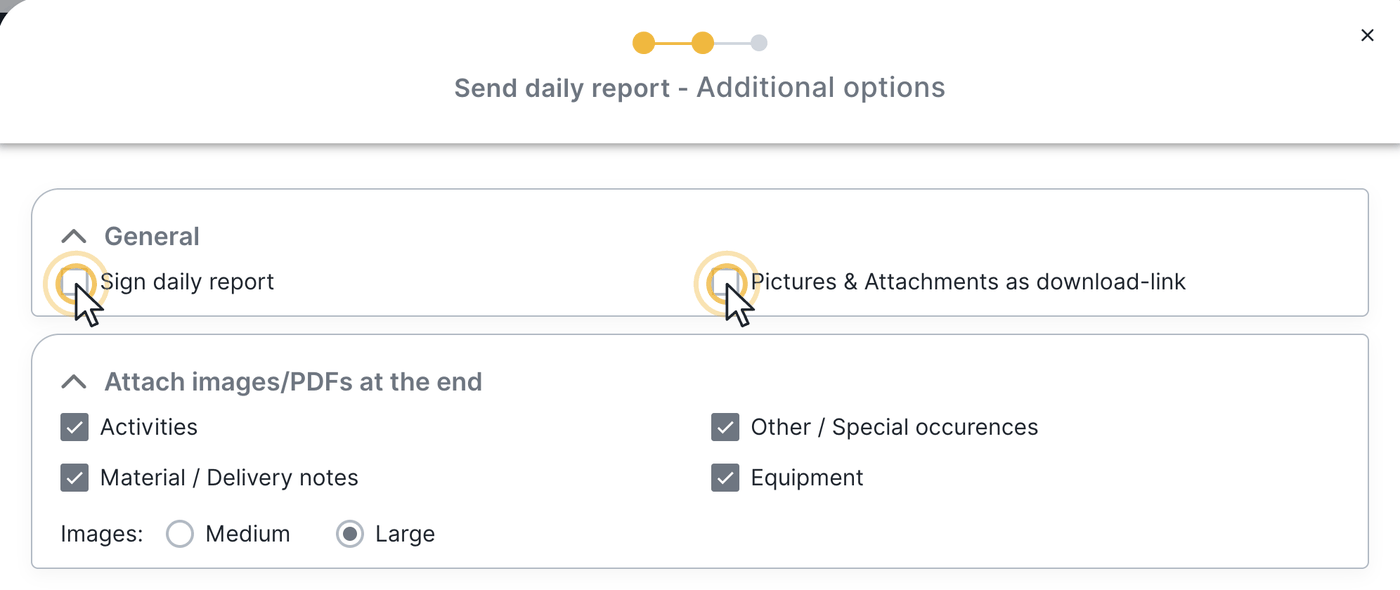
Tip — keep the PDF small: enable attachments & images as download link and choose no option under “attach photos/PDF files at the end”. Then only small thumbnails remain in the report, through which recipients can download the original photos.
Find finished reports
Every sent report is stored automatically in drawings & documents under created PDF documents > daily reports; daywork sheets sit below. If no report exists yet, the folders are greyed out.
View sent reports: who a report was sent to by email is shown in the overview of sent emails (menu “drawings & documents”).
FAQ
Can I find daily report entries via the global search & filters?
No, that is not currently possible. The entries of the reports are not searchable in the cross-project search — the feature is known to the product team and is to be added in future.
Are number and hours calculated automatically?
Yes. For personnel the number is multiplied automatically by the hours and shown as total hours.
How do I keep the PDF as small as possible?
Enable “attachments & images as download link” and do not attach photos/PDF files at the end — then only thumbnails remain in the report.
What is the difference between the daily report and the daywork sheet?
In the daily report you document the regular work that is signed off. In the daywork sheet you document additional work or other material that the client must accept.
Can I record my own working time as an architect?
No. There is no separate field for that. In the personnel area you capture the hours of the personnel deployed per employment group.
What do I need the reports add-on for?
The reports add-on (only in combination with a Viewer licence, not for Teamworkers; requires at least one Smart or Expert licence in the account) allows only the capture of daily reports, daywork sheets and the site diary — ideal for foremen who only write reports.
Can I reopen a daily report that has already been closed?
No. A closed daily report cannot be reopened.
How do I set up an external company to write the daily report?
An external company can write reports if it has a paid licence and is connected to the respective project.
Where can I evaluate the recorded times?
There is no evaluation of the recorded times.
Keywords: daily report