Create and manage contacts
In brief: contacts in BauMaster are companies and the people belonging to them — created across projects and then assigned to individual projects. Always create the company first, then the person. You can also output your project team from the contact list as a PDF.
Who may create contacts? Only Smart and Expert users can create, edit and delete companies and people — with or without admin rights. Viewers and Teamworkers cannot create contacts. Only admins may assign their own employees to a project.
The principle: companies and people
Contacts consist of companies and people, where every person is subordinate to a company. Companies and people are created across projects — you capture them once and then assign them to the projects you want. So always create the company first and then the associated person.
Create a company contact
- Open contacts (menu bar or burger menu). At the top you always see the current project.
- Click New company at the top right.
- Fill in the fields you want:
- name
- trade (output in the construction schedule — see Trades in the construction schedule)
- phone, email, fax
- street, number, postcode, city, country
- notes
- checkbox to assign the company to the current project
Create a person contact
Open the company you want and click New contact inside it. For every person you store:
- first name, last name
- company, role, trades in the company
- mobile number (can be shown on PDF records), company phone
- email (PDF records are sent to this address)
- fax, notes
Via a GDPR checkbox you define which personal data is visible on the PDF records.

View: global or project team
The project team button switches the view:
- Global (default) — all your contacts
- Project team — only companies and people assigned to the project
The project team view also matters for records: you can assign a record point (a general notice, for example) to the whole project team.
Assign contacts to a project
Because companies and people are created across projects, you assign them to projects specifically — in contacts via the yellow slider next to the company or person. Select both the company and the people you want. The detailed guide including the client is in Assign people to the project team.
Delete contacts
Click the trash can icon in the respective company or person. If the company or person is still assigned to open records or entries, a warning appears. If you delete anyway, the record entry still shows the note “deleted”; the contact is no longer visible in the contact list.
Output the contact list as a PDF
You can export the current project team as a PDF in one go:
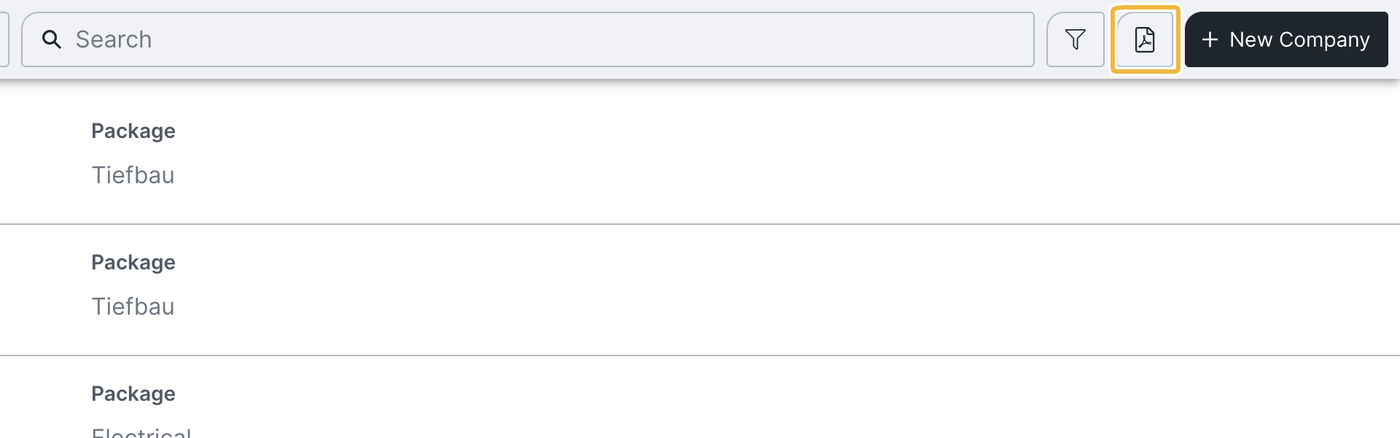
- Click the PDF symbol at the top right in contacts.
- Optionally define a free text (appears at the top of the list).
- Click Create — the preview opens and can be saved via the download symbol.
The PDF contact list shows: your own company including company details and logo (if stored), creation date, project, trade, the free text, and companies and names with trades/roles, email, phone and address data.
FAQ
Can I see which contacts are assigned to which projects?
There is currently no such cross-project overview.
Who sees my company's contacts?
All users of your company — including Viewers. Teamworkers of external companies do not see your contacts; they only see the contacts of their own account.
Can I set whether Teamworkers see the contacts?
No, that cannot be configured.
Why must I create the company first?
Because every person in BauMaster is subordinate to a company.
Can Viewers or Teamworkers create contacts?
No. Only Smart and Expert users can create contacts.
Can I import existing companies or contacts (from Outlook or Excel)?
No — an import is not possible.
Keywords: create contacts