Create, copy and move record entries
In brief: Record entries are the individual points inside a record. An entry is always a short text note that you specify further with a description, fields such as type, company and responsible person, and with markers, photos and files. You create entries in the short or detail view, add company, responsible people, dates, markers and attachments, capture several entries in batch mode, split them with sub-entries, and move, delete or sort them when needed.
In this article: create an entry (short view / detail view) · all fields · markers, files & photos · comments · batch mode · sub-entries · copy, move, convert, delete and sort entries. Record entries are captured and edited by users with a Smart or Expert licence. Viewers and Teamworkers see the entries assigned to them, or where the project team is selected as the company, regardless of the traffic light status. When they have completed an entry assigned to them, they set the status to “to review”. The entry then goes back to the project manager, who finally sets it to “done”.
Who sees which entry?
- Only contacts with access to BauMaster see entries: users with a Smart or Expert licence, Viewers (own employees) and Teamworkers (externally connected).
- Everyone sees only the projects they are part of. Exception: admins see all projects.
- Users with a Smart or Expert licence see all entries of a project.
- Viewers and Teamworkers only see entries where they are entered in the responsible field, or where project team is selected as the company.
- The watcher field has no influence on who sees an entry.
Create the first record entry
Once you have created a record, click the plus at the bottom right inside the record. The number of entries is unlimited. The dropdown lets you choose whether the entry is captured text-based or drawing-based (via the PDF drawing). Drawing-based jumps straight to the PDF drawing, but you can also add markers to text-based entries.
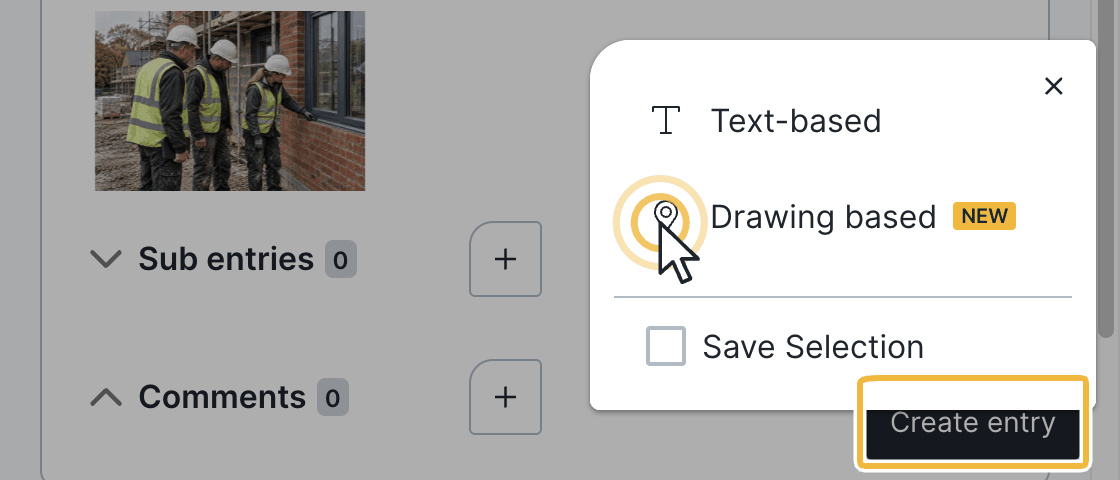
You can also prepare record entries by voice: choose “Voice entry (AI)”, speak the details and check the draft before you create the entry. Details: Create a task or record entry by voice (AI).
Short view
An input form opens that is optimised for fast capture on site and limited to the most important fields. The short view of an entry must not be confused with the short record.
Detail view
The “Show all details” button opens the detail view with access to all available fields.
The fields at a glance
- Short text: shown everywhere (dashboard, costs, and so on) — enter meaningful keywords here.
- Long text: freely formattable (bold, italic, colours, headings, lists, links); the formatting also appears in the PDF record.
- Company: exactly one responsible company per entry, for a clear responsibility. If several companies are involved, use sub-entries. The company affects responsible people, the PDF record, sorting, search and costs. Special case project team: if you select the project team as the company, the entry is relevant to the whole project team and visible to Viewers and Teamworkers too.
- Responsible: one or more people from the selected company who are responsible for the entry. Responsible people see the entry in the dashboard under “My tasks” and receive a notification in BauMaster and, if enabled, by push. If exactly one responsible person is stored with exactly one trade in their contact details, the trade field is prefilled automatically as long as it is still empty.
- Watcher: always a company (not a person). A purely organisational field: it has no influence on who sees the entry in the app and only takes effect in the individual PDF record.
- Type: a central field — the type controls the traffic light, so whether and with which status an entry is tracked.
- Trade, location and custom field: drive categorisation and reporting; you set the options up in the project settings.
- Costs: records have a cost field. Via the three-dot menu on the record → Edit details, a checkbox defines whether the costs given in a record entry are calculated with or without VAT. The costs appear on the entry in the PDF record.
- Unit: assigns the entry to a unit. If a unit is assigned, the person in the building symbol on the entry opens the linked owner/tenant with name, phone number, email address and unit.
- To be done from – to: affects search, dashboard and the Gantt view.
- Priority — high, medium, low, none. Shown as a small flag on the entry and in the dashboard. Search and filter by priority is possible.
- Not when creating, but in the detail view: status (traffic light), creation date and entry number — use the entry number to reorder the entry within the record.
When does a watcher make sense? When a company should also see entries in its individual PDF record that it was not directly assigned to — for coordinating several trades, for example. The watcher only appears in the PDF if the watcher checkbox is enabled when sending. Without it, the company does not see those entries.
Attach markers, files and photos
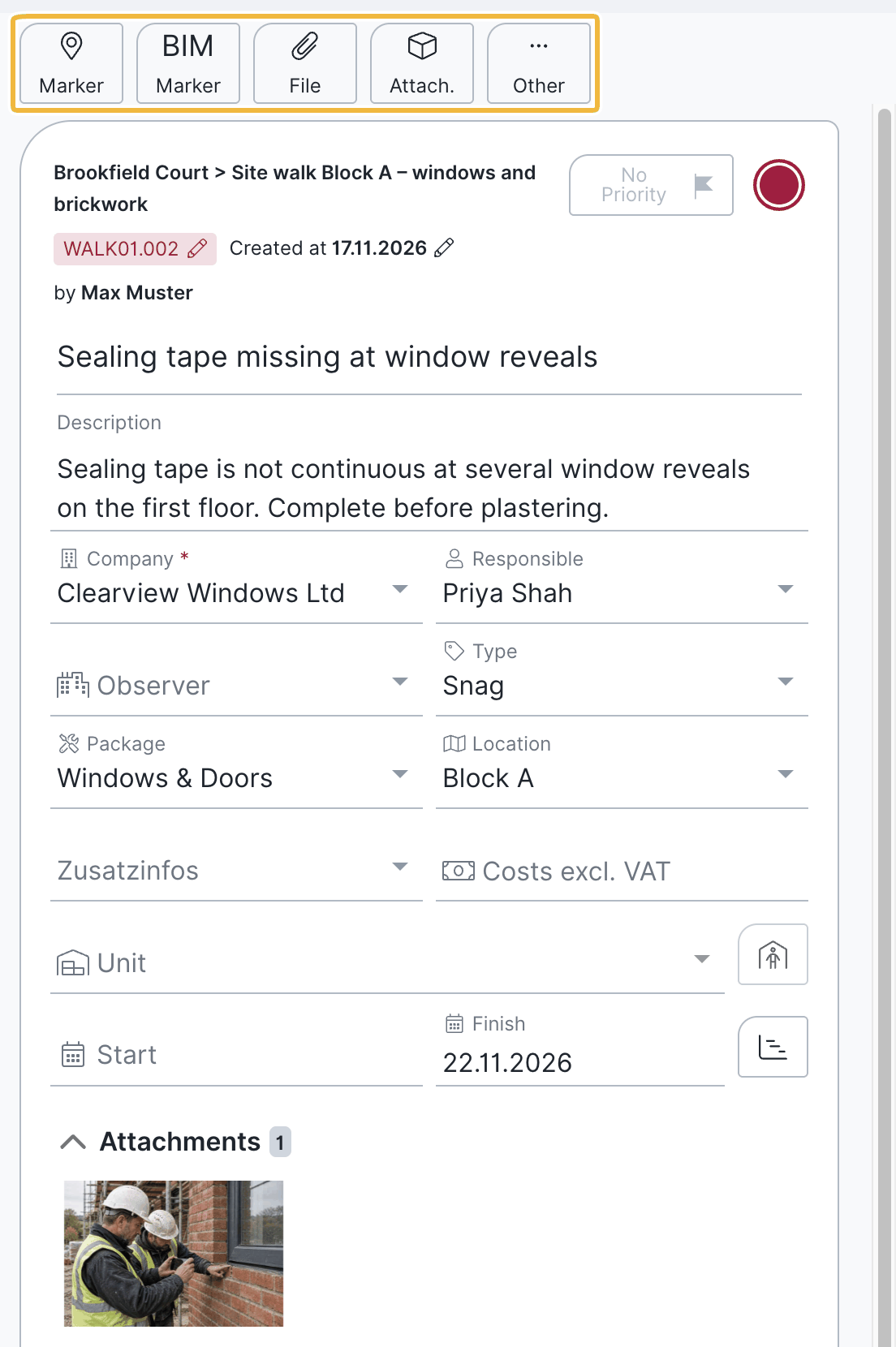
You can add details to every record entry. The symbols are the same on all devices. Some functions such as photo and audio are only available on mobile devices with a camera or microphone and are disabled elsewhere.
- Drawing marker: locate the entry on the uploaded PDF drawing — with several markers per entry if needed.
- BIM marker: place a marker in the 3D model.
- Files (paperclip): upload images, text files, audio, video, Office files, PDF and drawings (dwg, dxf).
- Drawings & documents (project room): attach existing files from drawings & documents, not just photos. The file is copied, not linked — it then exists twice in drawings & documents.
- Sketch: sketches and signatures with the built-in sketch function.
- Audio: voice recordings (mobile devices only).
- Photo: take and attach a photo directly (like audio, mobile devices only). A separate button starts photo batch mode for several photos in a row. Up to 30 photos can be attached per entry.
Comments in record entries
You can write comments on every record entry, for example to document the history of a point or to add explanatory text to photos without writing into the photo itself.
- Add a comment: click the plus next to the comments and write your text. The author is shown for every comment.
- Attach photos: attach an existing photo from drawings & documents or take a new one (mobile devices only). You can then edit the photo directly with sketches, text or arrows. Up to 10 photos can be attached per comment.
- Storage: photos from comments also appear as an attachment on the entry and are stored in drawings & documents.
- Edit and delete: you can edit or delete a comment afterwards.
- In the PDF record: photos attached directly to the entry appear side by side. Photos from comments appear next to the comment text — ideal for photo documentation with explanations.
- In continuous records: when an entry carries over into the next record, its comments move with it automatically.
All users may comment on entries — Viewers and Teamworkers only on entries assigned to them. Comments are also possible on entries in closed records.
Change the creation date
In the detail view you change an entry’s creation date with the pencil at any time — backwards or into the future. If the entries in the record are sorted by creation date, the order changes accordingly.
Capture several entries in a row (batch mode)
Batch mode makes the input form reappear immediately after you click Create, with the fields you filled in before (company, trade, type, for example) for the next point. That makes similar entries much faster; ideal for site walks and defect walks.
How to enable batch mode: when creating an entry, tick series at the very bottom of the input window. Click again to switch it off.
Practical example: on a defect walk you store the company “electrician” and the type “defect” once, enable the series and then only capture short text plus photos or markers.
Create and view sub-entries
You can add one or more sub-entries to every record entry. They are subordinate to the main entry and collapsed by default. An entry with sub-entries shows their number in a small green box — click it to expand.
Sub-entries do not differ from normal record entries in the input form; the only difference is the hierarchy. There is only one level: a sub-entry cannot itself have sub-entries. The status of entry and sub-entry are independent — when the main entry is completed, the sub-entry’s status stays unchanged.
Several companies on one point: because only one company is possible per entry, you represent several involved companies with one sub-entry each. That keeps a record of which company did what and when.
Copy, move, convert, delete and sort entries
Once the record is closed, these actions no longer work — with the exception of copying.
Copy entries
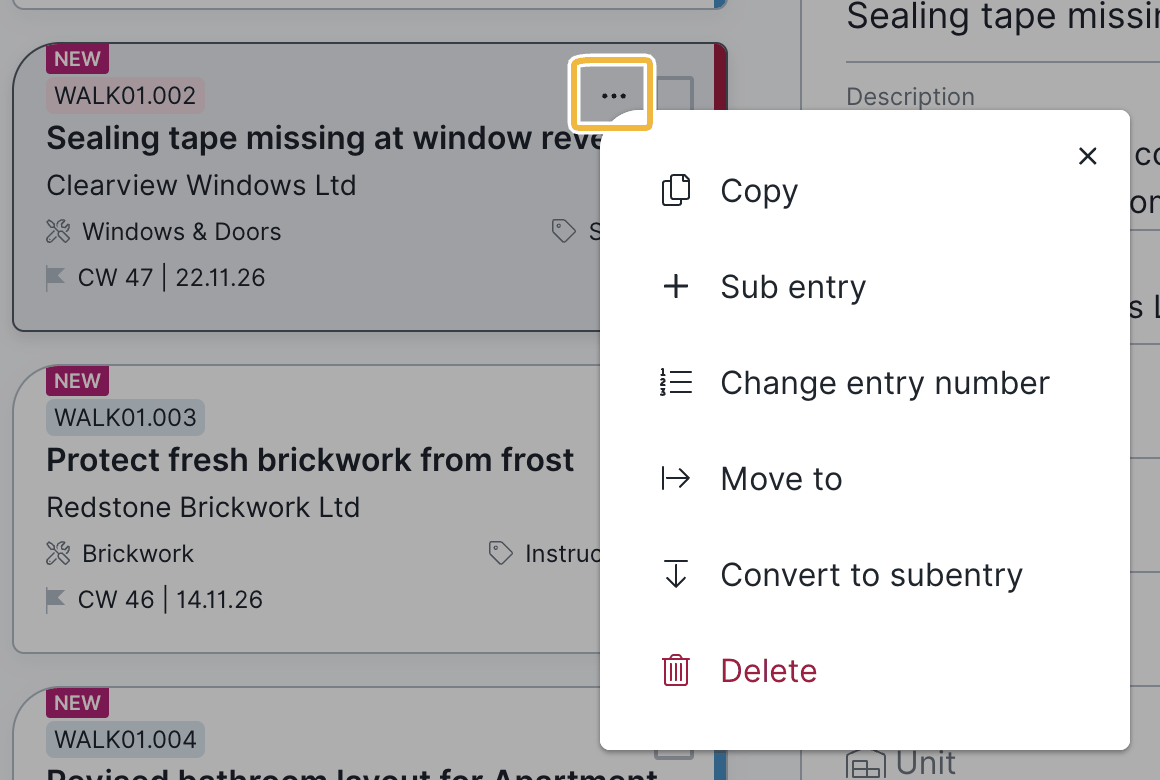
You copy individual entries with all details and attachments — with the exact creation date if needed. For single entries click the three dots at the top right of the entry and choose copy. To copy several entries, select them with the checkbox at the top right. A menu with a copy symbol then appears. Choose the target record and decide whether attachments, details, markers, comments and the creation date are taken over. Then click Copy. If there are no attachments, the option is greyed out.
- Other layouts: unlike moving, you can copy entries into records with a different layout — from a continuous site meeting record into a short record as its own to-do list, for example.
- Several entries: select the entries with multiple selection (the checkbox at the very top selects all) and copy them together. With incl. sub-entries the related sub-entries are selected too.
- Reuse standard entries: copying from a prepared record with standard entries is particularly practical, for example a note including the PDF policy.
Move entries
Moving applies to record entries only, not to whole records. Move single entries via the three dots at the top right of the entry and Move; select several with the checkbox at the top right. The target can be an other record or the task list.
Entries from standard and continuous records cannot be moved into short records, because the field count differs. Entries from short records can only be moved into short records.
Move an entry into a task
Select the entry, click assign record and choose tasks as the target. Moved entries no longer appear in the original record.
Show entries in the construction schedule
Record entries can also be shown as work items in the construction schedule.
Convert entries into sub-entries (and back)
Via the three-dot menu of an entry you choose whether it becomes a sub-entry — or a sub-entry becomes a standalone entry again. Special case: if the converted entry itself has sub-entries, they are moved into the new main entry as well. The previous assignment between the entry and its sub-entries is lost — all of them are then sub-entries of the new entry.
Delete entries
Individually via the trash can at the top right, or together via multiple selection.
Sort entries
Via three-dot menu → change entry number you adjust number and position. This affects the numbering of the remaining entries.
FAQ
Can an entry be assigned to several companies?
No, exactly one company is possible per entry, which ensures clear responsibility. If several companies are involved in one point, create a sub-entry per company on that entry.
What is a sub-entry for?
A sub-entry is an entry subordinate to the main entry. Use it to bundle related points or to represent several involved companies on one topic, since only one company is possible per entry. Sub-entries are collapsed by default; the small green number on the entry shows how many there are and expands them on click.
What is the "series" checkbox for?
With the series enabled, the input form reappears immediately after clicking “Create”, including the fields filled in before such as company, trade or type. That makes many similar entries much faster. You tick it at the very bottom of the new entry; clicking again disables the series.
How does the watcher work and why does it sometimes not see an entry?
The watcher is always a company (not a person) and a purely organisational field: it does not decide who sees the entry in the app. In the company’s individual PDF record the entry only appears if the watcher checkbox is enabled when sending.
What is the difference between watcher and responsible?
Responsible are one or more people from the selected company who edit the entry and see it in the dashboard under “My tasks”. The watcher is a company; the field only affects the individual PDF record and not visibility in the app.
How do I change an existing entry or its date?
Open the entry in the detail view — there you adjust all fields at any time. Change the creation date with the pencil symbol, backwards or into the future.
Can I re-sort entries or change the entry number?
Yes. Via three-dot menu → change entry number you set number and position; the other entries are renumbered accordingly. You can also store a sorting criterion when creating the record.
Can I bring a moved entry back?
Yes. Use “Move” to move it into another record again. Note that entries from standard and continuous records cannot be moved into short records.
Can I edit several entries at once?
Yes, with multiple selection and bulk editing, see Select and edit multiple record entries.
How do I see the owners/tenants of an entry?
If a unit is assigned to the entry, the “person in the building” symbol opens the linked owners/tenants with name, phone number and email address.
Can I create several markers per entry?
Yes. You can place several markers on the PDF drawing per entry.
Who sets an entry to "to review" and who to "done"?
Viewers and Teamworkers complete the entries assigned to them and set the status to “to review”. The entry is then back with the project manager, who checks it and finally sets it to “done”.
Can I write comments with photos on an entry?
Yes. Use the plus next to the comments to write a comment and attach photos. In the PDF record these photos appear next to the comment text.
Can I copy entries into another record?
Yes, via the copy symbol on the entry or together via multiple selection — including into records with a different layout and out of closed records.
Keywords: create record entry