Select and edit multiple record entries
In brief: Multiple selection lets you mark several record entries at once to send them as a separate PDF, copy them, change them uniformly in bulk, or delete them. That way you adjust many entries in a few clicks.
Looking to search or filter entries rather than edit them? That is described separately under Search & filters.
Select several entries
Use the small checkbox on an entry to select the entries you want. There are four ways to select:
- Individually: select single entries with a click.
- Select all: mark all record entries with one click.
- Incl. sub-entries: when enabled, all sub-entries belonging to an entry are selected automatically.
- Shift or Ctrl + mouse click: select several entries in one step.
Actions for selected entries
The following symbols are available for the selected entries, in this order: send as PDF, copy, edit (bulk edit) and delete.
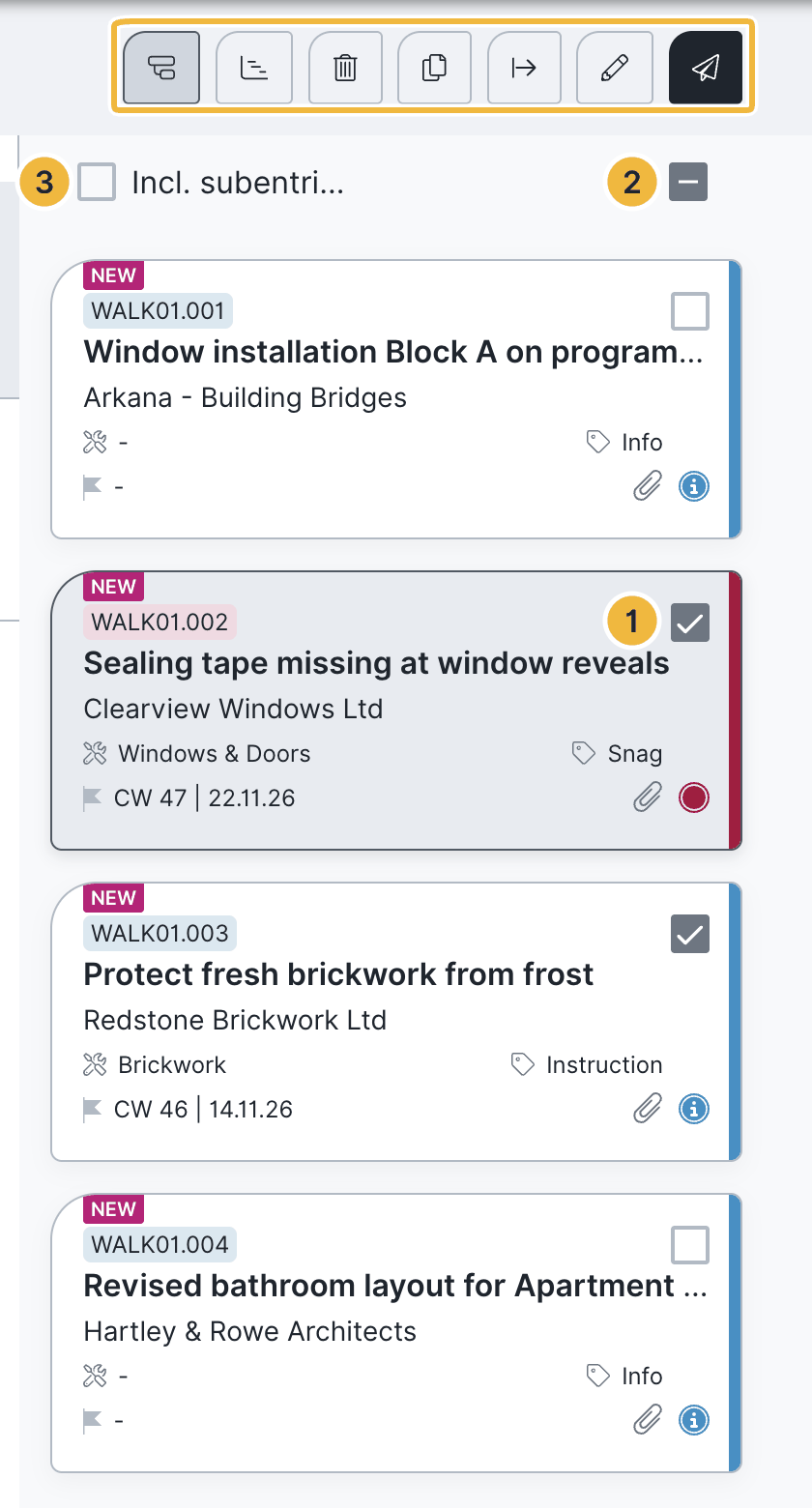
Send as a separate PDF record
- Select the entries.
- Click the button with the paper plane symbol. To send the whole record the button is normally called Preview & send; as soon as entries are selected it turns into the paper plane button.
- Choose the recipient list and settings as usual and send. The sending workflow with its dialogs and settings is the same as when sending the whole record, see Send a PDF record.
Change entries in bulk
- Select the entries.
- Click the pencil symbol.
- Select and set the fields you want in the same way for all, then save.
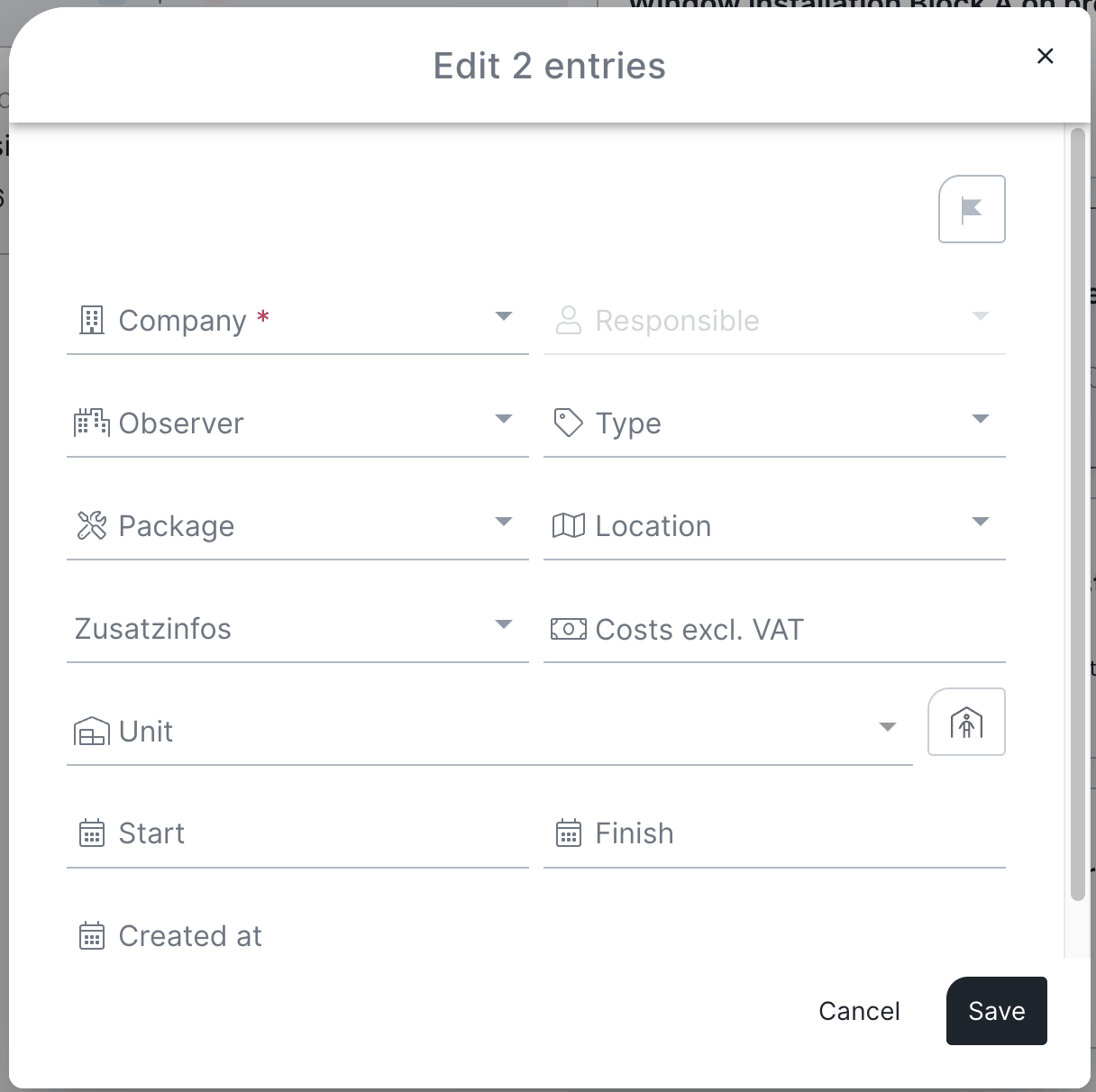
Tip — imitate batch mode: during the meeting, dictate only the text you need and take the odd photo. Then select, for example, all general points, click the pencil (edit) and change the company to project team. In a few clicks every entry carries the same company.
FAQ
How do I select several entries?
Use the small checkbox on an entry, or Shift or Ctrl + mouse click. With “Select all” you mark every entry at once.
Can sub-entries be selected automatically?
Yes. Enable “Incl. sub-entries” and the sub-entries of every selected entry are selected too.
How do I change many entries at once?
With bulk editing: select the entries, click the pencil symbol, set the fields you want for all of them, then save.
Can I send selected entries as a separate PDF?
Yes. Select the entries and click the button with the paper plane symbol — that sends only those points as their own PDF, see Send a PDF record.
Can I copy or delete several selected entries together?
Yes. The copy and delete symbols are also available for selected entries.
How do I filter record entries?
Searching and filtering is described separately under Search & filters.
Keywords: select multiple record entries