Record types in continuous records and the status traffic light
In brief: Types determine how a record entry is handled in a continuous record: whether it is tracked with a status (open, to review, done) and whether, and for how long, it carries over to the next record. Entries with a status also trigger notifications and appear on the responsible person’s dashboard. You set up types in the project settings.
Types in the project settings
BauMaster comes with several types preconfigured in the project settings. Click the type name to open the settings for a type.
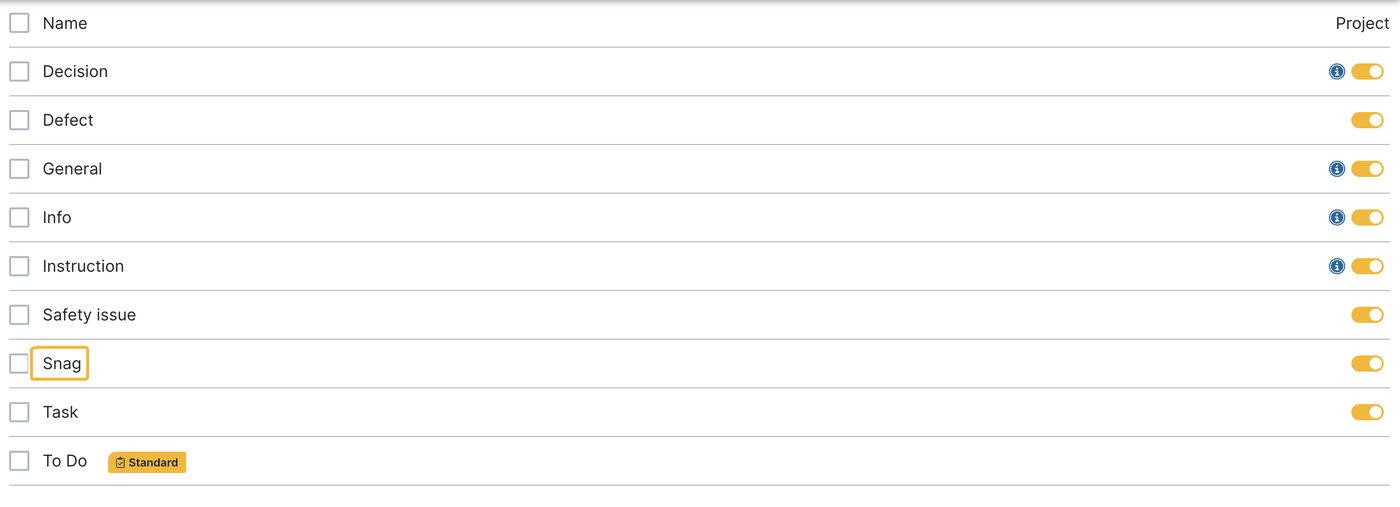
Changes to types affect all projects.
Information type
A blue i marks an information type. In a continuous record you choose whether the information appears only in the current record or carries over into the subsequent records.
Type with or without status
A type can be defined with status. It then gets the statuses open, to review and done, shown as a traffic light: red = open, amber = to review, green = done. The status controls whether entries carry over into the next record — that is, into the next record of the same continuous record style.
Type and status therefore belong together on an entry: entries and tasks can carry different tags — in BauMaster these are the types, for example task, info or defect. The status of an entry or a task is shown as a traffic light because it is green (done), amber (to review) or red (open).
If you change a type’s “with status” setting afterwards, all existing entries of that type change as well. Example: an entry is set to “done”. If you remove the status from the type, the entry becomes an “information”.
Carry-over into the next record by status
- Information: not carried over — it serves as one-off information.
- Continuous information: carried over until it is set back to “information”.
- Open: carried over until the entry is set to “done”.
- To review: carried over until the entry is set to “done”.
- Done: no longer carried over.
Unfinished entries and continuous information carry over into any number of subsequent records. What you can still edit on carried-over entries is described in Working with continuous records.
Set the default type for tasks
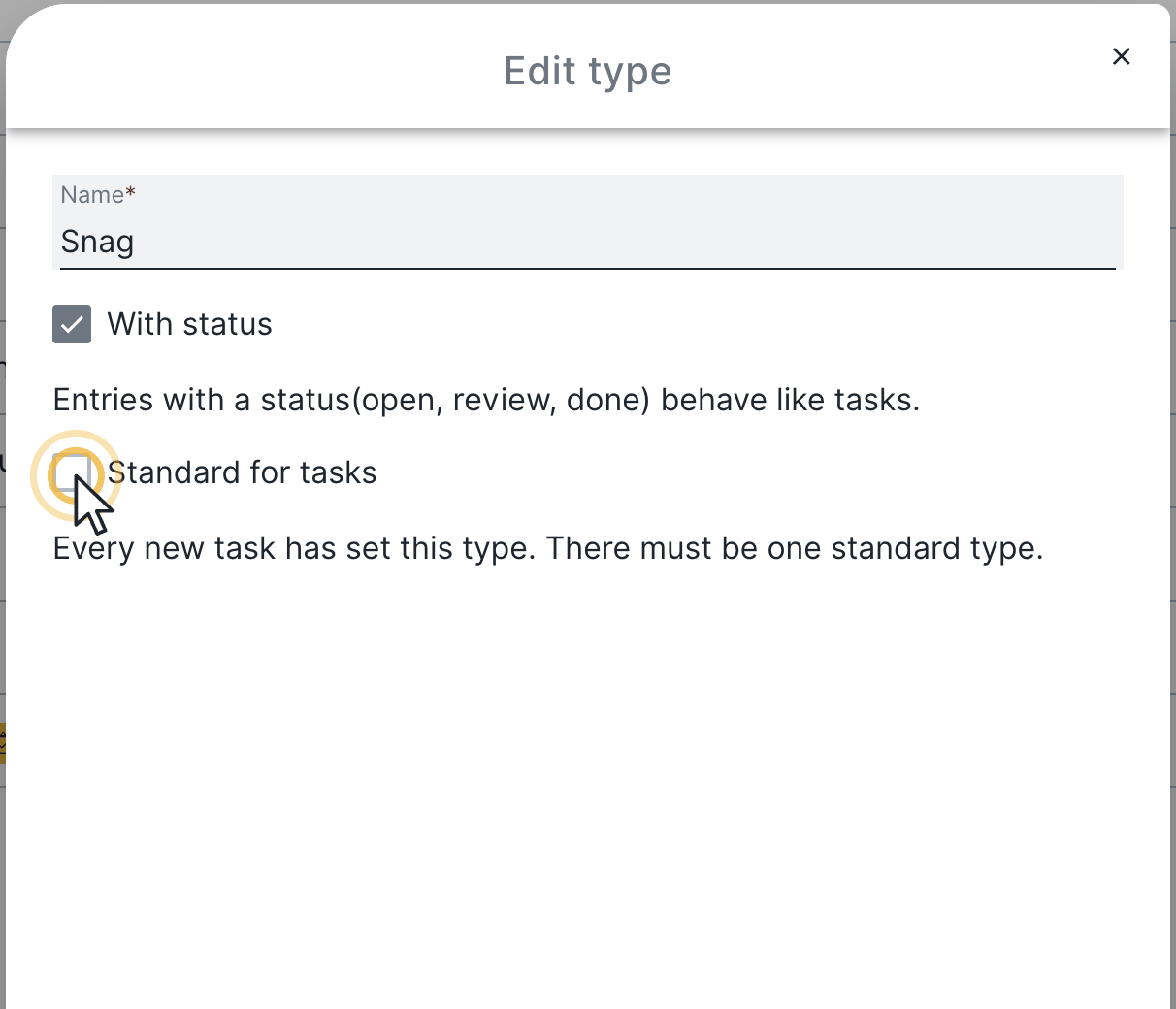
To define which type is preselected for new tasks, click the type name you want and tick Set as default for tasks. The default type is marked with a small yellow “default” flag. Only types with status (traffic light) can be set as default for tasks.
FAQ
What is the traffic light for in a continuous record?
The traffic light shows the status of an entry (open, to review, done) and therefore controls whether the entry carries over into the next record. Only types with a status get the traffic light.
What is the difference between information and continuous information?
An information appears only once in the current record. Continuous information stays in every subsequent record until it is set back to “information”.
When does an open point disappear from the next record?
As soon as the entry is set to “done”. Until then it carries over into the next record automatically.
Can I hide an old entry from the next record?
Yes. Set the entry to “done” and it is no longer carried over. For information types, set the continuous information back to “information”.
How do I add another type?
Types are set up in the project settings. There you create new types and decide for each type whether it is tracked with a status.
How do I define which type is preselected for new tasks?
Open the type via its type name and tick “Set as default for tasks”. The default type carries a small yellow “default” flag. This only works for types with a status.
Keywords: record types