Locate a task and create drawing markers (drawing-based working)
In brief: a drawing marker locates a task exactly where it belongs on the PDF drawing (drawing-based working). That makes it visible at a glance where on site something has to be done. You can create the entry either as a standalone task or as a record entry.
Prerequisites: Smart and Expert users place drawing markers. Viewers and Teamworkers do not place drawing markers; they only see and comment on their own. The drawing must be in drawings & documents — placing is not possible on drawings in the upload folder or in short records.
Goal
You want not only to describe a task but to locate it exactly on the drawing — “socket missing” right at the wall where it is missing, for example. The drawing marker ties the task firmly to a position on the PDF drawing. That way the authorised people in the project team find the task later at the right place.
Place a drawing marker on the drawing
This is how you locate a task directly on the drawing:
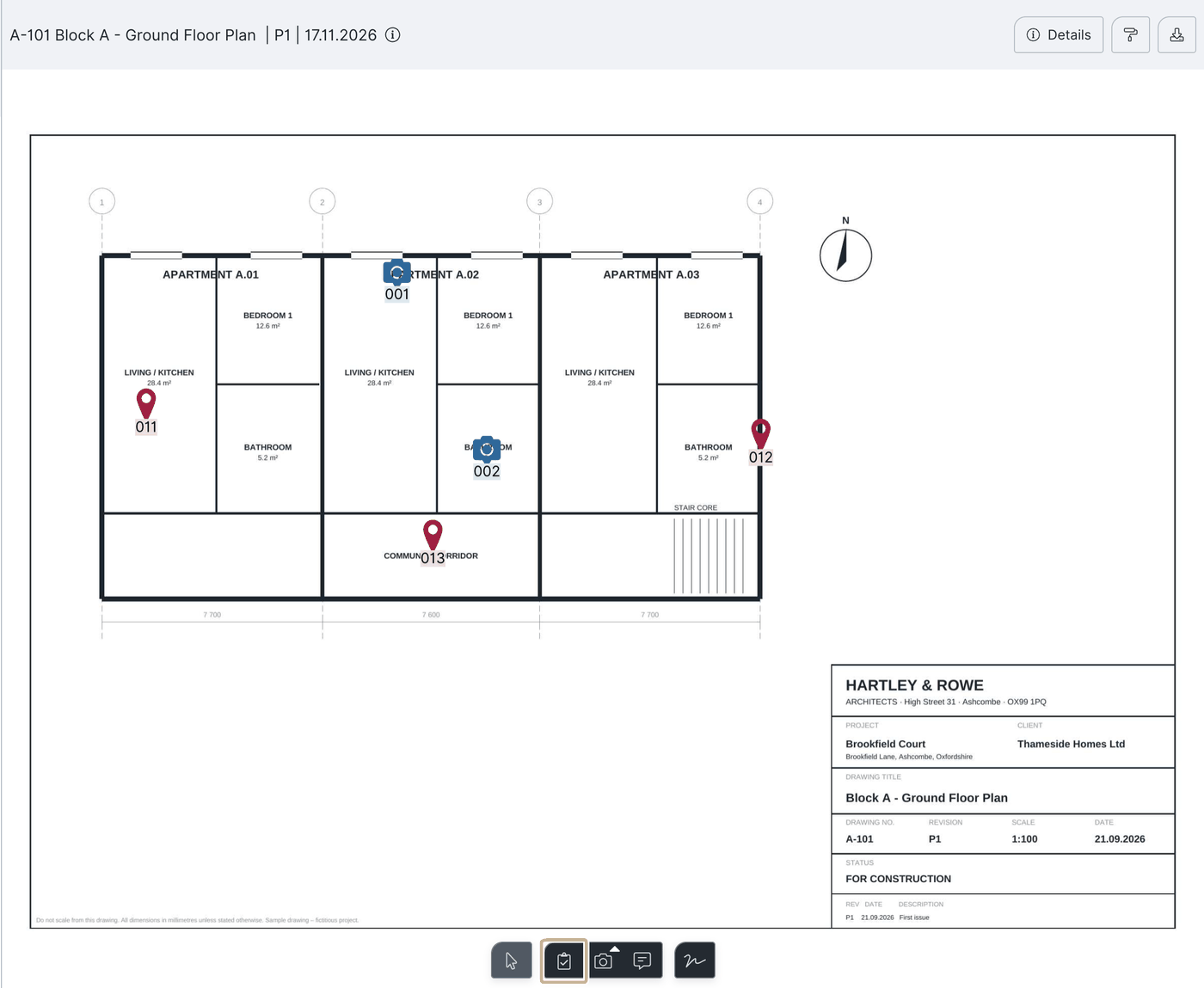
- Open the drawing you want in drawings & documents.
- Choose Locate task.
- Decide whether you want to create the entry as a task or as a record entry.
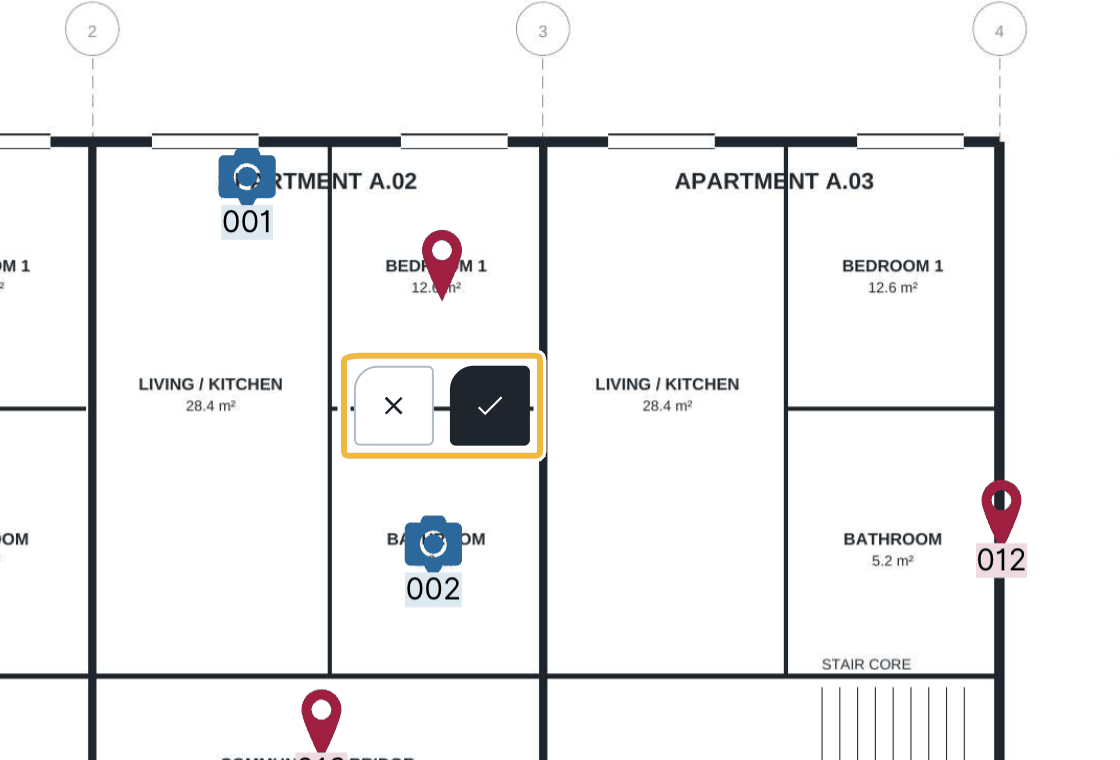
- Place the marker where you want it on the drawing.
- Confirm the position — alternatively move or delete the marker.
- Enter the task. How to describe a task in detail is in Capture and edit tasks.
Move or delete drawing markers
While the task is open you can adjust the marker at any time: drag it to a new position or delete it.
Exception: markers pointing to an already closed record entry can no longer be moved.
Note: drawings with markers cannot be deleted. With a new drawing version the marker is carried over into the new drawing.
Find drawing markers again
This is how you find markers you placed:
- Open the drawing.
- Use search or open the filters to jump to the marker you want.
Result
The task is now firmly linked to a position on the PDF drawing. Internal users with a Smart or Expert licence who are in the project team see all markers; Viewers and Teamworkers see only their own. Every authorised person sees directly on the drawing where something has to be done.
Tips and common mistakes
- No batch mode: there is no batch mode for drawing markers — the marker must always be placed between creating tasks. With the apply details checkbox, entry details (the company, for example) can be carried over into the next marker.
- Wrong storage location: you cannot place markers on drawings in the upload folder or in short records. Move the drawing to drawings & documents if needed.
- Marker cannot be moved: the related record entry is already closed.
- Overlapping markers: if several markers sit very close together they can cover each other on the drawing (the tasks can be selected in the list).
FAQ
Can I locate a task directly on the drawing?
Yes. Open the drawing in “drawings & documents”, choose “locate task” and place the marker where you want it.
Why can't I place a drawing marker on this drawing?
Placing is not possible on drawings in the upload folder or in short records. Move the drawing to “drawings & documents”.
Is there a batch mode for drawing markers?
No. The marker must always be placed between creating tasks; with the “apply details” checkbox, entry details (the company, for example) can be carried over into the next marker.
Can I move a drawing marker afterwards?
Yes, as long as the related record entry is not closed. Markers for closed records can no longer be moved.
Keywords: task marker