AI settings
In brief: In the AI settings an admin enables the AI features for the company account. Here individual projects can be excluded and the transfer of contact data for Voice task/entry (AI) can be controlled.
AI settings apply to the company account. BauMaster MCP is managed separately.
What do the AI settings control?
The AI settings are managed by an admin. After activation, Smart and Expert users can use the AI feature in projects that are not excluded. Viewers and Teamworkers cannot use Voice task/entry (AI).
You need an internet connection for activation. Details on licences and admin rights: Licences, roles & permissions.
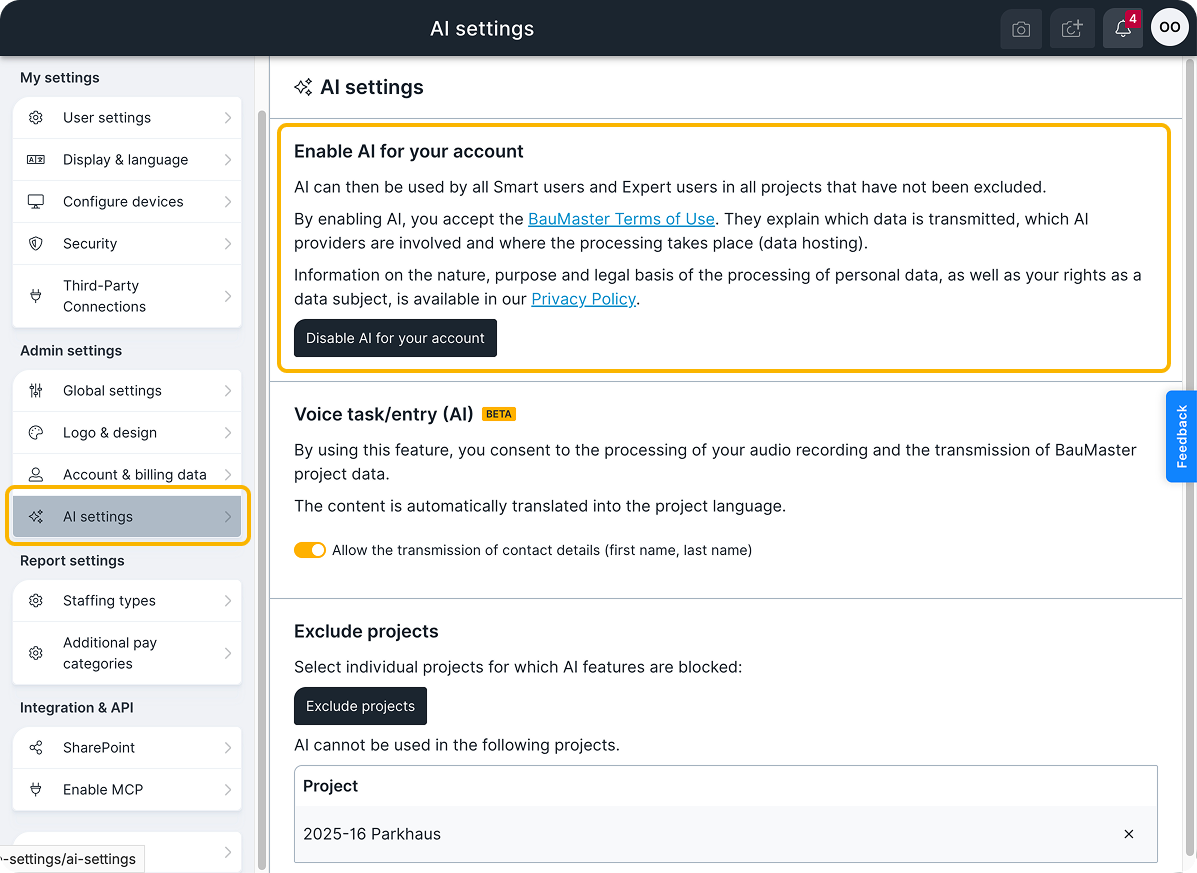
Enable AI in the account
As an admin you reach the AI settings through the account menu and enable AI for the company account there.
- Open the account menu at the top right and choose “Settings”.
- Under the admin settings, open the “AI settings”.
- Switch on “Enable AI for your account”. With the activation you confirm the BauMaster Terms of Use.
- If needed, define which projects are excluded and whether contact data may be transferred. Both settings are described below. In excluded projects no AI features can be used. If the transfer of contact data is allowed, the AI can assign names and responsible persons more easily; without this transfer the assignment can be harder.
BauMaster logs who enabled or disabled AI and when this happened. If you disable AI in the account, the AI features are no longer available to all users of the account.
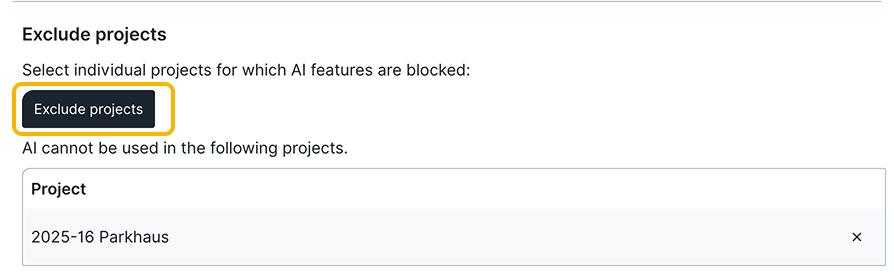
Exclude projects
No AI features can be used in excluded projects.
- In the “Exclude projects” area, click “Exclude projects”.
- In the window that opens, select the projects that are to be excluded from AI use.
- Click “Apply”.
To remove a project from the exclusion list again, click the small “X” to the right of the project.
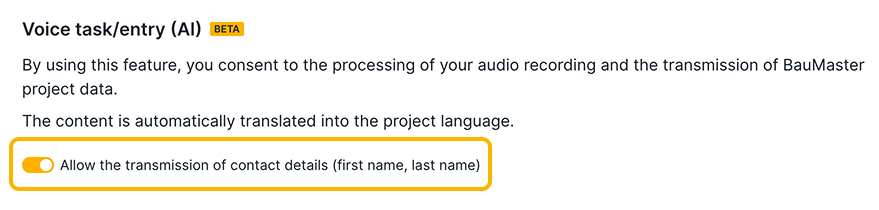
Transfer of contact data
Under “Voice task/entry (AI)” an admin controls the option “Allow the transmission of contact details (first name, last name)”.
- Enabled: first and last names of active contacts in the project team may be transferred to the AI in addition to the other project values. This makes it easier to assign company and responsible person.
- Disabled: these names are not sent as contact data from the project team. Company and responsible person therefore often stay empty and can be completed manually in the draft.
Only contacts of the project team currently in use are transmitted as project metadata. Contacts from the global contact list that are not in this project team are not sent. Contacts that are in the project team only in excluded projects are also not transmitted as project metadata.
The setting is enabled by default.
Names that someone speaks into the recording themselves can be contained in the audio and in the transcript even when the option is disabled. The setting does not remove such details from the voice input.
Further information on the feature and on the processing of the voice recording is in Create a task or record entry by voice (AI).
FAQ
Who can change the AI settings?
Only an admin of the company account. BauMaster logs who enabled or disabled AI and when this happened.
Which licences can use the AI features?
Smart and Expert. Viewers and Teamworkers cannot use Voice task/entry (AI).
What happens if I disable AI in the account?
The AI features are no longer available to all users of the account.
Is contact data transferred by default?
Yes. The option “Allow the transmission of contact details (first name, last name)” is enabled by default.
Does the setting remove names from a recording?
No. Names that someone speaks into the recording themselves can be contained in the audio and in the transcript even when the option is disabled.
Does the project exclusion list also apply to BauMaster MCP?
No. AI settings apply to the company account, BauMaster MCP is managed separately.
Keywords: AI settings