Manage drawings and drawing versions
In brief: Under Drawings & documents → PDF drawings you create a folder structure, upload drawings and organise them with keywords and location. You maintain drawing versions, see markers and sketches from tasks and record entries directly on the drawing, add drawing comments and send drawings by email to your project team.
Good to know: drawing management is in the Drawings & documents menu (category PDF drawings). Drawing markers and sketches require the PDF format; DWG, DXF and ZIP files are managed as CAD files belonging to a PDF drawing. The All drawings folder lists every drawing and document across folders.
Structure drawings: folders, keywords and location
BauMaster works without subfolders — instead you combine four means of order to keep even large projects with several components clear:
- Folders — one folder per building component, for example.
- Keywords (tags) — replace subfolders; a drawing can have several keywords.
- Location — basement, ground floor, upper floor, for example; a drawing has exactly one location. Additional locations are created in the project settings, see Overview of all project settings.
- Unit — additionally assigns the drawing to a unit, see Levels and units.
Tip: create one folder per building component and structure within it using keywords and location. That saves nested subfolders while still letting you filter precisely.
Create and edit folders
- Open Drawings & documents in the burger menu. You land in the PDF drawings category or the folder overview.
- Create a new folder via the black Create folder button at the bottom.
- Via the three-dot menu → Edit you rename a folder and change the folder icon.
Different folder icons make the structure easier to grasp visually and speed up the work.
Upload drawings
Open the folder you want and upload new drawings via the button at the top right.
- Drawing markers and sketches require the PDF (.pdf) format.
- For a PDF drawing, upload the associated CAD files (DWG, DXF, ZIP) via three-dot menu → Manage CAD files.
If you later send the drawing via the paper plane symbol (send drawings), the PDF and all associated CAD files and ZIP containers are sent along.
When uploading you also set the drawing scale — it affects how the drawing is later shown in a record. Details: Set the drawing scale when uploading a drawing.
The upload runs in the background: the app uploads the drawing to the server, where it is converted for use in BauMaster. Once the drawing is ready, you receive an email notification.
You can send an email notification to the project team — your own employees and Teamworkers — informing them about a new drawing.
Manage drawings
In the card view of a folder you see per drawing: name and file name, index, drawing date, keywords, assigned location and unit, comments, whether sketches exist, the number of drawing markers, and whether the drawing is active for entries.
Multiple selection: on desktop devices the checkboxes sometimes only appear on mouse-over or via the multiple selection button; on touch devices they are always visible. Use Select all or the checkbox next to “drawing name” to select all drawings in a folder.
With drawings selected you can:
- Delete — only possible if no drawing markers or sketches from record entries are stored on them. If part of the selection contains markers, the function is disabled.
- Move into another folder.
- Download.
- Edit — drawing name, index, drawing date, keywords, location, unit and note.
- Send via the paper plane symbol (see below).
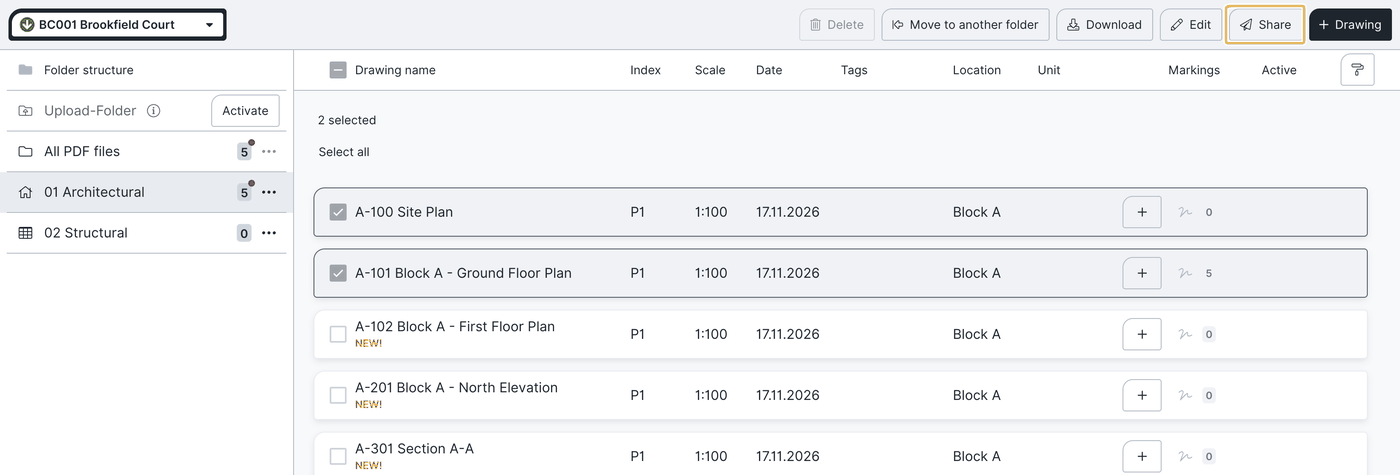
In the drawing name field give the drawing a meaningful name instead of the file name. The index field is for the version label (a, b, c … or 1.0, 1.1, 2.0 …).
Send and share drawings
- Select one or more drawings and click the paper plane symbol (tooltip “send drawings”).
- Choose the recipients from the distribution list.
- Set subject, email text and signature and send the drawings.
All sent drawings are listed automatically with their information as text in the email — that helps recipients keep an overview, especially with several drawings.
Trace who a drawing was sent to: all sent drawings are listed in the overview of sent emails (menu Drawings & documents) with recipient list and download status. Whether a drawing was viewed in the app is only visible on the drawing itself via three-dot menu → History.
Manage drawing versions
Drawing versions are only available with an Expert licence. Via the three-dot menu of an existing drawing you add a new drawing version:
- Upload the new drawing version.
- Set the information: drawing name, index, date, note, keywords, location, unit.
- BauMaster shows how many entries with drawing markers or markings were found.
- In the preview of old and new drawing you transfer individual or all markers and sketches to the new version and confirm the positions with Save.
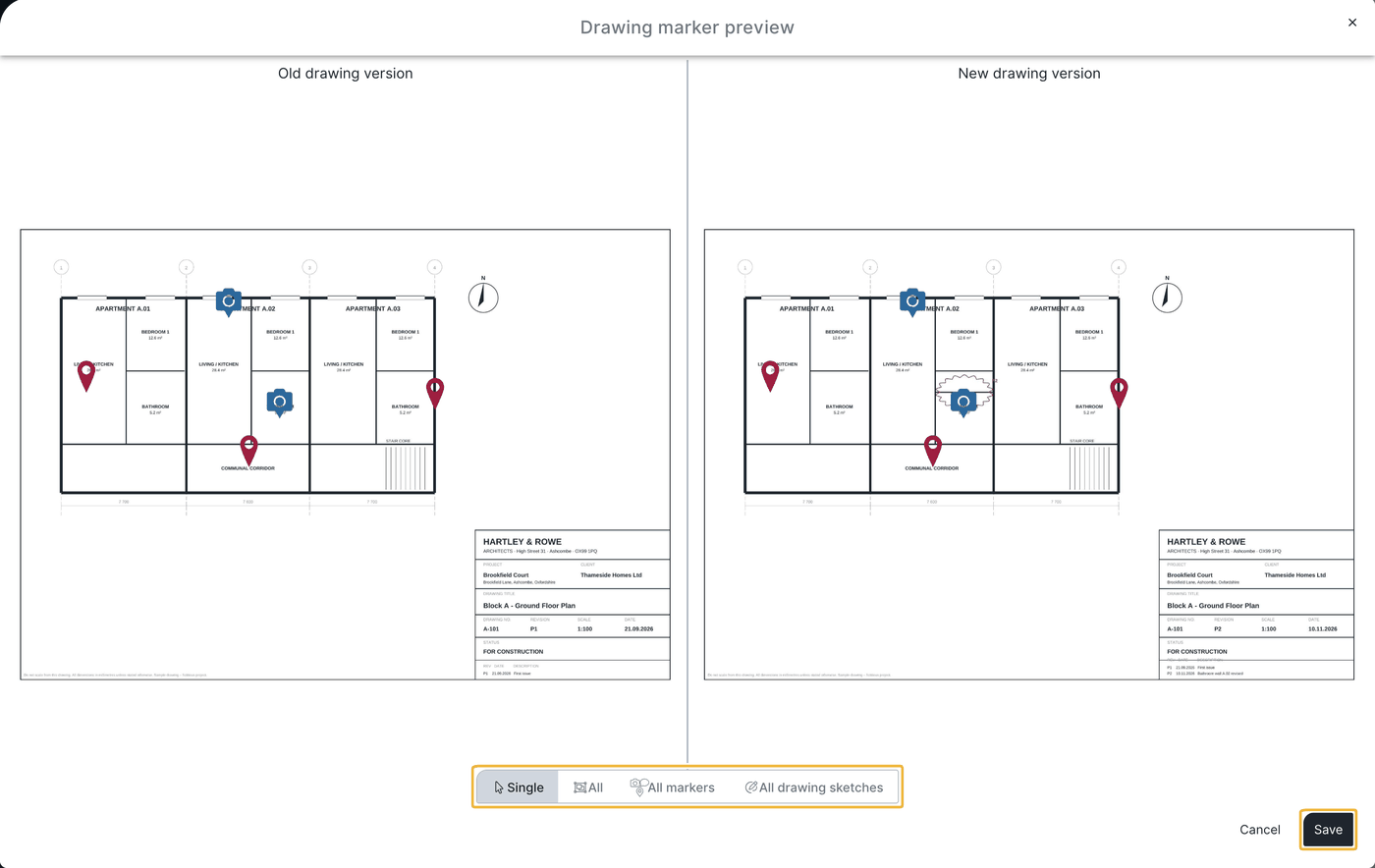
A new version is marked “New!” for 24 hours so the project team notices it. Earlier versions remain visible with name and index in the overview; you can open them but only view them.
Markers and sketches on the drawing
Click a drawing to see all markers and sketches placed on it:
- Drawing markers are placed in a record entry or a task. To change or remove one, open the entry and the marker symbol inside it.
- Entry sketches are linked to an entry and a drawing and can only be edited or deleted via the entry.
- Drawing sketches are independent of entries and linked only to the drawing. You create them in the drawing preview via Sketch and can download them as JPG.
Use a drawing sketch in tasks or entries: first store the drawing sketch under Drawings & documents; it then appears in the photos and attachments folder and can be assigned to tasks or entries as usual.
Jump into the entry: click the marker symbol and then Show details.
Drawing comments
Drawing comments are notes at a specific place on the drawing — independent of entries and not convertible into tasks or record entries.
- Open the drawing and choose Drawing comment.
- Place the marker where you want and enter the comment.
- Optionally add a file from the file system or from existing project data.
Resolve: via the comment icon and three-dot menu → Resolve. Resolved comments are shown again via the paint roller symbol under My view. To find them again, open the drawing and use Search or Filter.
Resolving cannot be undone. Any user with write permission on comments can resolve a drawing comment along with all comments it contains.
Archive drawings you no longer need
Instead of deleting drawings, create an archive folder (for example “ZZ – old drawings”, starting with “Z” so it sits at the bottom of the list) and move drawings you no longer need into it. Set these drawings to inactive — they remain visible to Smart and Expert users.
Viewers (internal) and Teamworkers (external) only see active drawings — they do not see inactive drawings. Add “OLD” to the drawing name if needed to avoid confusion.
More than drawings: store PDF documents
Under PDF drawings you store not only drawings but any PDF document — guidelines, scanned invoices or contracts, for example. You can add markers to these too: place a marker in the construction contract, for example, and the contractor immediately sees in the record entry which passage you mean.
FAQ
Which file format do I need for drawing markers and sketches?
PDF. DWG, DXF and ZIP files can be managed as CAD files belonging to a PDF drawing.
Why can't I delete a drawing?
Because a drawing marker from a record entry is placed on it. Drawings with markers or sketches from entries cannot be deleted.
Can I reopen old drawing versions?
Yes, but only to view them. Earlier versions are visible with name and index.
What is the difference between entry sketches and drawing sketches?
Entry sketches are linked to an entry and a drawing; drawing sketches are independent of entries and linked only to the drawing.
How long is a new drawing version marked "New!"?
24 hours after upload.
Can I trace who a drawing was sent to?
Yes, in the overview of sent emails or on the drawing via three-dot menu → History.
Where do I add a new drawing version?
Via the three-dot menu of an existing drawing you upload a new version; in the preview you transfer individual or all markers and sketches to the new version.
How can I print or export a drawing list?
This is not possible.
How do I turn off notifications for new drawings?
This is not possible.
Keywords: manage drawings