Overview of all project settings
In brief: in the project settings you define record styles, types, trades, locations, levels and units, the custom field, material lists and BOQ items, notifications as well as the appearance of documents and the email texts. Open the project; you find the project settings in the column on the left. With the green slider you make individual entries available for the current project, via the plus you create new ones.
Where to find the project settings
Open the project; you find the project settings in the column on the left. At the top left you see which project the settings currently apply to (for example “201810 sample project”). Smart and Expert users see the project settings; only admins additionally see the custom field and the notifications.
- With the green slider you make types, trades, locations etc. available for the current project.
- Via the plus at the bottom right you create new entries.
- Click an existing entry to rename or delete it.
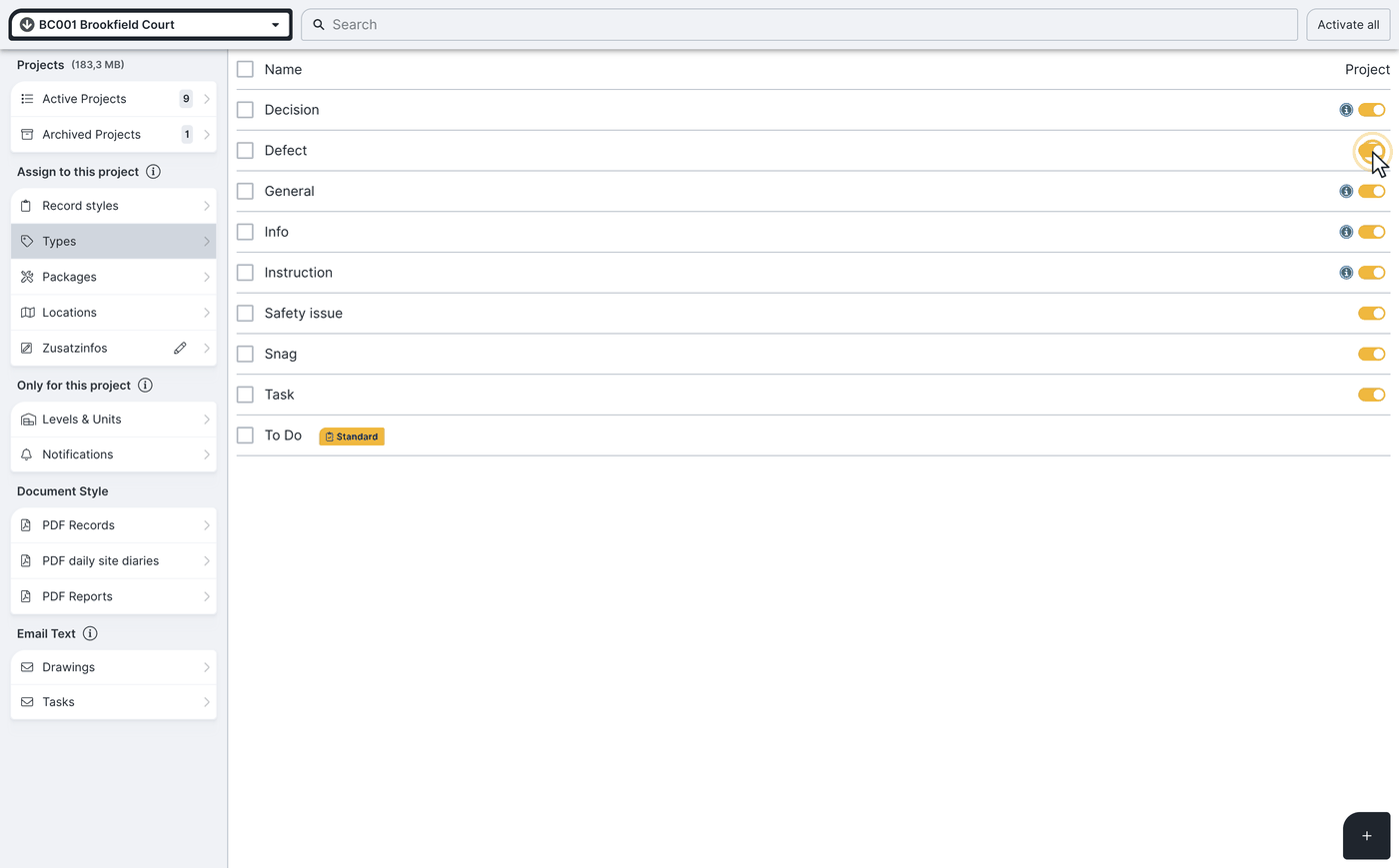
Types, trades and locations are maintained centrally. If you create, rename or delete an entry, that affects all projects. Per project you only select with the green slider which entries are available.
Record styles
Record styles determine the structure and layout of your records. How to create, edit and delete record styles is in Create, edit and delete record styles (project settings).
Types and status
With types (formerly “entry type”) you categorise record entries and tasks (defect, agreement, to-do …) and can filter by them later. At the same time you define how a type behaves: as an information or as a process with status (open, to review, done).
- Informative entries (an “agreement”, for example) get a blue i, have no status and are not carried forward in continuous records.
- A type with status such as “defect” is marked red and carried forward in continuous records until it is set to done.
How types and status work in detail is described in Record types in continuous records.
Trades
Trades matter for record entries and tasks, the construction schedule generated from them, and contacts. By creating trades you can later search and filter entries and tasks by trade.
Each trade can be given a colour, effective in the construction schedule — see Trades in the construction schedule.
Tip: if you store a trade on a contact, it is carried over automatically in the record entry. You manage contacts under Create and manage contacts.
Locations
With locations you define labels that make locating easier. You use locations in tasks and record entries, in PDF drawings and in reports. Practical examples:
- By floor: “basement”, “ground floor”, “1st floor”, “2nd floor”
- By unit: “unit 1”, “unit 2”
- By room: “kitchen”, “bathroom”, “living room”
Locations, or levels and units? Locations are simple locating labels for all projects. You map a multi-level structure per project through levels and units.
Levels and units
With levels and units you map the structure of a project — properties, floors and units with assigned owners or tenants. This structure applies only within the respective project. You can only create levels and units with an Expert licence; with a Smart licence you use them in record entries and tasks. How to create levels and units is in Levels and units.
Custom field
The custom field is a freely nameable selection field for your record entries and tasks. In the project settings it is visible to admins only.
Rename the custom field
Admins change the name of the custom field right here in the project settings. Examples: construction phase, room, internal reference, chapter.
Maintain selection values
You define the selection options for the custom field here in the project settings — as with trades, locations and types.
Tip: you can search and filter by the custom field later. A detailed example is in Your own order of record entries.
Appearance of documents and email texts
In the “appearance of documents” area (formerly “PDF presets”) you configure PDF records, PDF site diaries and PDF reports. In the “email texts” area you store standard texts for sending tasks and PDF drawings. All details on the appearance of documents are in PDF layout settings and PDF presets.
Material lists and BOQ items
In the project settings you manage imported material lists and BOQ items. In site diaries, daily reports and records you then select them from a list instead of entering them as free text.
Notifications
What BauMaster notifies about and whom, per project, is defined by admins in the project settings (visible to admins only). All details are in Set up and manage notifications (push).
FAQ
How do I add another type?
In the project settings under “types” via the plus at the bottom right. You change or delete existing types by clicking the entry.
Where do I choose which trade a company performs on the project?
Store the trade on the respective contact — it is carried over automatically in the record entry. More under “create and manage contacts”.
Do the project settings apply to all projects?
Types, trades and locations are maintained centrally — changes affect all projects — and made available per project with the green slider. Levels and units apply only within the respective project.
Keywords: project settings