Review process for drawings: submit, review and approve
In brief: With the detailed review process, (external) specialist planners submit drawings to an upload folder. Defined reviewers approve or reject each drawing within a deadline. A permitted publisher — usually the project management — then finally moves the drawing into a folder under Drawings & documents, publishing it for the project team, or rejects it.
Prerequisites: the upload folder with review process is an Expert feature — only Expert users activate the upload folder and define reviewers. Uploaders and reviewers — internal (Viewer, Smart, Expert) or external (Teamworker) — must be assigned to the project and project team and have an active BauMaster account. Upload folder and review process must be enabled in the project, and permissions set up (upload, fixed and additional reviewers with review periods, publisher).
Overview: how the process runs
- An Expert user activates the upload folder and defines uploaders, reviewers and publishers.
- The uploader uploads a drawing to the upload folder.
- Depending on the configuration, the uploader adds metadata and drawing notes and selects additional reviewers if needed.
- The reviews appear in the dashboard widget “review process”; reviewers are also informed by email.
- Reviewers review the drawing within the deadline and approve or reject it.
- Once all reviewers have approved, the drawing goes to the publisher.
- If all reviewers have reviewed and at least one rejected, the drawing as a whole counts as rejected and goes back to the uploader.
- If the review period expires: if nobody has rejected so far, the drawing is marked overdue and the publisher is informed. If at least one reviewer has already rejected, the drawing is rejected automatically and goes to the uploader.
- The publisher moves the drawing into the target folder under Drawings & documents and thereby publishes it — or rejects it.
Without an enabled review process there are no reviewers: the uploaded drawing goes straight to the publisher, who publishes or rejects it (back to the uploader). That flow is described in Upload drawings for external planners.
For a quick start: read “prerequisites” and “overview” first, then the role that concerns you — uploader, reviewer or publisher.
The roles and terms
- Upload folder: a special folder for submissions, for example from external specialist planners.
- Uploader: person or company submitting drawings — external specialist planners or the internal planning department.
- Fixed reviewers: people who must review and approve or reject every drawing in the upload folder. If an uploader is also a reviewer for other drawings, they are excluded as reviewer on drawings they uploaded themselves — nobody reviews their own drawings.
- Additional reviewers: reviewers the uploader can select when uploading, in addition to the fixed reviewers (depending on the project setting). The publisher can also add or remove reviewers while the review is running.
- Publisher: the person(s) who finally move drawings into the target folder under Drawings & documents, thereby publishing them — or abort the process. The publisher role requires an Expert licence.
- Drawing status: submitted, in review, deleted, discarded, rejected, approved, overdue.
- Reviews: open drawing reviews shown to reviewers in the dashboard widget “review process”.
Settings in the upload folder (for Expert users)
Activate the upload folder
- The upload folder is not active by default; externally connected Teamworkers do not see it.
- As an Expert user you activate it so the uploaders defined in the settings can see it and upload drawings.
- The upload folder can only be activated or deactivated when no drawings are in it.
Who sees which drawings in the upload folder?
- Expert users: all drawings.
- Uploaders: all drawings they or someone from their company uploaded.
- Reviewers (only with an enabled review process): all drawings where they are stored as reviewer.
- Publishers: all drawings.
Set permissions
1. Who may upload? Select companies you are connected with and that are part of the project team — all assigned Teamworkers of that company may then upload. Users of your own company (Viewer, Smart, Expert) may always upload if they belong to the project team. For external companies at least one contact of the company must be connected and assigned to the project — a company without a connected contact has no effect.
2. Enable the review process. Here you define the reviewers and their deadlines:
- Fixed reviewers: people who must review and approve or reject every uploaded drawing. Reviewers can be internal users (including Viewers) or external Teamworkers with their own BauMaster account, and must always be part of the project team.
- Additional reviewers: a selection of people the uploader can add when uploading. The same logic as for fixed reviewers applies.
- Review period: a review period in days is set for fixed and additional reviewers (calculated in working days). The period starts the day after upload. Tip: give the longest period to the person with the final approval.
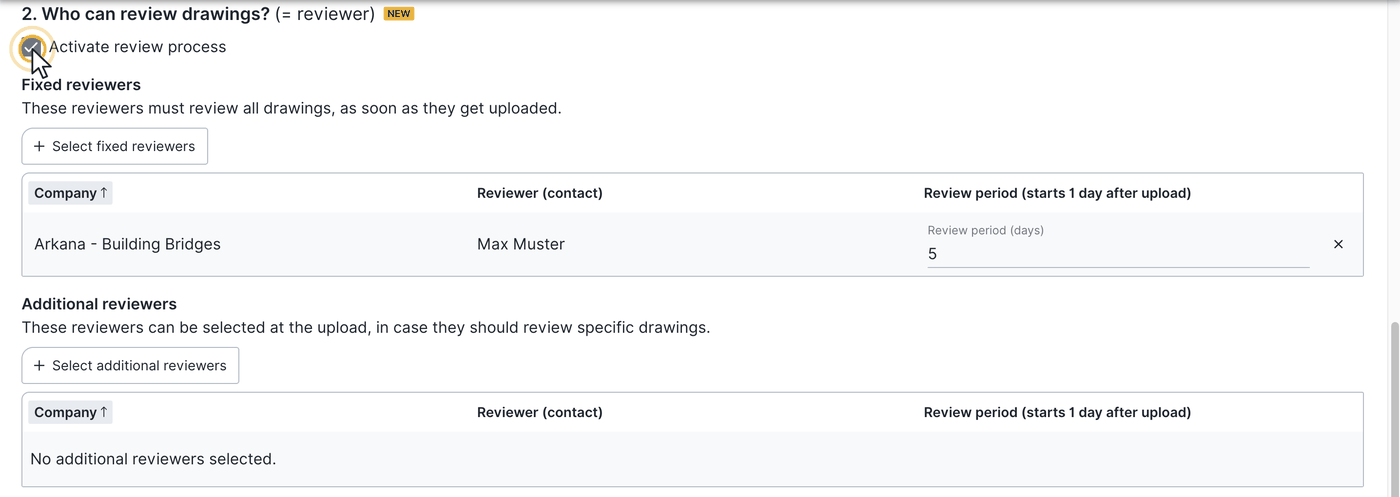
Note: if the review process is not enabled, uploaders can still upload drawings; these then go directly to the publisher without reviewers, who reviews them, moves them into a folder under Drawings & documents and thus publishes them — or rejects them. The review process can only be enabled or disabled when no drawings are in the upload folder.
3. Who may publish? Only people from your own company with an Expert licence can be publishers.
For uploaders: submit drawings
Upload a drawing
- In the project, navigate to the upload folder under Drawings & documents.
- Decide whether it is a new drawing or a new version of an existing drawing.
- Currently only PDF files can be uploaded.
- Several .dwg or .dxf files can be added to an uploaded PDF drawing.
New drawing or new drawing version
- New drawing: the drawing is submitted as a new document in the upload folder.
- New drawing version: you select the existing active drawing the new version belongs to.
- The selected drawing is locked during the review (no further version upload or deletion) to avoid conflicts.
- You can detach the connection to the existing drawing or connect it to a different existing drawing.
- If the reviewed drawing is published as a new version, all existing drawing markers are carried over into the new drawing.
Add metadata and drawing notes
Depending on the project setting, you add after uploading:
- drawing name / file name
- index / version
- scale
- location / unit
- tags / keywords
- drawing notes (for example “change affects only the electrical riser on the 2nd floor”)
Write drawing notes so a reviewer immediately understands what changed and what is expected.
Attach CAD data
If needed, attach .dwg, .dxf or ZIP files to the PDF drawing. When downloading the drawing from the drawing server, the CAD files are always downloaded too.
Select additional reviewers (if enabled)
- The additional reviewers defined in the settings can be added individually when uploading, in addition to the fixed reviewers.
- Only select people whose trade is genuinely affected, so the review is completed quickly.
- Additional reviewers must review a drawing once they have been added.
Complete the upload
- Check that all important fields are filled in.
- Click Upload.
- The drawing gets the status submitted; reviewers are informed by email (if notification is enabled). Each reviewer sees their reviews in the dashboard widget.
Delete drawings
- Uploaders can only delete drawings while they have the status submitted.
- A deleted drawing gets the status deleted; only the uploader can delete it.
- Drawings in review or already approved can no longer be deleted by uploaders.
- Click the drawing and delete it via the three-dot menu.
Rejected drawings
A drawing gets the status rejected when:
- all reviewers have reviewed and at least one rejected,
- at least one reviewer rejected and the review period has expired (even if not all have reviewed), or
- the publisher rejects the drawing — also possible after all reviewers have approved.
The uploader then receives an email with all collected rejection reasons (if notification is enabled). After reworking, the uploader (or a colleague from the same company) can upload the drawing directly as a new version — the review process starts again.
For reviewers: review and decide
Where do I find “my reviews”?
- In the dashboard widget review process,
- directly in the upload folder via filters (for example “my open reviews”), or
- via email notifications (if enabled).
Open and review a drawing
- Open the drawing in the upload folder.
- Read the drawing notes and change notes.
- Review the drawing content and any notes and markings.
Approve or reject
- Approve: when the drawing is technically correct.
- Reject: when corrections are needed. The drawing status only changes to “rejected” once all reviewers have reviewed or the review period has expired for all.
- Reviewers can change their approval or rejection afterwards, as long as the drawing has not been finally rejected or approved.
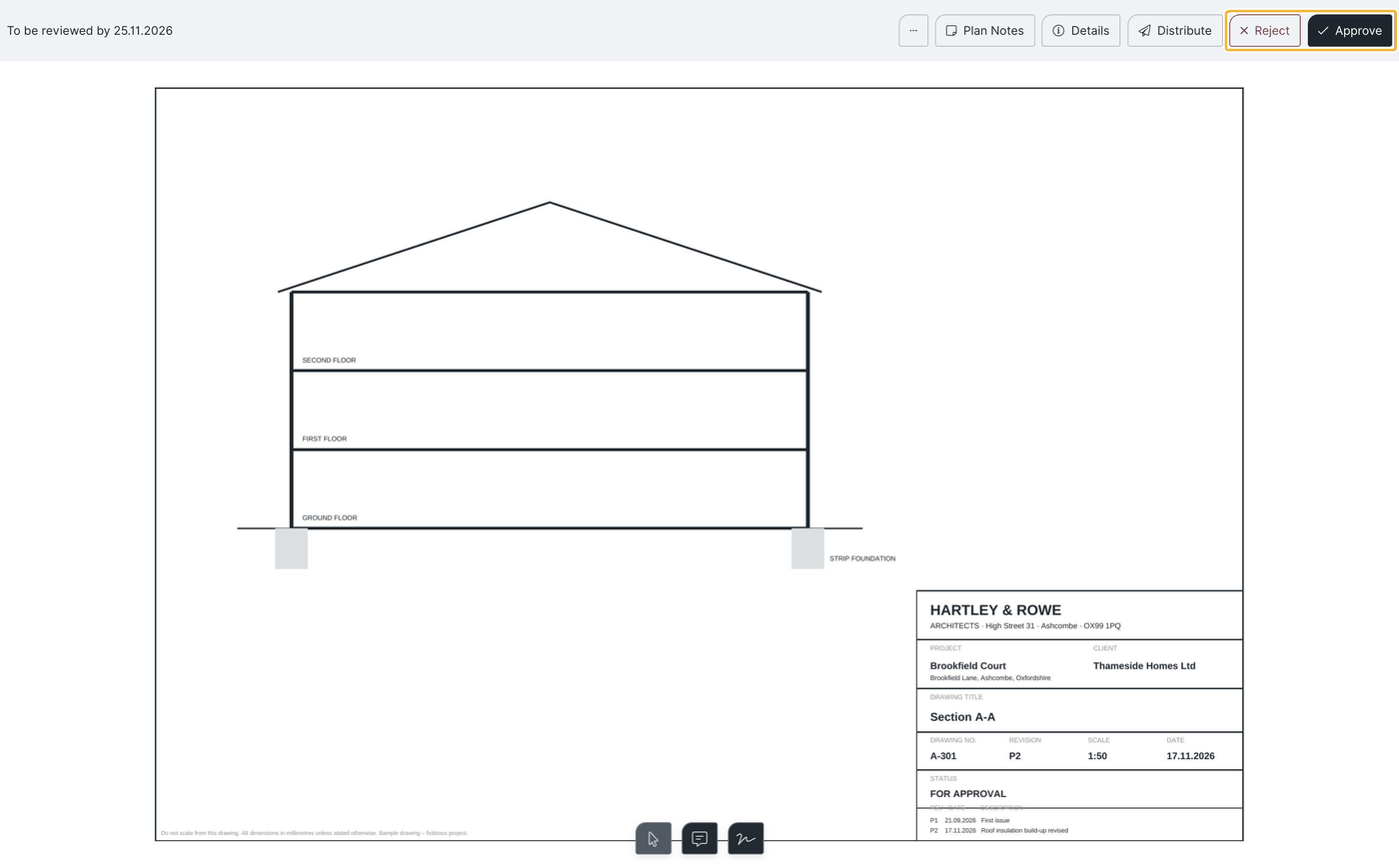
Best practice: always give a clear reason when rejecting — what is wrong or unclear, which passage is affected, which correction is expected? Example: “Rejection: drawing 1st floor – sanitary shaft. Routing collides with beam axis B. Please adjust and submit a new version.”
What happens after the review?
- As soon as the first reviewer starts reviewing, the status changes to in review.
- Every review result is documented in the review history.
- If all reviewers have reviewed and nobody rejected, the drawing counts as approved.
- If all have reviewed and at least one rejection exists, the drawing counts as rejected.
- As soon as the last reviewer has reviewed, the status is set accordingly. If the drawing is then “rejected”, the uploader receives all information and reasons from the rejecting reviewers in one go.
For publishers: publish finally
Overview
As publisher you see which drawings are approved, which are overdue, whether there were rejections and which reviewers are still open.
Publish a drawing
- Open the drawing; the Publish button is at the top right, the review history in the drawing details.
- Choose the target folder where the drawing is stored for all project participants. For a new drawing version, select or confirm the existing target drawing.
- Publish the drawing.
You can also publish drawings when not all reviewers have reviewed or a reviewer has rejected. In that case you must enter a reason in the drawing notes.
Reject a drawing or abort the process
- The publisher can still reject drawings at this stage. Give a clear reason and inform the uploader by email.
- If the drawing is discarded, it is removed from the active process and no longer shown in the upload folder.
- In the details the publisher can add or deactivate reviewers (if they are not responsible for this drawing, for example) and adjust the review period per reviewer individually.
Drawing status at a glance
The exact logic can be project-specific. Typically:
- Submitted: uploaded, no review yet.
- In review: at least one reviewer has started reviewing, others may still be open.
- Overdue: the review period has expired, reviews are still open and nobody has rejected yet.
- Rejected: at least one reviewer rejected and all reviewers have reviewed or the review period has expired — or the publisher rejects.
- Approved: all necessary reviews are complete and positive. An approved drawing not yet published is in the state “waiting for publication”; that is not a status of its own.
- Deleted: the uploader deleted their own drawing.
- Discarded: the drawing was discarded and should no longer be used (it is no longer shown in the upload folder).
Only the overdue check runs on the server at 00:00. All other status changes happen immediately or with the next sync — the status switches to “in review”, for example, as soon as the first reviewer has started reviewing and synchronised.
Email notifications
Which emails are actually sent depends on the settings in the upload folder. The following overview is a guideline.
Who receives emails?
Uploaders, reviewers, publishers and possibly the whole project team — depending on the settings in the upload folder.
Emails by drawing status
- Submitted (new drawing): email to all reviewers (with review process enabled): “New drawing uploaded”, as a collected email every 30 minutes (interval not adjustable). Without an enabled review process the email goes directly to the publisher. Optionally the uploader receives a confirmation “drawings uploaded successfully”.
- In review: usually no email.
- Overdue: email to the publisher: “review period expired – please respond”.
- Rejected: email to the uploader with all rejection reasons collected.
- Approved: email to the publisher: “drawing reviewed – ready for final publication”.
- Deleted: email to the reviewers.
- Discarded (by the publisher): email to uploader and reviewers.
Rejection by the publisher and an expired review period are two separate flows:
- Publisher rejects the drawing: if the flag is enabled, an email goes to all reviewers who have not yet reviewed and to the uploader.
- Review period expires: the drawing gets the status overdue; a reminder email goes to all reviewers who have not yet reviewed and to the publisher.
Reminders for review periods
Reviewers receive reminders that a drawing must be reviewed by a certain day:
- the day before (07:00, for example),
- on the deadline day (07:00), and
- after the deadline has passed (07:00).
Publication
Optional (depending on settings): the whole project team receives an email about new drawings including a download link — as a collected email every 30 minutes.
Configuration in the upload folder
Optional (depending on settings):
- email to uploaders that the upload folder is active,
- email when uploaders are added or removed.
FAQ
Why can't I see a drawing?
You may lack permissions for the upload folder, or the drawing has already been discarded or archived.
Can I change metadata after upload?
Depending on the status: typically possible for “submitted” and “in review”, restricted for “rejected” or “approved”.
Can I change reviewers afterwards?
Usually only the publisher can, and only while the status is “submitted” or “in review”.
What happens if not all reviewers respond in time?
The drawing becomes overdue and the publisher is informed. The publisher can publish the drawing finally even with open reviews.
Which licence do reviewers and publishers need?
Reviewers can be internal users (including Viewers) or external Teamworkers with their own BauMaster account (each part of the project team). The publisher role requires an Expert licence.
Does the review process only apply to PDF drawings?
No. The review process applies to every PDF file you place in the upload folder. It is mostly used for PDF drawings, which is why you find it in the drawings & documents area.
Why can't I add a newly connected contact as reviewer to an already uploaded drawing?
That is not possible because the review process has already started and reviewers are selected at the time of upload.
Keywords: drawing review process