Set up and manage notifications (push)
With notifications you keep your project team up to date on new and changed tasks, record entries and documents. Notifications are set per project and can only be changed by an admin.
General notes on notifications
The notification function informs your project team about news and changes to tasks and record entries. All members of the project team — your own employees as well as Viewers and Teamworkers — receive push notifications directly on their phone, provided push is allowed on the device, and project managers are informed when a Teamworker has set their task to “to review”. This article describes the in-app push notifications (not email notifications). You see the notifications in the app via the bell at the top right, next to the account menu.
Enable notifications
You enable notifications in the project settings, where they are visible to admins only. Open the project; you find the project settings in the column on the left. The setting applies only to the respective project.
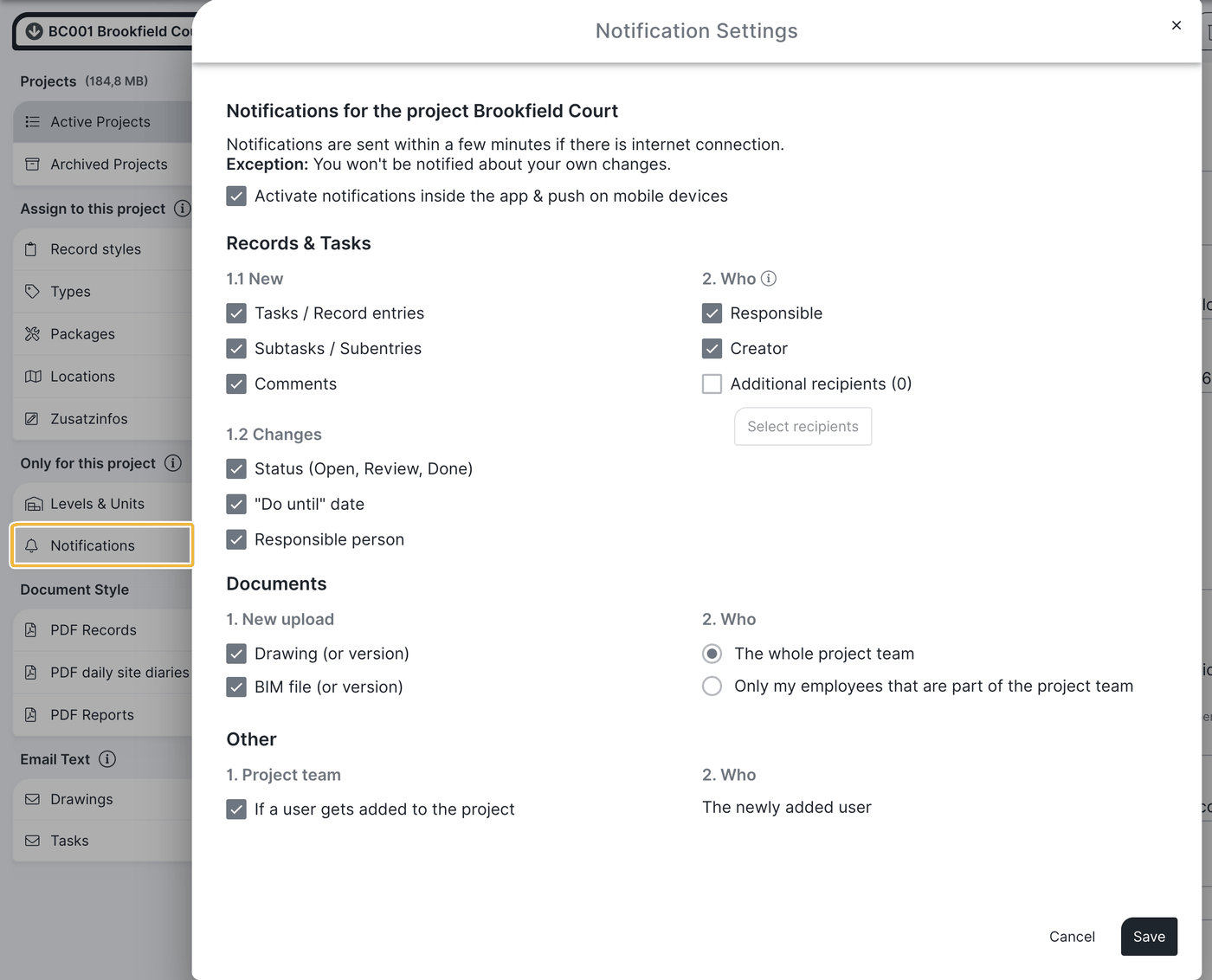
Only users with admin rights can change these settings. Setting up notifications is an admin right.
For reasons of space the notification settings are only shown on a desktop PC.
On mobile devices the push notifications must additionally be allowed in the device’s system settings menu (not in BauMaster). Once permission has been withdrawn, it can — as with GPS permission — only be granted again via the operating system settings (Android, iOS). How that works is shown in App permissions on your device.
Notification settings (per project)
Notifications are defined per project:
- For existing projects notifications are not enabled.
- For new projects they are enabled by default.
- When copying projects the notification settings are copied along.
With the first checkbox “enable in-app & push notifications” you switch notifications on for the project. Then you define in detail what you notify about and whom:
- What (left column): under “records & tasks” you have three options each for newly created events and for changes. Under “documents” you select newly uploaded PDF drawings and BIM files. Under “other” you define whether a newly added user is notified when taken into the project.
- Whom (right column): the responsible person of the task or entry, the creator, or additional recipients from your contacts. For documents you decide whether the whole project team or only your own employees are informed.
A notification is also triggered when an information entry becomes an entry with a traffic light. Important: notifications are only sent once the change has been synchronised with the server — if you work offline, the notification follows only after synchronisation.
Additional recipients
Besides responsible person and creator you can add further recipients under “to whom”. Click “select recipients” for that. These can be your own employees (users with a Smart or Expert licence or Viewers) or invited Teamworkers.
Only someone assigned to the project team can be an additional recipient. Teamworkers are invited first and then assigned to the project team.
Practical examples
Project start
If you do not want to inform anyone about entries and tasks at the start of the construction project, deactivate the “enable in-app & push notifications” checkbox.
Follow-up work
Via “additional recipients” follow-up work can be handed to other people: deselect creator and responsible person and instead select a central address (followup@company.com) as additional recipient.
FAQ
Who can set up notifications?
Only users with admin rights, per project in the project settings (visible to admins only there). The whole project team can receive them.
Why do I get no push notifications on my phone?
Additionally allow push notifications in your device’s system settings menu. Without that permission BauMaster is not allowed to notify you on the phone.
Can I set who is informed about what?
Yes. Per project you define what is notified about (records & tasks, documents, other) and whom it concerns (responsible person, creator or additional recipients).
How am I informed about new drawings?
Under “documents” you enable notification for newly uploaded PDF drawings and BIM files and choose whether the whole project team or only your own employees are informed.
How do I switch off notifications about new drawings?
Deactivate the option for new PDF drawings and BIM files under “documents” in the project notifications.
Keywords: notifications