Levels and units
In brief: Levels and units map the structure of a construction project — properties, floors and units, for example. You create them with an Expert licence in the project settings; the structure applies only within that project. Owners or tenants can be assigned to individual units.
Where to find levels and units
Open the project; you find the project settings in the column on the left. Levels and units can only be created and edited with an Expert licence. With a Smart licence you use the created units in record entries and tasks.
This setting is stored only within the respective project. Levels and units therefore do not apply across all projects but are created per construction project.
Create the structure
A structure can have up to 6 levels; each level can contain any number of units. Per level you decide whether units are given a unit ID — it is shown in BauMaster and on PDF records.
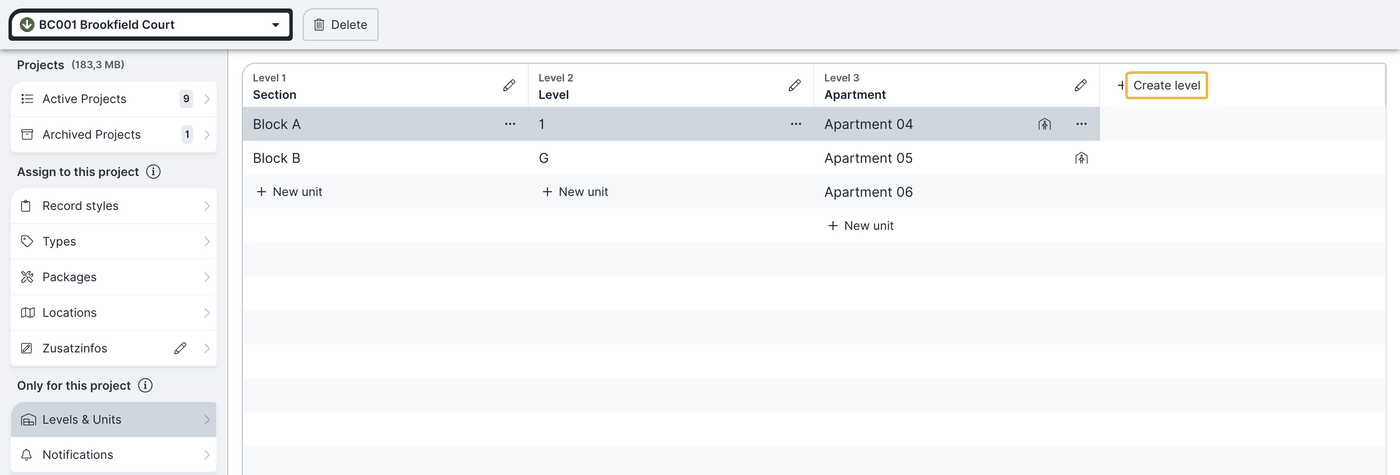
First create a level — at the top right via “+ add level”, for example “property number” or “floor”. Within that level you then define units, for example basement, ground floor, upper floor, or unit 1, unit 2.
Create units in series
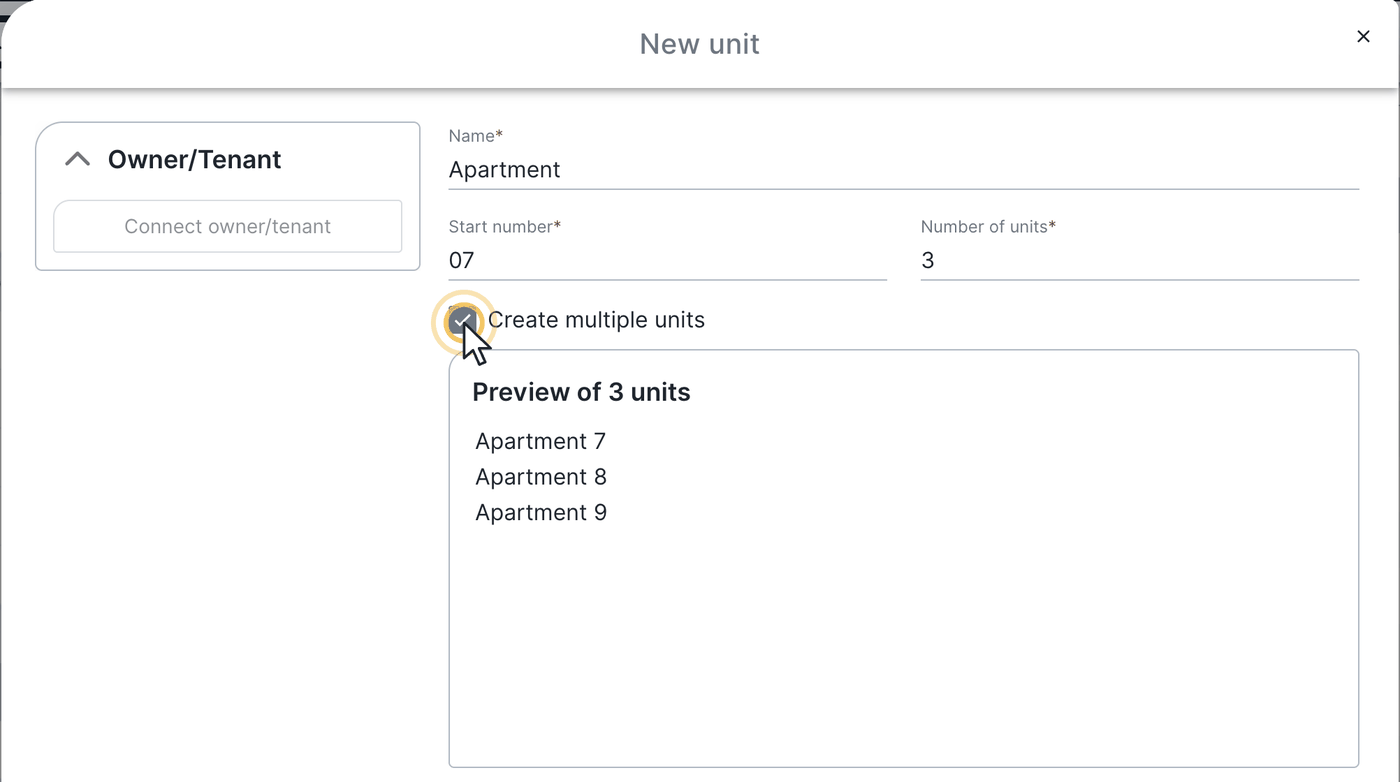
If you want to create apartments 1 to 24 for a whole floor in one go, tick the “create multiple units” checkbox. Choose the first number (for example “1”) and enter how many units to create.
Set an address for a unit
Each unit can be given an address for information purposes. This field is optional.
Copy a unit
Duplicating a unit also copies the subordinate levels and their units. That way you can carry floors over into a new building quickly without recreating them.
Rename a level
To rename a level, click the edit symbol of the respective level.
Link owners/tenants to a unit
One or more owners/tenants can be added to each unit. Click the unit you want and choose “open unit details”. In the window that follows you link an owner or tenant created for this project to the unit. An owner/tenant can also be converted into a former owner/tenant or removed.
If a unit is deleted, there is no way to restore it later.
Use units in tasks and record entries
Once created, units are available throughout the project: you assign a unit to individual record entries and tasks via the “unit” field. This lets you evaluate them later with the cross-project Search & filters — for example “all defects of a specific unit in a period”. If you also enable sub-units in the “unit” filter, entries of subordinate units appear as well (all apartments on the first floor, for example).
Assign a unit to a record
For records with the standard layout you can also assign a unit directly to the record — for handover records, for example. Then select the owner(s) as recipients too; they are additionally listed on the cover sheet of the record.
Levels and units, or locations? A multi-level structure with properties, floors and assigned owners/tenants is mapped through levels and units. Simple location labels are created as locations instead, see Overview of all project settings.
FAQ
Who can create levels and units?
Levels and units can only be created and edited with an Expert licence. With a Smart licence you use the units in record entries and tasks.
How many levels can I create?
Up to 6 levels; each level can contain any number of units.
Do levels and units apply in all projects?
No. The structure is stored per project and must be created for each construction project.
Can I restore a deleted unit?
No. A deleted unit cannot be restored.
How do I assign an owner or tenant to a unit?
Via “open unit details” you link an owner/tenant previously created in the project to the unit.
What else are units used for besides owners/tenants?
You also assign units to record entries and tasks and evaluate them afterwards via search & filters — all defects of a unit in a specific period, for example.
Keywords: levels and units