Overview of sent emails
In brief: all emails sent from BauMaster (tasks, records, reports, drawings, search results) land under “drawings & documents” → “sent emails”. There you see the content of the email, the recipient list and the download status (who downloaded a file and when) and can deactivate download links afterwards.
Where to find sent emails
All emails sent from BauMaster with tasks, records, reports, drawings and search results are stored in the burger menu under “drawings & documents” (all project documents) in the “sent emails” area in an overview.
With the text search you search for keywords from the email content, for a name or company. Additionally you narrow the list via the filter. There are quick-filter buttons for records, tasks, drawings, site diary, daily reports, daywork sheet, calendar invitations and search results. Then there is a content text search in the search field, for example also by name or company of the recipients. Clicking the filter button allows filtering by these details:
- sender
- recipient (person)
- recipient (company)
- period sent from - to
- record style
- record
Show recipients and check download status
Once you have found the email you want, it is shown on the right. Clicking “recipient list” shows who the email was sent to. For all emails with a download link — records, reports, drawings and search results — you also see whether and when the recipient downloaded the file.
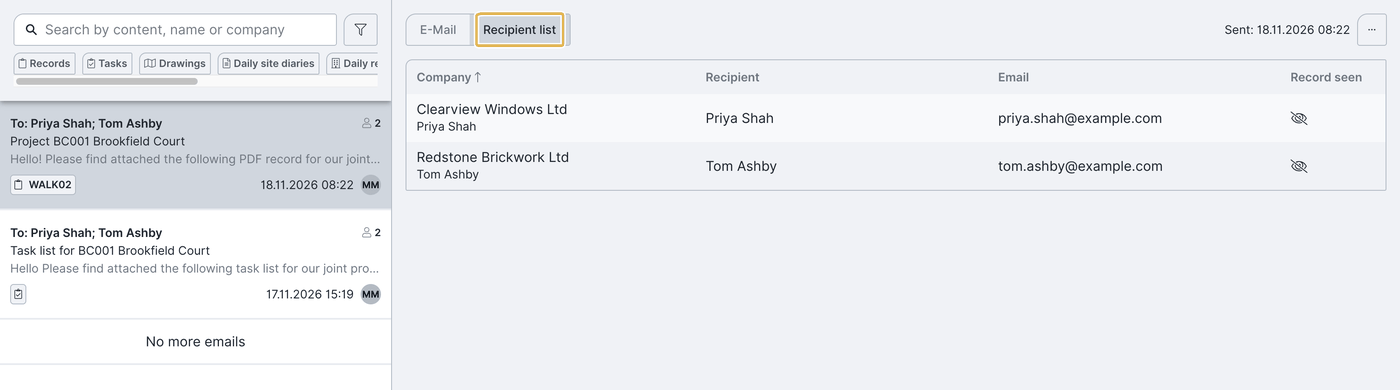
Who has downloaded a document? If a recipient has downloaded the file, the date and time of the download appear next to them. The eye symbol only appears while the file has not yet been downloaded. Here you only see the download. Whether a record was seen (seen status) is shown by the recipient list directly on the record under drawings & documents → PDF records.
If a record was sent both as a complete record and individually, there are two columns — one per download link.
Track the sending of drawings
Sent drawings are also stored here — together with records, tasks, reports and search results — in the “sent emails” overview. In the history you see:
- who the drawing was sent to by email,
- the content of the email,
- who downloaded the drawing (download status).
Whether someone opened the drawing in the app is not shown here — only the history directly on the drawing shows that.
Alternative route directly on the drawing: open drawings & documents, click the three-dot menu next to the drawing you want and choose history — there you see, besides the download status, who viewed the drawing in the app.
Deactivate download links
- For record emails: via the three dots at the top right you deactivate record links in the emails — useful when a record should be recalled. Re-activating the link is not possible.
- For task emails: via the three dots you deactivate the image download in the email.
- For drawings, reports and search results: these download links are also deactivated via the three dots.
FAQ
Can I send an email again?
No, resending the email is not possible. Send the record, report or drawing again instead.
Where do I see who downloaded a document?
In the “sent emails” overview: next to the recipient you see the date and time of the download; the eye symbol only appears while it has not yet been downloaded. Whether a record was seen is shown by the recipient list on the record.
Where do I see who I sent a drawing to?
In “sent emails” (recipients and downloads) or directly on the drawing via the three-dot menu → history — only there you additionally see the views in the app.
Can I deactivate a sent download link again?
Yes, via the three dots on the respective email. Re-activating is not possible afterwards.
Keywords: sent emails