Upload drawings for external planners
In brief: Activate an upload folder in a project so external specialist planners can upload drawings and PDF files themselves. As an Expert user you control who may upload, publish submitted drawings or reject them, and define who is notified by email.
Prerequisites: the upload folder is activated by an Expert user. Only Expert users enabled for it in the upload folder configuration — the publishers — can publish or reject submitted drawings. External specialist planners upload with the free Teamworker licence; how this works from their side is described in Viewer & Teamworker in BauMaster in the section on uploaders.
This article describes the upload folder without a review process. If the review process is also enabled (fixed and additional reviewers, review periods, publisher), see Review process for drawings: submit, review and approve.
Activate the upload folder
First activate the upload folder in the respective project under Drawings & documents. Once it is active, the people defined under “who can upload drawings” in the project team can upload drawings.
Who sees which drawings in the upload folder?
Expert users and publishers see all drawings. Uploaders see the drawings they or someone from their company uploaded. Reviewers (only with an enabled review process) see all drawings where they are stored as reviewer. All details on roles, permissions and status are described in Review process for drawings.
Who may upload?
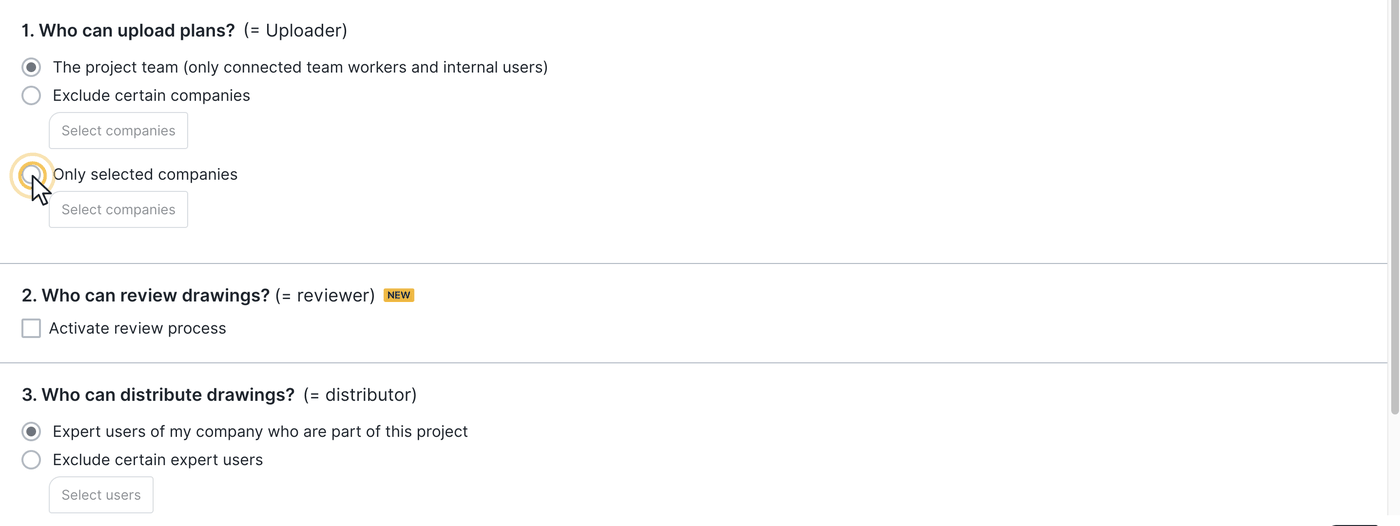
When activating — or later via the three-dot menu — you define who may upload drawings and PDF files. Under “who can upload drawings?” choose:
- all internal users assigned to the project team,
- exclude certain companies (in addition to the internal users in the project team), or
- select certain companies (in addition to the internal users in the project team).
Only people with access to the project can upload: internally Viewers, Smart and Expert users in the project team; for external companies a contact of the company must be connected and assigned to the project. A company without a connected contact has no effect.
Upload a drawing: in the upload folder click Upload drawing and choose whether you upload a new drawing or replace an existing drawing with a new drawing version. Optionally add details via add note and confirm with Save. If notification is enabled, an email is sent.
Publish drawings and assign them to a folder
Only Expert users enabled in the upload folder configuration under “who can approve or reject drawings?” can publish submitted drawings as publishers — into a folder or as a new version of an existing drawing.
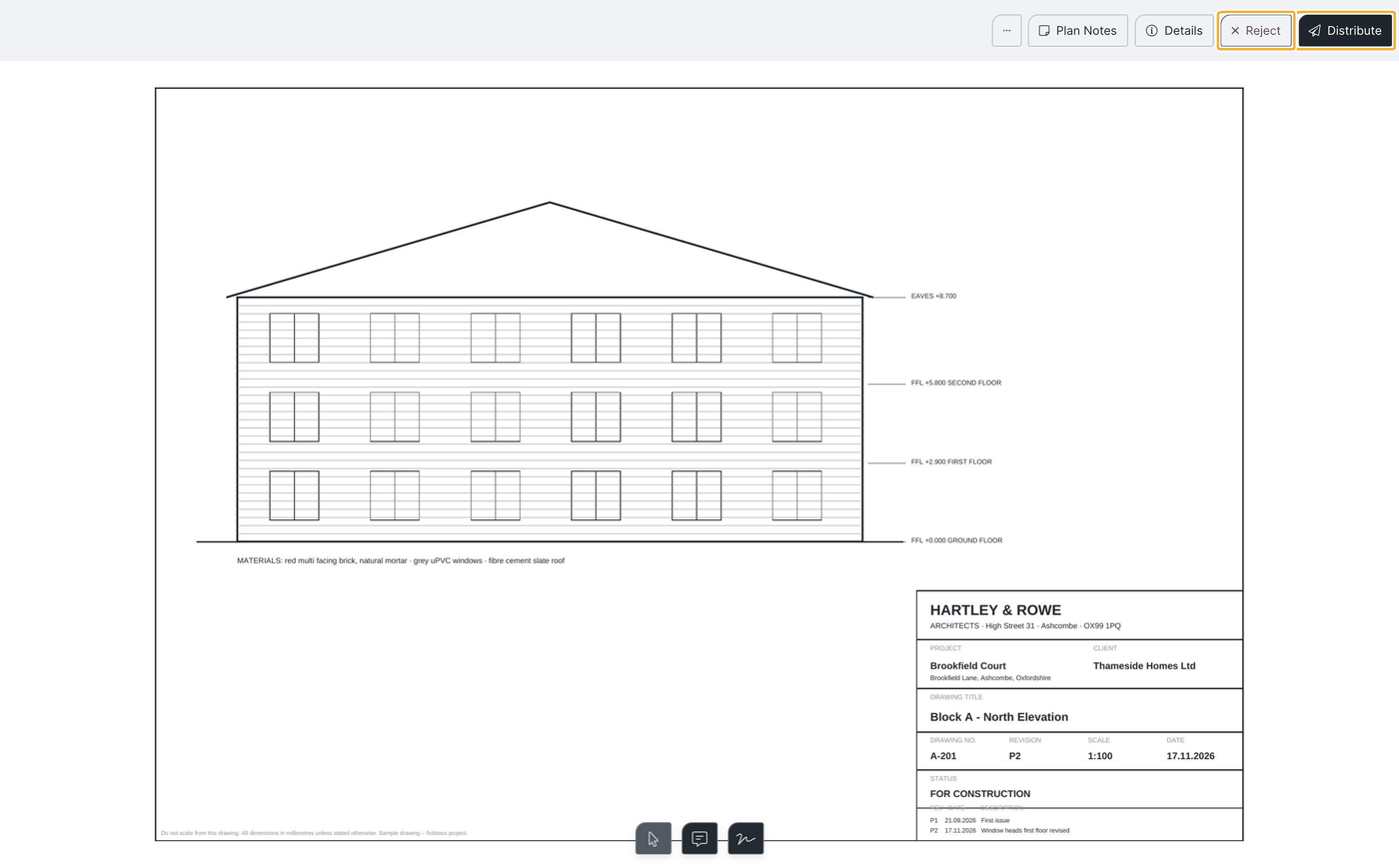
- Select the new drawing or drawing version and click Publish at the top right.
- Choose whether to assign the drawing to an existing folder or add it to an existing drawing as a new drawing version.
- In the approval step you can transfer existing markers onto the new drawing version and adjust them.
Reject drawings
Only enabled Expert users can reject submitted drawings.
- On the submitted drawing, click the red Reject button at the top right.
- Choose whom to inform about the rejection — the submitting person is preselected by default.
- Add reasons and notes to the rejection in the email notification.
Who may publish or reject (publishers)?
When activating, or later via the three-dot menu, you define under “who can approve or reject drawings?”:
- all Expert users of your own company,
- exclude certain Expert users, or
- select certain Expert users.
Status “rejected” and resubmitting
A rejected drawing stays in the upload folder, gets the status “rejected” and the submitting person is informed according to the notification settings. The external planner can then upload the drawing again via Resubmit. Whoever uploaded a drawing can delete it themselves (status “deleted”); only the uploader can delete it. A submitted drawing waiting to be published is a state (waiting for publication), not a status of its own. All details on roles and status are in Review process for drawings.
Set up notifications
When activating, or later via the three-dot menu, you define who is informed by email about new uploads or rejections. The same menu lets you change at any time who may upload, who may publish or reject, and who receives notifications.
Email interval: new uploads are collected and sent by email every 30 minutes. For published or rejected drawings the notification goes out immediately.
FAQ
How do I get a company into the "certain companies" list?
The company only appears once a person from that company is assigned to the project team (assigned to the project).
Who can activate the upload folder?
Only Expert users.
Who can publish or reject submitted drawings?
Only Expert users — by default all of your own company, unless you restrict it.
How quickly are notifications sent?
New uploads are collected every 30 minutes; publications and rejections go out immediately.
How does an external planner upload drawings?
With the free Teamworker licence in the activated upload folder — the uploader’s view is described in the Viewer & Teamworker article.
May an external planner publish or approve submitted drawings themselves?
No. Only Expert users of your own company (publishers) can publish or reject submitted drawings.
Keywords: upload drawings external planners