Set up account settings (for admins)
In the admin settings, admins define what applies to the whole company account: global settings (required fields), logo & design (company logo, header and footer banner), account & billing details (account data, billing details, billing address), AI settings, report settings (employment groups and salary allowances) as well as integration & API (SharePoint, BauMaster MCP, application tokens). You reach the settings via the account menu at the top right (circle with your initials). Your personal settings are described in Set up user settings.
Where do I find the settings?
Open the account menu at the top right (circle with your initials) and choose “settings” (gear icon). There you find the following areas, depending on your permissions. “My settings” is visible to all users, the admin settings only to admins:
- My settings (for all users): user settings (login details, my user, email signature), display & language, manage devices, security (two-factor authentication) — details in Set up user settings
- Admin settings (admins only, apply across all projects)
- Global settings (required fields, for example company as a required field)
- Logo & design (including header and footer banner)
- Account & billing details: account data, billing details, billing address
- AI settings: enable AI in the account, voice task/entry (AI), exclude projects
- Report settings (visible to admins only): employment groups and salary allowances
- Integration & API (visible to admins only; application tokens for interfaces)
- SharePoint (only to be set up by an admin with an Expert licence; define connection and interval)
- BauMaster MCP
Your own licence (Viewer, Teamworker, Smart or Expert), any reports add-on and your role are shown in the user settings under “my user”. As an admin you also see all users with their licence type under “contacts → my company”; in your own contact you see your licence type and whether you are an admin at the top.
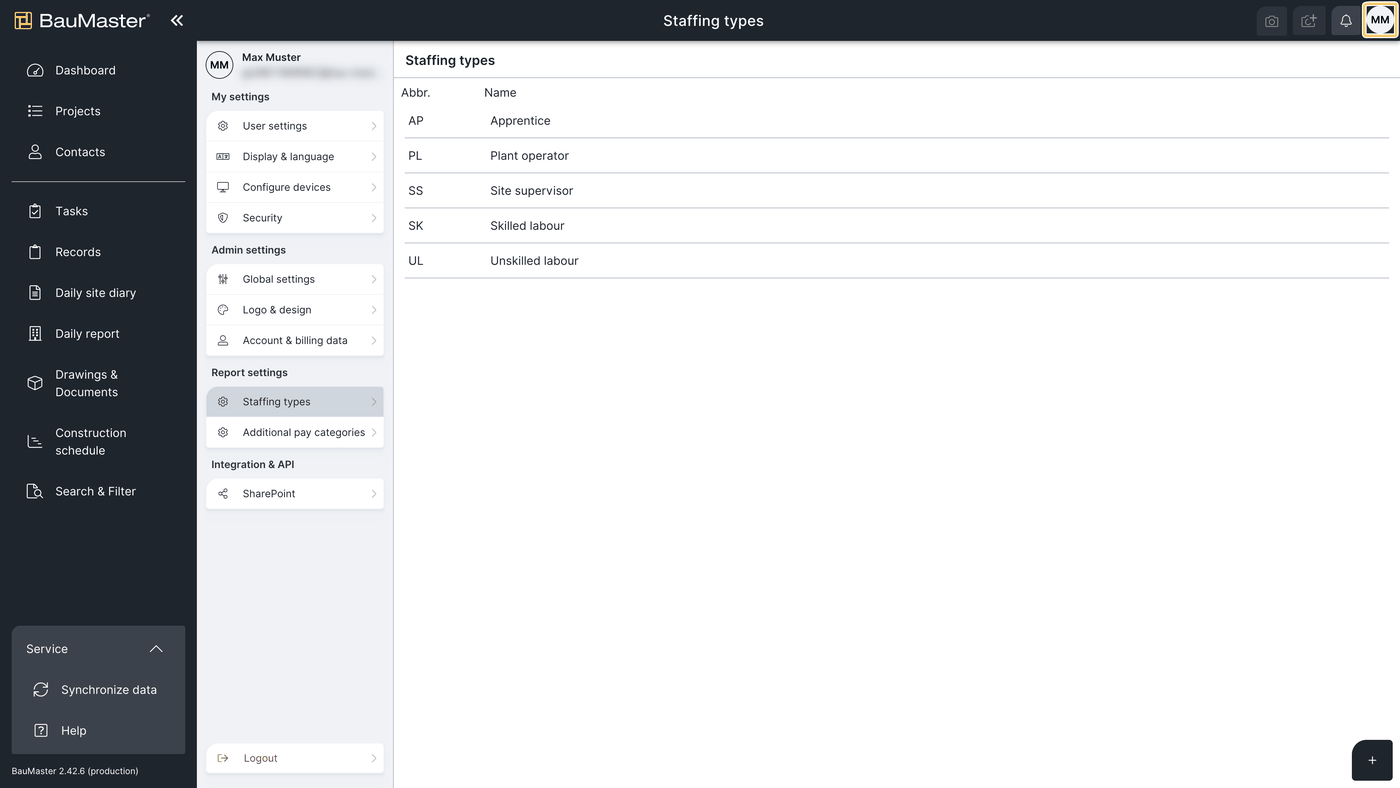
The following settings are under “admin settings”. Only the account’s admin can make them. Login details, my user, email signature, display & language, devices and security belong to “my settings” — see Set up user settings.
Account & billing details (admins only)
Under “account & billing details” you find the areas account data, billing details and billing address. Under “account data” you edit your customer data and store your company details. There you also see the name of your company account in the system and your customer number.
Change the company account name: click the name under “account data” to change it.
Logo & design (admins only): company logo, header and footer banner
Under “logo & design” you upload your company logo, which then appears in the participant list and in the app on the dashboard and the construction schedule (display format 347 × 550). You also upload the header and footer banners for your PDF records in the formats specified there. Details in Upload logo, header & footer banner (company and project specific).
Global settings (admins only): required fields
Under “global settings” you define which details are required fields, for example “company” as a required field. These settings apply across all projects.
Custom field in the project settings (admins only)
Record entries have a freely definable custom field. Admins define the text for the custom field in the project settings. Besides notifications, this is the only project setting visible to admins only (the other project settings are also visible to Smart and Expert users) — see Overview of all project settings.
Record entries can also be filtered by this custom field.
Report settings (admins only): employment groups & salary allowances
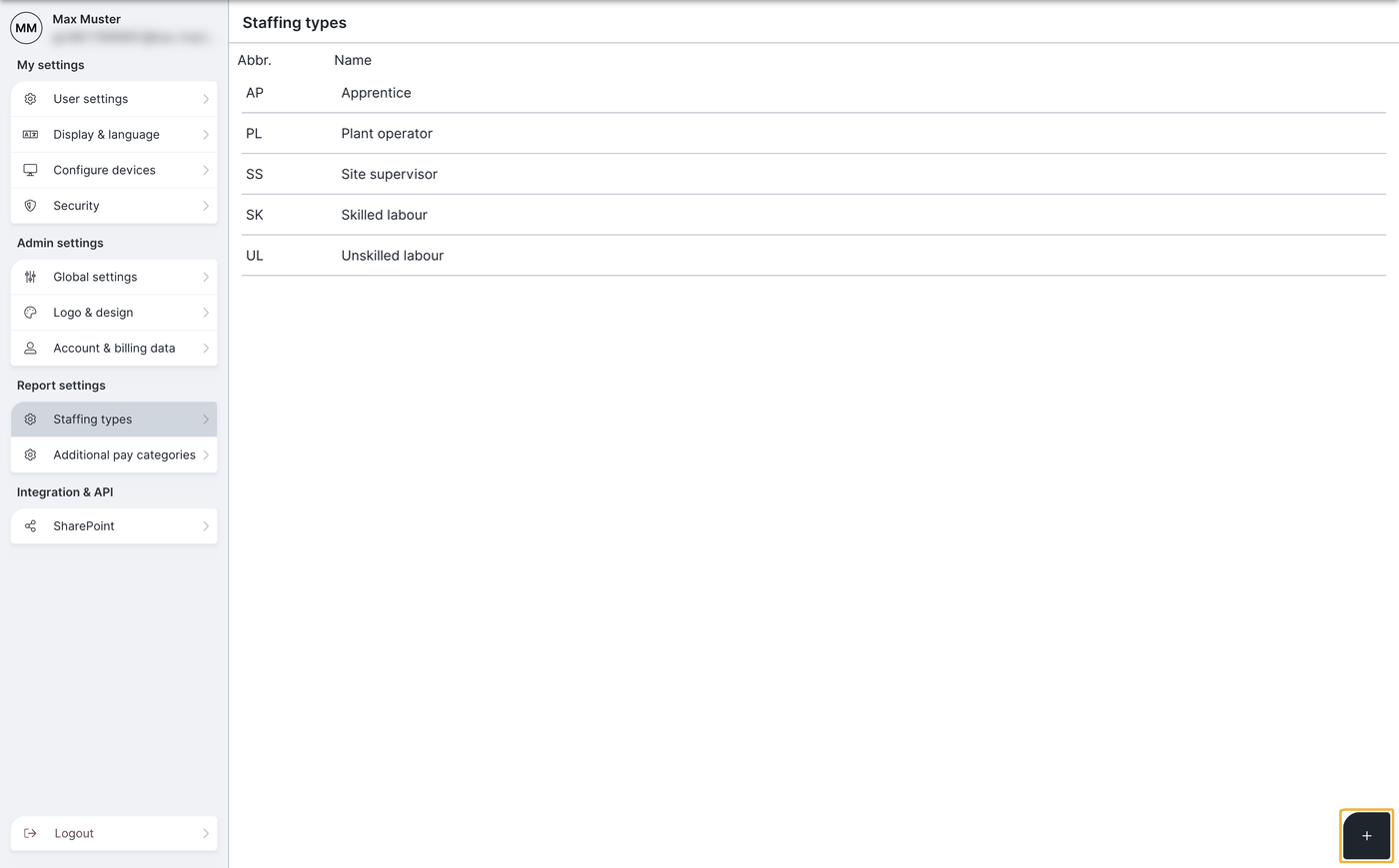
Here admins define the employment groups (professional qualification) and salary allowances (hardship allowances paid on top) for daily reports, daywork sheets and the site diary. More on these reports in Create, copy and send the daily report and Create, copy and send the daywork sheet. Use the plus at the bottom right to create new labels; click a row to edit it.
FAQ
Where do I find the admin settings?
Via the account menu at the top right (circle with your initials) under “settings”. As an admin you see the admin settings there in addition to “my settings”: global settings, logo & design, account & billing details, AI settings, report settings and integration & API (with SharePoint and BauMaster MCP).
How do I change the name of my company account?
As an admin under “account & billing details → account data”: click the name and change it.
Where do I upload the company logo and banner?
As an admin under “logo & design”. The company logo appears in the participant list and in the app on the dashboard and the construction schedule; header and footer banners apply to your PDF records.
Where do I see my customer number?
As an admin under “account & billing details”. The name of your company account and the customer number are shown there.
Where do I define employment groups and salary allowances?
As an admin in the account menu under “settings → admin settings → report settings”. Use the plus at the bottom right to create new entries. The settings apply to all projects.
How do I define required fields?
As an admin under “admin settings → global settings”. There you define which details are required fields, for example “company”.
Where do I change the display language?
That is a personal setting. You find it under “settings → my settings → display & language”, see “Set up user settings”.
Keywords: account settings