Set up user settings
Under “my settings” you define your personal settings: user settings (login details with email and password reset, my user with your user data — user name, role, licence and add-on —, email signature), display & language (display language, light or dark mode), manage devices and security. You find everything in the account menu at the top right under “settings”. “My settings” is visible to all users — admins additionally see the “admin settings” area after it.
Open the user settings
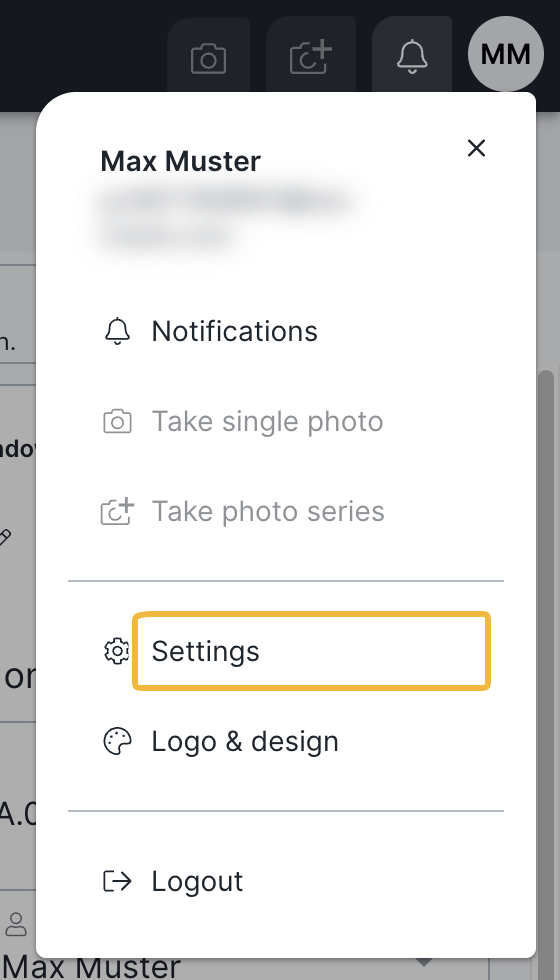
Open the account menu at the top right (circle with your initials) and tap the gear icon “settings”. The view lists user settings, display & language, manage devices and security on the left under “my settings”; admins additionally see the “admin settings” area after it. There you make all personal settings.
What you can set here
- Login details: your email address for signing in is shown directly under “login details”. You can also reset your password there.
- My user: here you see your user data: your user name, your role, your assigned licence and any add-on (reports add-on, for example). As an admin you also see all users with their licence type under “contacts → my company”; in your own contact you see your licence type and whether you are an admin at the top. More in Licences, roles & permissions.
- Email signature: your signature for sending records and reports by email — with closing, name, company logo and company details as you like.
- Display & language: the display language of the interface (German, English, French or Italian) and light or dark mode.
- Manage devices: you can use BauMaster on up to 3 devices (PC, tablet and smartphone) and sign devices out.
- Security: set up two-factor authentication (2FA).
Manage devices
A user can use BauMaster on up to 3 devices, for example PC, tablet and smartphone. Under “manage devices” you see these devices and can sign one out when you want to use another instead.
Security (two-factor authentication)
Under “security” you protect your sign-in with two-factor authentication (2FA). The steps are in Set up two-factor authentication (2FA).
FAQ
How do I change my display language?
Open the account menu at the top right and the gear icon “settings”, then choose the language you want under “my settings → display & language” (German, English, French or Italian).
Where do I see which licence is assigned to me?
In the user settings under “my user”. Your assigned licence is stored there. You also see your licence type and whether you are an admin at the top of your own contact; as an admin you see all users with their licence type under “contacts → my company”.
How do I set up my signature?
In the user settings under “email signature” you create your signature — with closing, name, company logo and company details, for example. It is used for sent records and reports.
How do I switch between light and dark mode?
You find the switch between light and dark mode under “my settings → display & language”.
How many devices can I use with my user?
Up to 3 devices, for example PC, tablet and smartphone. Under “my settings → manage devices” you sign a device out when you want to use another.
How do I reset my password?
In the user settings under “login details”. If you can no longer sign in, the “forgot password” article helps.
Which settings do only admins see?
Admins additionally see the admin settings: global settings, logo & design, account & billing details, AI settings, report settings and integration & API (with SharePoint and BauMaster MCP). Details in “Set up account settings (for admins)”.
Keywords: user settings