BauMaster MCP
In brief: BauMaster MCP connects external apps and AI systems with BauMaster data. MCP stands for Model Context Protocol. An app only sees data that the connecting user may see in BauMaster. Access is limited to projects of your own company account; connected projects are not available.
Basic principle: MCP access follows the data that the connecting user may see in BauMaster.
What is BauMaster MCP?
BauMaster MCP is the interface through which external apps and AI systems can access BauMaster data. MCP stands for Model Context Protocol and is an open standard for structured access to data of other applications.
The scope actually available depends on the MCP functions provided and on which data the connecting user may see in BauMaster.
Examples:
- Site manager Sarah has her AI app create an evaluation of the open tasks in the project.
- A project manager has open points from records summarised and prepared as a basis for tasks.
Data and scope of functions
The scope of functions focuses on reading data. Basic data records can also be created and updated via MCP. Deleting is not possible via MCP: companies, contacts, owners/tenants and projects can be created and edited, but not removed.
Only projects of your own company account are available via MCP. Connected projects cannot be accessed.
Reading:
- Project information
- Records and record entries incl. comments
- Tasks incl. comments
- Reports, e.g. daily reports and daywork sheets, site diary
- Contacts and owners/tenants of a project
- Project and account values such as trade, location and unit
- Levels and units
- Files from “Drawings & documents” and PDF drawings
- Sent emails including metadata and seen status
- Construction schedule
Writing and updating:
- Companies and their contacts
- Owners/tenants
- Projects with project data such as address and so on
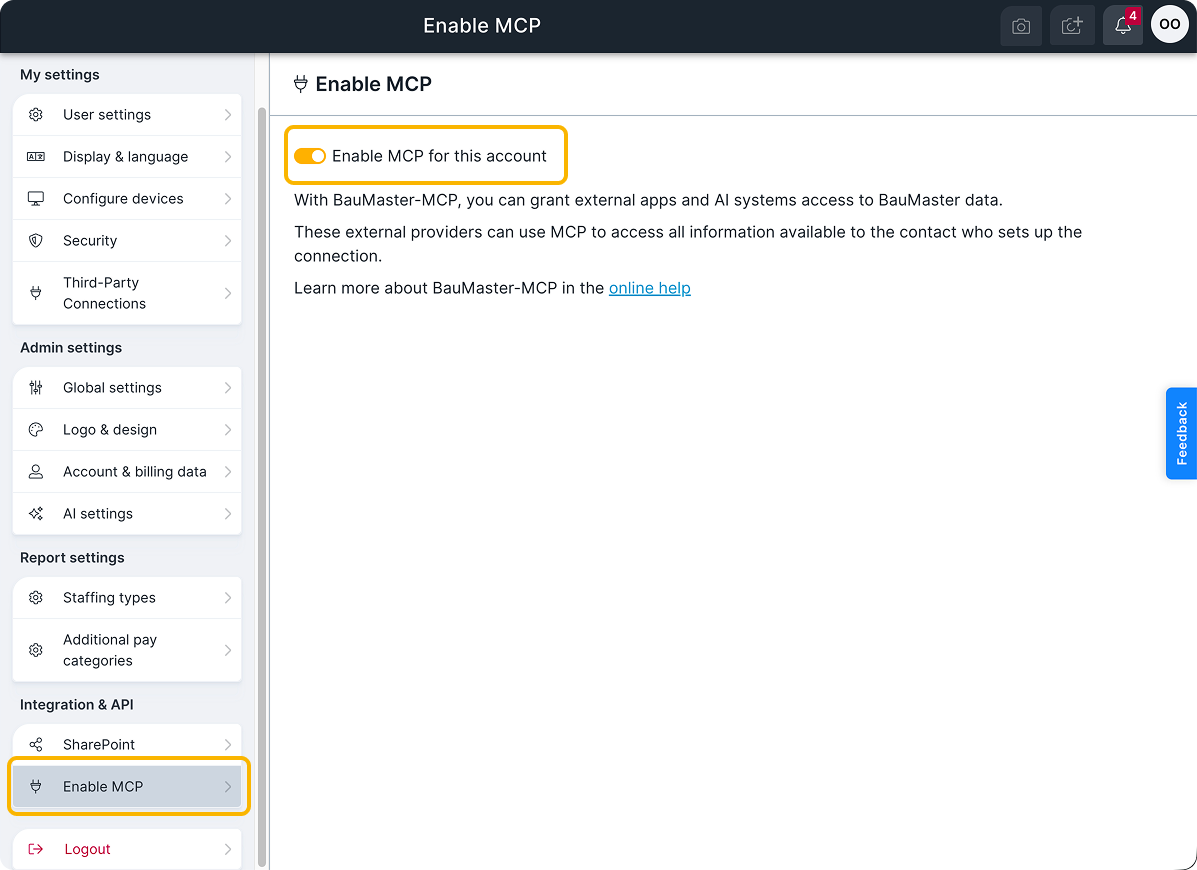
How do I activate BauMaster MCP?
Only an admin with an Expert licence can activate BauMaster MCP for the company account.
- Open the account menu at the top right and choose “Settings”.
- Under the admin settings, open the “Integration & API” area and there “Enable MCP”.
- Switch on “Enable MCP for this account”.
Which permissions belong to which licence is described in Licences, roles & permissions.
How do I connect an AI app with BauMaster?
- Open the settings in your AI app, for example Claude or ChatGPT.
- Open “Connectors” or a similarly named area and add a new connector.
- Enter the MCP server URL
https://api.bau-master.at/mcpand start the connection. - Sign in with your BauMaster user name and password.
The AI app only sees data that you may see in BauMaster as well. The labels and steps can differ depending on the AI app.
How do I disconnect an AI app from BauMaster?
After connecting, you see the connection under My settings → Third-party connections. There you can remove the connection; the AI app then has no access to BauMaster data.
Access and data protection
Before connecting an external app, check which data it needs and which data protection and terms of use apply at the respective provider.
These rules apply:
- Every internal user of the company account can use BauMaster MCP – Viewer, Smart and Expert. An admin activates the interface.
- The AI app only sees data that the connecting user may see in BauMaster.
- Access is limited to projects of your own company account. Connected projects are not available.
FAQ
What is BauMaster MCP?
BauMaster MCP is an interface through which external apps and AI systems can access BauMaster data. MCP stands for Model Context Protocol.
Who can activate BauMaster MCP?
An admin with an Expert licence can activate BauMaster MCP for the company account.
Which AI apps can I connect?
Any AI app that supports MCP as a connector, for example Claude or ChatGPT. The labels and steps differ depending on the AI app.
Which data does a connected AI app see?
A connected AI app only sees the data available via MCP that the connecting user may see in BauMaster. Access is limited to projects of your own company account; connected projects are not available.
Can I exclude individual projects from MCP access?
No. BauMaster MCP has no project exclusion list.
Who can use BauMaster MCP?
Every internal user of the company account – Viewer, Smart and Expert. The prerequisite is that an admin has activated BauMaster MCP for the account.
Can an AI app delete data via MCP?
No. Via MCP data can be created and edited, but not deleted. This also applies to companies, contacts, owners/tenants and projects.
How do I remove a connection?
Under My settings → Third-party connections you see all connections of your user and can remove them there.
Keywords: BauMaster MCP