Assign licences and manage users
In BauMaster permissions and licences are independent of each other: permissions (admin or user) determine what someone may see and manage; the licence (Viewer, Smart or Expert) determines the scope of functions. Only an admin assigns both, in contacts.
Companies and people
In contact management every person is subordinate to a company. Per person a licence (Viewer, Smart or Expert) and a role in the company account (admin or user) are assigned. Before you invite an employee, first create them as a person in your company — see Create and manage contacts.
Create and invite employees
- Open contacts and your own company. As an admin you see there under licences which licences you have and how many. The employee overview is only visible on a PC.
- Click Invite next to the employee without an account. The person receives an invitation email to BauMaster. When inviting you choose the language of the email.
- If the invitation does not arrive, click resend invitation.
Good to know: you can invite any number of your own employees free of charge as Viewers. Only admins invite Viewers and Teamworkers; users without admin rights can only invite Teamworkers. You then assign invited people to the project team. Viewers have the same limited scope of functions as Teamworkers of external companies and additionally see your company’s contacts. All functions: Viewer & Teamworker in BauMaster. For new colleagues we recommend training or the handbook with the video tutorials.
Permissions
Permissions define what and how much an employee sees — independent of the licence type. There are two roles:
- Admin
- User
The admin sees all projects, can create new projects and puts the project team together by assigning users and external partners to it. How to assign people to a project is shown in Assign people to the project team. You can make any number of people admins. Admin rights require a Smart or Expert licence — Viewers and Teamworkers can never be admin.
Whoever took a test account first is automatically an admin.
Licences
Depending on how many and which licences your company (company account) has acquired, you assign employees the appropriate licence. BauMaster offers the Viewer licence (free), the Smart licence and the Expert licence. In addition there is the reports add-on (daily report, daywork sheet, site diary): it is already included in Smart and Expert and can be acquired additionally for Viewers. The reports add-on exists only for Viewers (not for Teamworkers), costs 25 euros (for monthly and annual payment) and requires at least one Smart or Expert licence in the account. New customers acquire it in the app, existing customers by email. The add-on is assigned in the “licences” dialog under “reports licence” (see below). How they differ is shown in Smart licence vs. Expert licence. Only users with the admin role can acquire and assign licences.
Example: a company has bought 1 Smart and 2 Expert licences but has assigned only one Expert licence so far. The admin can assign another person a Smart or Expert licence. Smart and Expert already include the reports (daily report, daywork sheet, site diary); a Viewer can additionally be assigned the reports add-on in the “licences” dialog under “reports licence”.
As an admin, assign or change licence and role
- Open contacts. Your own company (my company) is at the top.
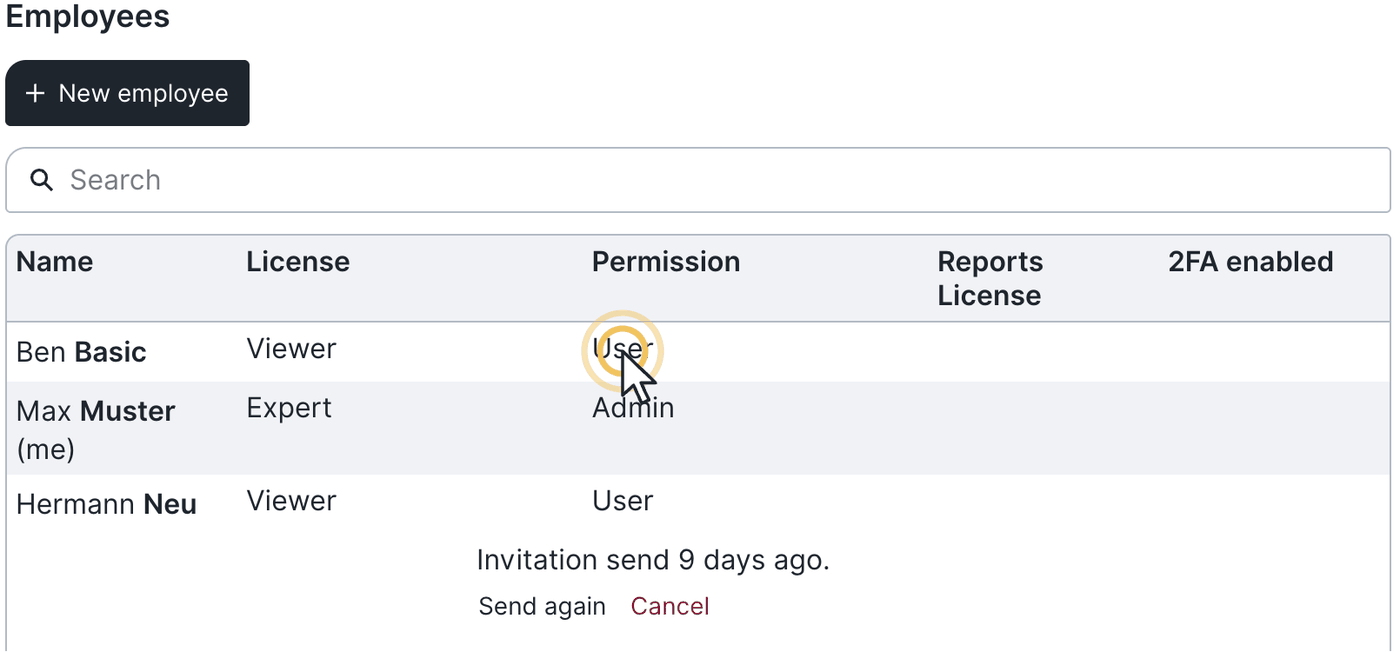
- Click your company name — the overview of all employees and users appears.
- Click the “permissions” column next to the employee you want. The “licences” dialog opens.
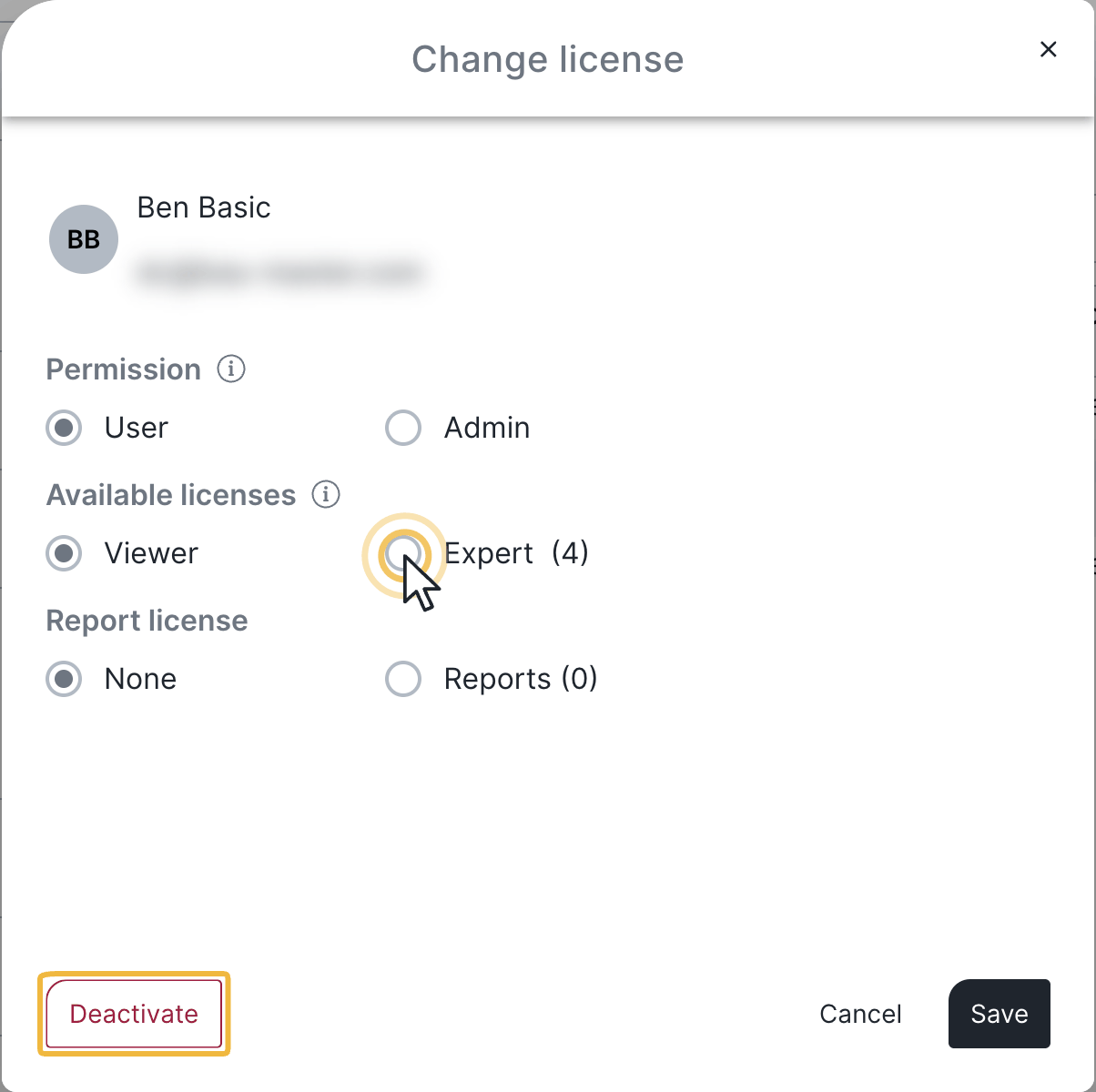
- In the “licences” dialog you set licence (Viewer, Smart or Expert), permissions (admin or user) and, under “reports licence”, the reports add-on. Here you can also deactivate or reactivate the employee (bottom left).
Reactivate: if an employee is deactivated and should be activated again, click “deactivated” in the overview and then activate in the dialog. The employee can then sign in again.
You don’t know which permissions or licence you have?
Click the account menu, then settings and user settings. Under “my user” you see in your user data which licence you have and whether you are an admin or user. Your own contact also shows your licence type and whether you are an admin at the top.
Devices per user: how many devices can I use?
A BauMaster user can be signed in on up to three devices at the same time. Under account menu → settings → my settings → manage devices you see the currently signed-in devices and can remove them via the cross. That ends the session and frees the device for another sign-in.
If you sign in on a PC with Chrome and Edge at the same time, for example, that counts as 2 sessions. Certain browser security settings can also cause every tab to count as its own session.
FAQ
What is the difference between permissions and licences?
Permissions (admin or user) determine what someone may see and manage. The licence (Viewer, Smart or Expert) determines the scope of functions. Both are independent of each other.
How do I change an employee's licence?
As an admin under “contacts”: open the company name, click the employee’s “permissions” column and assign the licence you want in the “licences” dialog.
How do I deactivate or reactivate an employee?
In the same dialog (contacts → company → employee) at the bottom left. To reactivate, click “deactivated” in the overview and then “activate”.
How many devices can I be signed in on at the same time?
Up to three devices. You see and remove signed-in devices in the account menu under “settings → my settings → manage devices”.
How do I know which licence and permissions I have?
In the account menu under “settings → user settings → my user”. There you see your licence and whether you are an admin or user. Your own contact also shows it at the top.
How do I invite an employee and what does it cost?
Create the employee as a person in your company and click “invite” in the employee overview (PC only). As a Viewer this is free and possible any number of times. For the full scope of functions the person needs a Smart or Expert licence.
Can I change licence and role later?
Yes, at any time: contacts → company → employee, then click the “permissions” column.
Does the role depend on the licence?
Partly. Smart and Expert users can be admin or user. Admin rights, however, require a Smart or Expert licence — Viewers and Teamworkers cannot be admin.
What if the invitation did not arrive?
Click “resend invitation” next to the employee. You choose the language of the invitation email when inviting.
Keywords: assign licences