Project costs (additional and reduced costs)
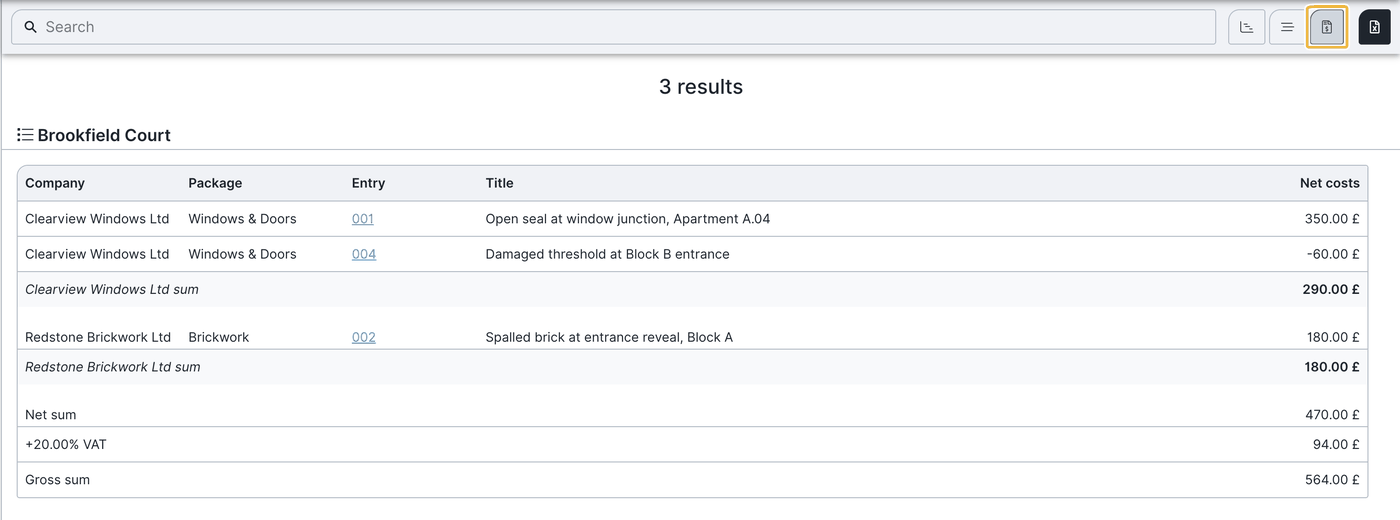
In brief: project costs give you an evaluation of all additional and reduced costs of a project — with net amounts, the tax rate stored at project level (added below to give the gross amount), subtotals per company and a total. The amounts come from the “costs” field in tasks and record entries.
Prerequisites: the cost evaluation is included exclusively in the Expert licence. The view is only available on larger screens (desktop/tablet) — it is not shown on a smartphone.
What project costs show
In the cost evaluation you see:
- a breakdown of additional and reduced costs on individual tasks/defects
- an overview of the net amounts (the VAT rate is added below, showing the gross amount),
- the tax rate (VAT) at project level,
- and an evaluation of additional and reduced costs per company and in total.
Capture costs
Additional and reduced costs are captured directly on the individual tasks and record entries in the “costs” field. How to create such entries is described in Create, copy and move record entries.
Open the cost evaluation
You evaluate captured costs via search & filters — there you filter by the “costs” field like any other detail field:
- Open search & filters in the burger menu (main menu on the left).
- Set the filters according to your criteria — by trade, project or unit, for example.
- Click costs at the top right — the cost view appears: a tabular list of all additional and reduced costs with company, trade, entry (linked), short text and net costs.
Depending on the filter you set, you get the matching cost overview — all additional and reduced costs of a trade, a project or a unit, for example.
Totals and tax rate
- A subtotal is formed automatically per company; all subtotals together give the total net sum.
- The VAT rate stored on the project is shown as a percentage (left) and as an amount (right) and added to the total net sum — that gives the gross amount, as on a normal invoice. You store currency, language and the tax rate (VAT in %) in the project settings of the respective project: in the projects menu select the project and enter the tax rate under settings.
The cost view always shows the net costs; only at the bottom is the VAT rate stored on the project added (gross). Whether the costs given in a record entry are calculated with or without VAT is defined in the record via the three-dot menu > edit details with a checkbox.
Export the cost evaluation as an Excel file
You export the cost overview via search & filters as an Excel file — costs cannot be output as PDF:
- Set the filters you want in search & filters (trade, project or unit, for example).
- Choose “costs” at the top right.
- Click “export Excel”.
Change a cost amount
To adjust an amount, click the blue-shaded entry number and jump directly into the respective entry.
FAQ
Which licence do I need for the cost evaluation?
The Expert licence. Everything around costs (evaluation, tax rate, gross/net) is reserved for Expert users. Smart users see entered costs in the PDF record but cannot enter anything in the “costs” field.
Why don't I see project costs on my smartphone?
The view is only available on larger screens (desktop/tablet).
Where do the displayed amounts come from?
From the “costs” field in tasks and record entries.
Do I see gross or net amounts?
The cost view always shows the net costs; at the bottom the VAT rate stored on the project is added (gross). Whether the costs of a record entry are calculated with or without VAT you set in the record via three-dot menu > edit details with a checkbox.
Where do I set the tax rate?
In the projects menu select the project and enter the tax rate under settings.
Can I create a calculation or quotation with the project costs?
No. Project costs are an evaluation of captured additional and reduced costs — not a calculation or quotation tool.
Can I export the cost evaluation?
Yes — as an Excel file: set the filters in search & filters, choose “costs” at the top right and click “export Excel”. Costs cannot be output as PDF. The costs of an individual entry do appear on the entry in the PDF record.
Keywords: project costs