Target/actual comparison in the construction schedule
In brief: the target/actual comparison sets the planned dates (target) against the actual dates (actual) in the construction schedule. That shows you deviations immediately. The target/actual comparison is activated per project.
Prerequisites: the target/actual comparison is activated and deactivated per project and requires an Expert licence; users with a Smart licence cannot activate it; Viewers and Teamworkers can read and download the construction schedule.
What the target/actual comparison shows
- Target: the originally planned dates (baseline) of a phase or work item.
- Actual: the current, real dates in the running construction schedule.
When the comparison is active, the target values are shown below the actual values as additional bars — that makes deviations visible.
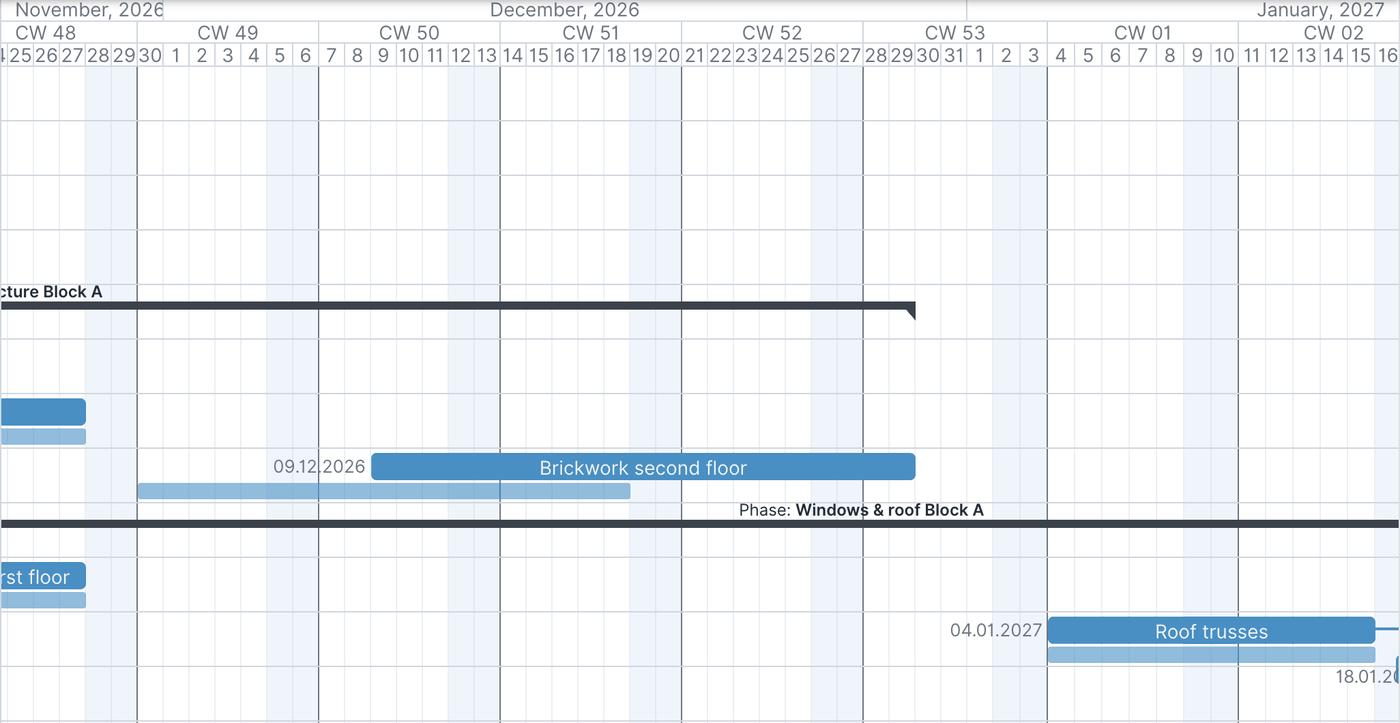
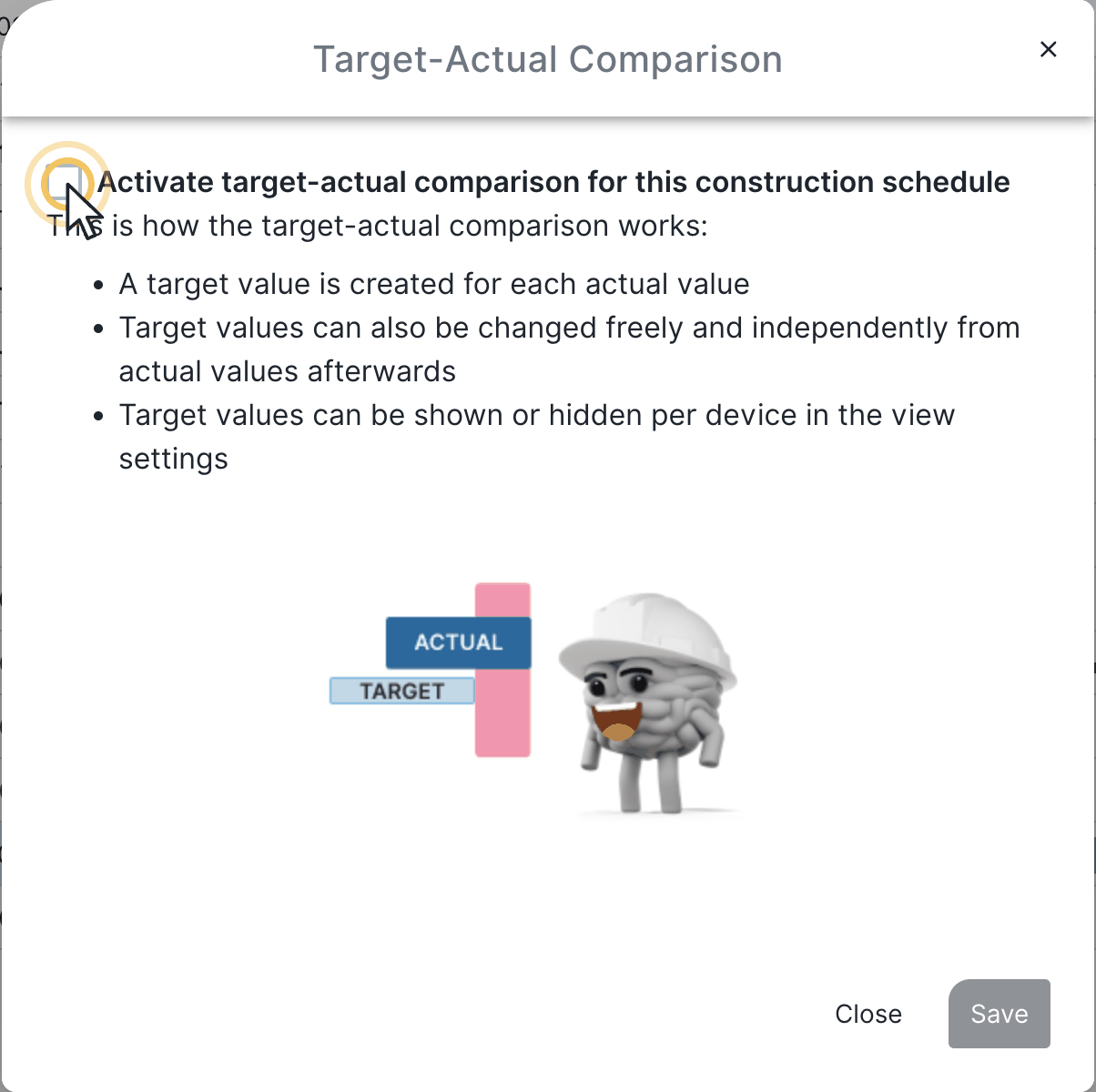
Activate for a project
Activate the target/actual comparison via the “construction schedule settings” button of the respective project (gear at the top right). Activation always applies only to the current project and must be done per project.
Adjust target values
You have two options:
- Via the bars: move the target bar below the actual bar with the mouse.
- Via the detail view: for precise input open the detail view of the phase or work item and enter the target values there (recommended).
Show and hide target values
Via the “my view” button you hide and show the target values as needed.
Deactivate the target/actual comparison
Via the “construction schedule settings” button you deactivate the comparison again.
Attention: deactivating deletes the target values and they cannot be restored.
FAQ
Does activation apply to all projects?
No, the target/actual comparison is activated and deactivated per project.
What happens to the target values when deactivating?
They are deleted and cannot be restored.
How do I enter target values most precisely?
Via the detail view of the phase or work item.
Keywords: target actual comparison construction schedule