Create and manage the construction schedule
In brief: the construction schedule in BauMaster is your Gantt-based scheduling — exactly one per project. You structure the project into construction phases, work items and milestones, set duration and dependencies, take non-working days into account and output the schedule as a PDF.
Terms in the construction schedule
Construction schedule: Gantt-based scheduling; exactly one per project.
Construction phase / section: the construction phase is the superordinate phase (structural work, for example); sections sit inside it (screed, for example).
Work item / sub-item: the individual work steps in the schedule. In the construction schedule they are always called work item or sub-item — never “task”. Some work items are linked to tasks or record entries.
Milestone: a fixed date in the construction schedule, for example “screed finished”; possible on every level.
Task ↔ work item: a task or record entry can be shown as a work item in the construction schedule. The details are synchronised — title, dates, trade and status — but not the hierarchy (main/sub-task or work item/sub-item). Details: Show tasks & entries in the construction schedule.
Prerequisites: the construction schedule is part of the Expert licence. Creating, editing, import/export (button with icon at the top right) and PDF output are reserved for the Expert licence. Viewers and Teamworkers can read and download the construction schedule. Users with a Smart licence cannot edit the schedule and cannot produce a PDF output. Currently only one construction schedule can be created per project. Construction schedules can also be copied.
Create a new construction schedule or copy one
You either create a construction schedule from scratch or copy construction phases including work items from a similar project. That pays off especially for sequences that are always the same — screed, for example (see “copy work items”).
Tip: create a sample project with a sample construction schedule and copy it into new projects. That saves you recurring standard phases and work items.
By the way: every result of the global search can also be output as a Gantt view. That is a view only, not a separate construction schedule — more under Search & filters.
The essentials at a glance
- The construction schedule is independent of records and tasks. You can, however, additionally show tasks and record entries as work items in the construction schedule.
- You can create up to five levels: construction phase › construction phase/section › work item › sub-item › milestone. The levels are not rigid — a work item or milestone can also sit on the top level.
- The schedule is filterable, copyable, groupable and exportable.
Create construction phases and work items
The construction schedule is divided into superordinate construction phases and subordinate work items. A construction phase automatically spans from the first to the last subordinate work item.
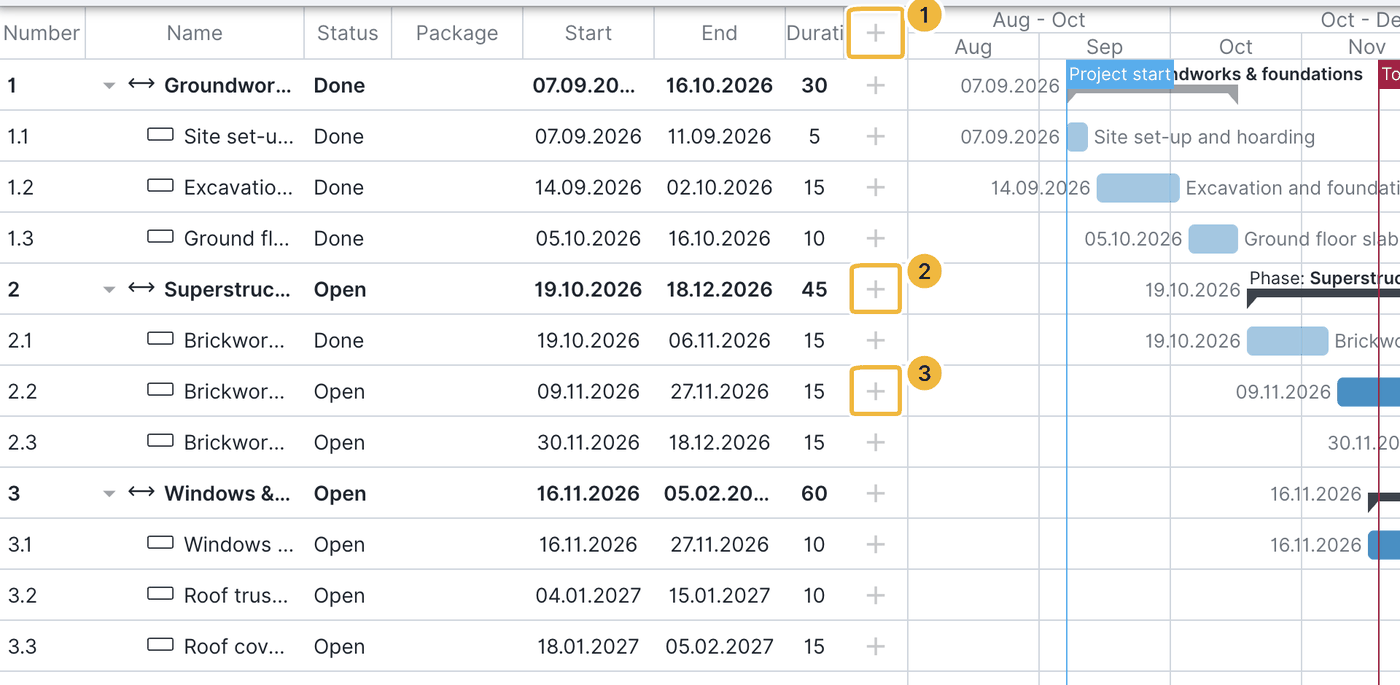
- With the topmost plus you create a new construction phase, a work item or a milestone.
- With the plus on a construction phase you create a further construction phase/section, a milestone or a work item. “Work item” is preselected by default — for a further construction phase choose type › construction phase.
- With the plus on a work item you add a sub-item or a milestone.
What can contain what:
- A construction phase can contain further construction phases, work items and milestones.
- A work item can contain sub-items and milestones — but a work item or sub-item cannot contain a construction phase.
- A milestone can contain no construction phase and no work item.
The five levels using a practical example
- Superordinate construction phase “building fit-out”
- Sections such as “building envelope” or “interior fit-out”
- Work items such as “interior plaster”, “painter”, “drywall”, “screed”
- Sub-items such as “ground floor screed”, “upper floor screed”
- Milestone (possible on every level), for example “screed finished”
Set the duration
You enter the duration of a phase or work item either via a from-to date or via a from date plus the number of working days. Weekends and configured non-working days are taken into account.
Dependencies
You define dependencies with arrows — from work item to work item, from phase to phase, and between work item and phase. There are two kinds:
- Flexible dependency — blue line
- Fixed dependency — red line
Create: drag with the mouse held down from a circle at the edge of one work item to the circle of another — an arrow appears automatically between them.

Edit/delete: double-click the circle to edit, fix or delete the connection.
Move by drag & drop
Selected phases and work items are highlighted in blue and can be moved forwards or backwards with the mouse held down — the date adjusts automatically. If you move a whole construction phase, all work items, sub-items and dependencies move with it unchanged.
Important key combinations:
- CTRL + left mouse button: select individual entries
- Shift + left mouse button: select all entries between two phases or work items
Working days, non-working days and calendars
In the construction schedule you take predefined public holiday calendars (Germany and Austria) into account as well as your own non-working days (company holidays, for example).
- Via add calendar you choose a predefined calendar.
- Via + non-working days you store your own days or periods.
Non-working days are coloured red in the schedule; dependencies take them into account.
Saturday and Sunday as working days
By default Saturday and Sunday do not count as working days. You can change that in the settings.
Control the view
- Project switch: switch between projects.
- Magnifier / corner symbol: adjust the view or show the entire period of all phases and work items.
- Funnel (filter): filter by trade, status (open/done) and start and end date.
- My view: adjust the screen view and group rows (line up work items by trade, for example).

With an active filter no changes are possible in the construction schedule.
Settings
You open the settings via the gear at the top right. Through the construction schedule settings you control, among other things, the grid (name, status, trade to the left of the Gantt chart), the visible columns, the display of weekends, the start date, the alternating row highlight, the non-working days and the target/actual comparison, see Target/actual comparison in the construction schedule.
Copy work items
If you have created a sample construction schedule, you can copy construction phases including work items into other projects or duplicate them in the current project. Copying a work item always copies the entire hierarchy with it.
Display specifics
- If a work item’s name is too long for the bar, it appears next to it.
- Overdue, open work items (status “open” before today’s date) get a warning sign.
- Completed work items are shown more transparently.
- The start date sits to the left of the phase or work item.
- “Summarise work items”: double-click a work item and enable “summarise work items” to show collapsed sub-items as bars side by side or stacked in one row.
- Change level: by drag & drop a phase or work item can also be moved within the hierarchy.
Delete construction phases, work items or milestones
To delete, double-click the element and choose Delete.
Deleting cannot be undone.
Output the construction schedule as a PDF
You output the construction schedule as a PDF for printing and distribution. PDF output is only possible with an Expert licence.
You set:
- Paper size (A0–A5)
- Page orientation (landscape or portrait)
- Zoom (week, month or fitted to the format)
- Title, date, address and construction period as well as a description for the title block
PDF output cannot be limited to a period: phases touching the chosen period are always shown in full.
FAQ
How many construction schedules can I create per project?
Exactly one.
Who may see and edit the construction schedule?
Creating, editing, import/export and PDF output are reserved for the Expert licence. Viewers and Teamworkers can read and download the schedule; users with a Smart licence cannot edit it.
Can I exclude individual Teamworkers from the construction schedule?
Not currently — all Teamworkers see the schedule. Finer control will come with the upcoming role and permission features.
Can I share the construction schedule by email with non-Teamworkers?
Not currently; this feature is planned.
Can I limit the PDF output to a period?
No. Phases touching the period are shown in full.
Why can't I change anything with an active filter?
With an active filter the schedule is read-only — clear the filter to make changes.
Can I move a work item to another position afterwards?
Yes. Select the work item and drag it to the position you want; the hierarchy level can be changed that way too.
Can I undo an accidental change in the construction schedule?
Not currently — there is no undo function. In an emergency contact support; our technical team will try to restore the previous state.
Keywords: construction schedule