Show tasks and entries in the construction schedule
In brief: tasks and record entries can be shown in the construction schedule as a work item. Title, status, trade and dates are synchronised between work item and task or entry; start and end date are then changed only in the construction schedule. That gives your project team a visual overview of the timeline.
Prerequisites: a task can only be shown as a work item if it has both a “to be done from” and a “to be done by” date. Only users with an Expert licence can create and edit a work item in the construction schedule, because only they may edit the schedule. Users with a Smart licence cannot create or edit work items; Viewers and Teamworkers can read and download the construction schedule. The same steps apply to record entries.
Task, entry, work item: a work item is the mirrored representation of a task or record entry in the construction schedule. If you show a task with a sub-task, two work items are created: a work item and a sub-item.
Show a task as a work item in the construction schedule
Tasks with a “to be done from” AND “to be done by” date can be turned into a work item. If one of the two dates is missing, that is not possible.
- Click the Gantt symbol next to the “to be done by” field and choose “create work item”.
- The new work item is inserted at the top of the construction schedule. With “to the work item” you open the schedule directly; the new work item is selected.
- Then drag the work item to the position you want — directly under a construction phase or as a sub-item of an existing work item.

Synchronisation task ↔ work item
Once the connection is made, the details — title, start and end date, trade, status and so on — are synchronised between construction schedule and task or record entry. Dates therefore stay consistent in the task list, the record and the construction schedule.
Important: the start and end date of a task or entry shown as a work item can no longer be changed in the task or entry — only directly in the construction schedule. Only a user with an Expert licence can do that.
The hierarchy is not synchronised: if you move a sub-item under another work item, or turn a sub-task into a main task, that is not transferred.
Edit a work item in the construction schedule
Double-click the time bar or the name in the “name” column to open the work item for editing.
Turn a work item into a task or an entry
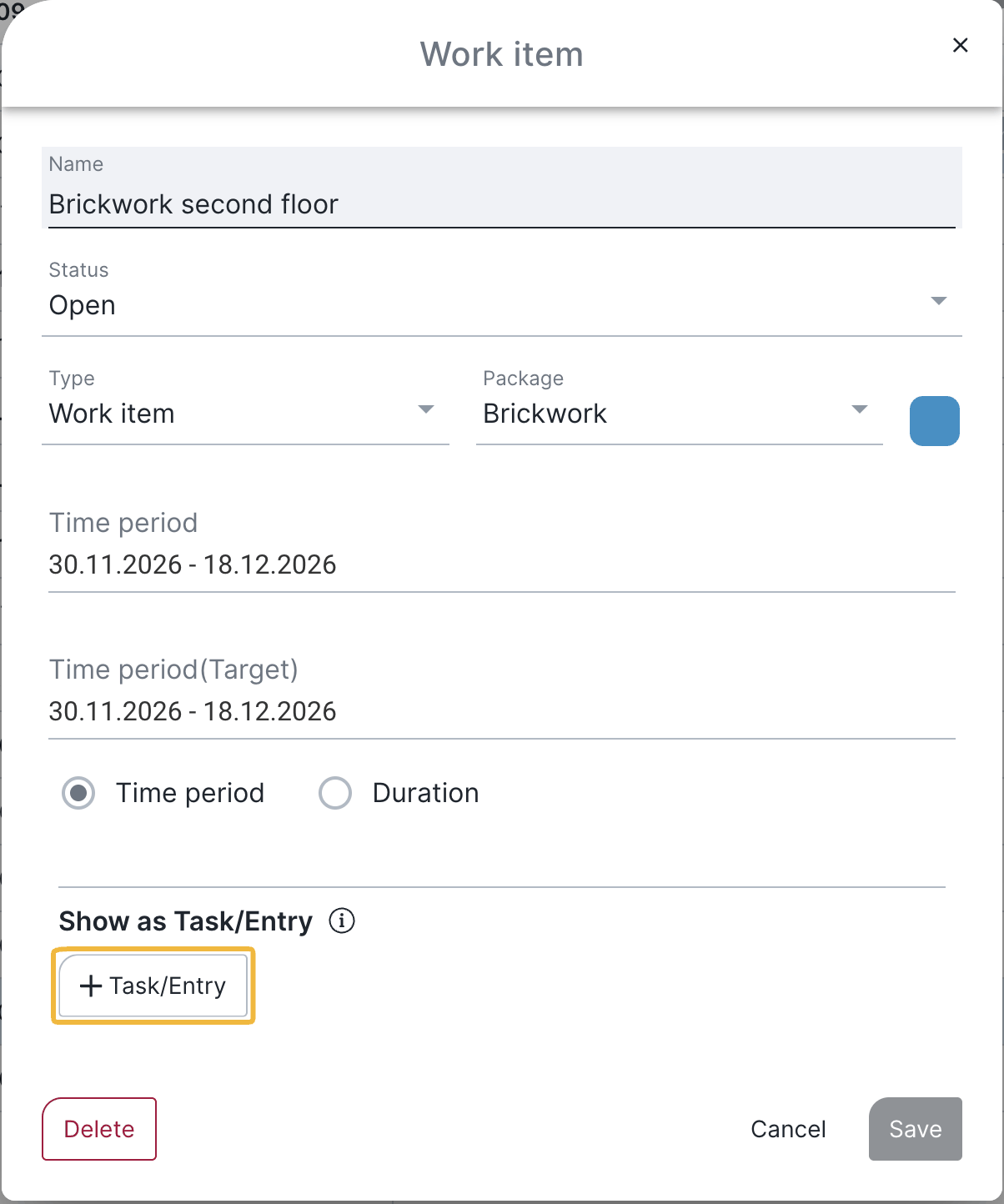
- Double-click the work item — the “work item” dialog opens.
- Click “+task/entry”.
- Choose whether a task or a record entry should be created. For an entry also choose the corresponding record. Closed records are not available.
Detach the connection again
After double-clicking the work item, click Delete at the bottom left. You have two options:
- delete only the work item in the construction schedule, or
- delete the work item AND the task/record entry.
FAQ
Why can't I show my task as a work item?
The task is missing a “to be done from” or “to be done by” date. Both date fields must be filled in.
Do changes in the construction schedule affect the task?
Yes. Title, dates, trade and status are synchronised. The hierarchy (main/sub-task) is not transferred.
Why can't I change my task's date any more?
The task is shown as a work item in the construction schedule. Start and end date are then changed only in the construction schedule — that requires an Expert licence.
Can I turn a work item created in the construction schedule into a task?
Yes, via “+task/entry” in the work item dialog.
Who can create or edit work items?
Only users with an Expert licence. Users with a Smart licence cannot create or edit work items; Viewers and Teamworkers can read and download the schedule.
Keywords: work items construction schedule