Invite Teamworkers: involve project participants free of charge
In brief: you can invite any number of Teamworkers free of charge — external partners such as subcontractors, tradespeople, specialist planners or clients — and assign them to your projects (invite and then assign — or assign an existing contact to the project first and then invite them as a Teamworker). You send the invitation in a few steps from contact management. Once the invited person accepts, they work with their own BauMaster account on the tasks and entries they may see.
Teamworker or Viewer? The Teamworker is the free licence for external partners of another company. For employees of your own company there is the equivalent free licence Viewer — both can do functionally the same. How to involve your own employees is described in Assign licences and manage users. The whole licence model is explained in Licences, roles & permissions.
1. Who may invite Teamworkers?
Only admins may invite internal employees (Viewer) and Teamworkers; non-admins can only invite Teamworkers. Whether the admin is a Smart or Expert user does not matter. The prerequisite is that the person is created as a contact in contact management — see Create and manage contacts.
2. Invite a Teamworker in 4 steps
You send the invitation directly from contact management. There are two routes: you invite the contact and then assign them to the project team (steps 1 to 4) — or you assign an existing contact to the project team first (step 4) and then invite them as a Teamworker (steps 1 to 3).
- Open the contact’s company and navigate to the contact.
- Click “invite” on the contact.
- Check the email address, set the language of the invitation and confirm with “invite”.
- Assign the contact to the project team you want — activate the slider on the project. Details: Assign people to the project team.
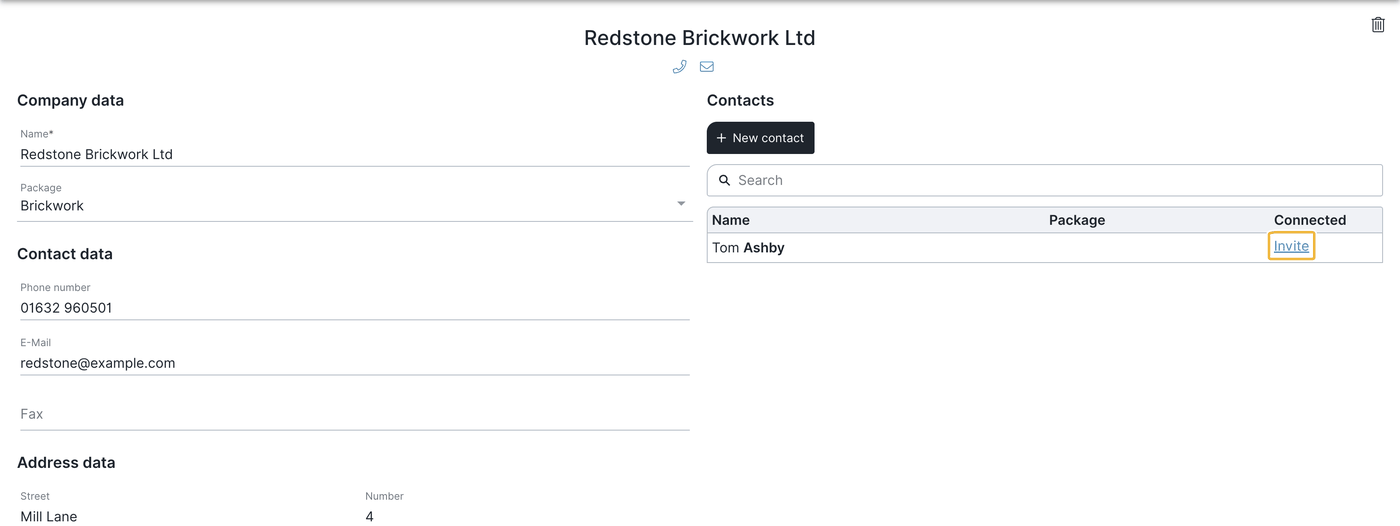
When is the invitation complete? Only when the invited person clicks the link in the invitation email. As long as the invitation has not been accepted you can cancel it or resend it.
It is best to inform the invited person in advance about the joint project handling in BauMaster so they expect the invitation email.
3. From the Teamworker’s point of view: accept the invitation
- Open the invitation email (the name of the inviter is at the end).
- Click the link in the email. Then:
- No BauMaster account yet: fill in the form and set your own password — that creates your account.
- Already have a BauMaster account: agree to the collaboration — no new account is needed.
- Sign in to BauMaster with email address and password — the assigned tasks and entries appear in the dashboard under “my tasks”.
The full guide from the Teamworker’s point of view is in Viewer & Teamworker in BauMaster.
4. What do I have access to after the invitation?
Attention — access applies to all projects: the connection to the Teamworker remains across projects. If the contact is already assigned to further projects, the Teamworker gets access to all projects whose project team they are in after accepting — not only the current one. So before inviting, check which project teams the contact is in — regardless of whether you invite them first or assign them to a project team first.
In each of these projects the Teamworker sees the tasks and entries they are entered as responsible for, or which are assigned to the whole project team, the active PDF drawings and all comments on them. A Teamworker does not see photo markers. All details on visibility and permissions are in Viewer & Teamworker in BauMaster.
For another project you do not need to invite the Teamworker again: simply assign the contact to the project team via the slider.
5. What can a Teamworker do?
With the free licence a Teamworker edits the tasks and entries assigned to them in their projects, writes comments, attaches photos and sees and downloads approved PDF drawings, the construction schedule and BIM files. Additionally they can:
- upload PDF drawings to an upload folder as an uploader — see Upload drawings for external planners
- review uploaded PDF drawings as a reviewer — see Review process for drawings
The full scope of functions — and what a Teamworker cannot do, such as creating records or publishing PDF drawings — is described in Viewer & Teamworker in BauMaster.
6. Frequently asked questions (FAQ)
FAQ
How many Teamworkers can I invite?
Any number. A company account can invite unlimited Teamworkers free of charge — costs arise only for the paid Smart and Expert licences and the reports add-on.
Can I invite employees of my own company as Teamworkers?
No. For employees of your own company there is the free Viewer licence. Viewers and Teamworkers can do functionally the same; the Viewer stays in the company account, however, and sees the company’s contacts. How to involve your own employees is described in Assign licences and manage users.
Can I withdraw an invitation or send it again?
Yes, as long as the invitation has not been accepted. Then you can cancel it or send it again.
What happens if the Teamworker already has a BauMaster account?
Then they do not create a new account but agree to the collaboration via the link in the invitation email.
Does a Teamworker only see the project I invited them to?
No. After accepting the invitation they see all projects whose project team they are in. So before inviting, check which projects the contact is already assigned to.
Can Teamworkers download PDF drawings?
Yes. A Teamworker can download approved PDF drawings, the construction schedule and BIM files. Records they download via the download link in the email sent to them. All details are in Viewer & Teamworker in BauMaster.
Which markers does a Teamworker see?
They see all active PDF drawings, but on them only the drawing markers of the tasks and entries they are responsible for or which are assigned to the whole project team. A Teamworker does not see photo markers. All details are in Viewer & Teamworker in BauMaster.
Do I have to invite a Teamworker again for each project?
No. The connection remains. For another project simply assign the contact to the project team via the slider.
Keywords: invite Teamworker