Navigation and user guidance in BauMaster
This overview explains the most important controls in BauMaster: burger menu, account menu, bottom bar (mobile devices only), back arrow, delete, priority flags, photo button and the navigation arrows in a record entry.
Burger menu
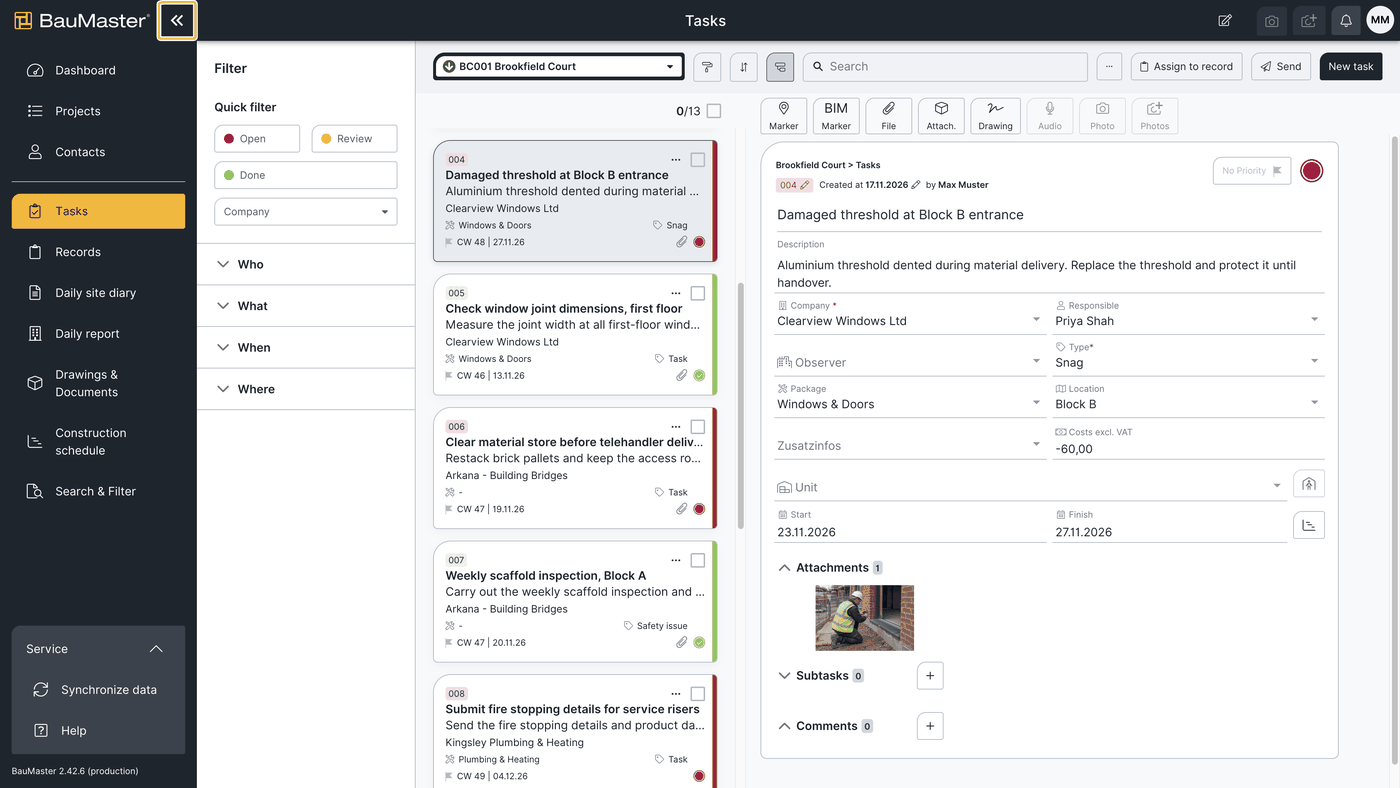
The burger menu is the button with the three horizontal lines. One click shows or hides it. It offers navigation that lets you switch quickly between the most used functions — wherever you are in the app.
Account menu
You find the account menu at the top right (a circle with your initials). It takes you to your user settings under “settings” and — as an admin — to the admin settings. More in Set up account settings (for admins).
Bottom bar (mobile devices only)
On smartphone and tablet the bottom bar stays permanently visible and gives you quick access to the most important functions. Unlike the burger menu it does not need to be opened first, but offers fewer navigation points. On a smartphone you see the same symbols as on a tablet — without labels, for clarity.
Back arrow
The back arrow takes you one step or one view back. It appears when you have opened a project, for example: one click returns you to the project overview. The same applies to records and record entries.
Delete (trash can)
The trash can symbol deletes a record entry with all its information and sub-entries directly in the entry details. For safety, BauMaster asks before deleting finally so nothing is removed by accident.
Priority flags
The flags mark the priority of a record point or sub-entry.
Photo button
The photo button opens your device camera so you can take a photo, edit it and store it directly in “Drawings & documents”. That way it is kept in the project’s central document store and can be found at any time — ideal for photos that should not be assigned to a record entry. More in Photo documentation: capture and manage photos.
Navigation arrows in a record entry
In a record you see the entries on the left and the detail view on the right. The two arrows page back and forward in the detail view so you can go through all record points one after another. Especially on a phone, where there is no split screen, this takes you quickly to the next point.
FAQ
How do I show or hide the burger menu?
Click the button with the three horizontal lines. Clicking again hides the menu. This works anywhere in the app.
Where do I find search?
Via the burger menu under “search & filters”. There you search and filter projects and records; every report can be output as PDF, only costs as Excel.
How do I delete a record entry?
Open the entry details and tap the trash can symbol. BauMaster asks before deleting finally.
Keywords: navigation BauMaster